
Different Merge Strategies in Git
Branches are a powerful feature that enables developers to work independently on features, fixes, or experiments. You quickly learn about them when you first start utilizing Git. However, each branch must eventually reunite. We call that process merging.
One of the most common and important tasks in Git is merging. Knowing how Git handles merges and the different merge strategies in Git can simplify your workflow and clean up your repository history, whether you are working with teammates, handling multiple feature branches, or maintaining a main branch.
The definition of merging, the purpose of merge strategies, the different kinds of Git merge strategies, and when to use each will all be covered in this guide.
| Key Takeaways: |
|---|
|
What is Git Merge?
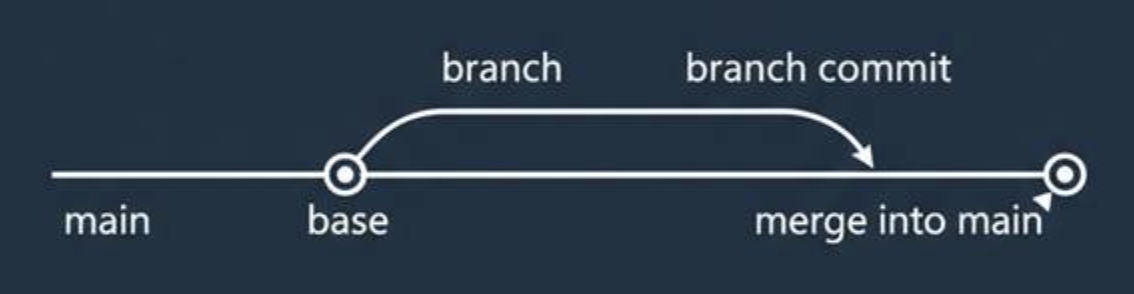
git checkout main
git merge feature/login
This tells Git, “Take all the commits from the feature/login branch that aren’t already in main, and combine them into this branch.”
Your current branch (in this case, main) will have all the new changes from the other branch when the merge is successful.
Before the process is complete, Git will ask you to resolve merge conflicts if two branches have made different changes to the same lines of code or files.
Why Do We Need Merge Strategies in Git?
Merging might seem easy in projects that aren’t too intricate. However, merges can get complicated as teams scale and you work on multiple long-running branches.
- Sometimes, both branches have often diverged significantly.
- Sometimes, several branches are being merged simultaneously.
- Sometimes, you wish to preserve a branch’s history while ignoring changes made to it.
Git provides merge strategies, which are guidelines or algorithms that specify how two or more branches are merged, in each of these situations.
In other words, a Git merge strategy informs Git on how to reconcile disparate histories during a merge.
git merge -s <strategy>
git merge -s ours feature/old-feature
This command merges the branch but instructs Git to use the “ours” merge strategy. It means that the changes made to your current branch will be maintained while the changes made to the other branch are ignored (we will look into this more in a moment).
The Default Git Merge Strategy
Git automatically chooses a relevant merge strategy based on the number of branches you are merging when you run git merge without any options.
By default, Git uses the recursive (or ort) strategy when merging two branches.
Git uses the octopus technique when merging over two branches simultaneously.
The majority of everyday situations are managed by these two tactics. Others, however, are included in Git for more specific purposes.
Overview of Git Merge Strategies
Let us examine each of the main Git merge strategies, their functions, and possible applications.
The Recursive Merge Strategy (Older Default)
The default merge algorithm was known as recursive before the release of Git 2.34. It is meant for the common scenario of combining two branches that have split apart.
When you merge using this method, Git:
- Identifies the common ancestor, or the point at which the two branches split.
- Merges the two branch tips and the common ancestor in three directions.
- In complex histories, it combines several common ancestors into a transient “virtual base.”
- Utilizes the variations to build a merged result.
git merge -s recursive feature/ui-update
git merge -s recursive -Xours feature/ui-update
git merge -s recursive -Xtheirs feature/ui-update
-Xours Favor modifications to conflicts in your existing branch.-Xtheirs Favor the modifications from the incoming branch.When you know that changes made to one branch should take precedence over those made to another, these are helpful.
The “ort” Strategy (New Default)
Recursive was replaced as the default merge strategy in recent Git versions by “ort,” which stands for “Ostensibly Recursive’s Twin.” It works similarly but performs far more quickly and detects conflicts more efficiently.
ort- Renames are handled more effectively.
- It is much faster for large repositories.
- Reduces false conflict reports.
git merge -s ort feature/improve-logging
ort can be considered as “the modern recursive” from the standpoint of a novice. It is simply more reliable and faster.
The Resolve Strategy
Recursive is simplified by the resolve merge strategy. However, it can merge two branches in three different ways. It is not capable of handling complex base scenarios or renaming.
git merge -s resolve feature/sidebar
It only works with two heads (two branches), but it is simple and lightweight. It is rarely used in modern workflows as a result. The default ort strategy can handle everything that resolve can and more.
The Octopus Merge Strategy
The purpose of the octopus strategy is to merge more than two branches simultaneously.
git merger -s octopus feature/a-feature/b-feature/c-feature
This will try to simultaneously merge all three feature branches into your current branch.
Because it can manage several merge “arms” (branches), it is known as an “octopus.”
It only works, though, if all branches can be automatically merged. Git will pause and instruct you to deal with each one individually if there is a conflict.
For example, this method works best when you are merging a number of unrelated branches into a single release branch.
The Ours Merge Strategy
The ours strategy instructs Git to record the merge as a legitimate commit while preserving the contents of your current branch and ignoring changes from the branch being merged.
git merge -ours old-feature
- You wish to mark a branch as merged without including its code in order to avoid future re-merging.
- You plan to merge histories without merging content.
- Imagine it as “pretend we merged it, but actually, keep our code.”
However, exercise caution, as this method ignores modifications from the other branch.
The Subtree Merge Strategy
When one repository (or project) is housed inside another, such as when you have a library or dependency that you maintain independently but embed in your main repository, you use the subtree strategy.
This approach looks for directory structures that match and merges them appropriately. It is often used in conjunction with tools such as git subtree.
git merge -s subtree library-branch
Subtree merging ensures that the paths match correctly during the merge if your project contains a subproject under a directory such as /lib/moduleA.
Merge Options That Affect Behavior
Git offers a range of merge options that change the way merges are carried out, in addition to merge strategies. These are helpful tools for managing merge behavior rather than unique strategies.
Fast-Forward Merges
Git can execute a fast-forward merge if the branch you are merging has no diverging commits, meaning it has not changed since it was built.
git merge feature/login
If the main hasn’t moved since the feature/login branched off, Git will just move the main pointer forward; no new merge commit is created.
--ff: (default) Fast-forward if possible.--no-ff: Always create a merge commit, even if a fast-forward is possible.--ff-only: Only merge if a fast-forward is possible; otherwise, fail.git merge --no-ff feature/login
Teams that want explicit merge commits for every feature often use --no-ff because it simplifies the history.
Squash Merges
git merge --squash feature/signup
git commit -m "Add signup feature"
This brings in all the changes while maintaining a clean main branch history. The feature branch’s individual commits won’t appear in the main history.
Squash merging is especially common in pull requests; for example, GitHub permits PRs to “Squash and merge.”
Rebase and Merge
git checkout feature/dashborad
git rebase main
The history of the feature then appears to have been built from the most recent main. When rebasing shared branches, exercise caution, as this maintains the history linearly but has the potential to rewrite commit hashes.
Alongside standard and squash mergers, “Rebase and merge” is a regularly available option on GitHub.
GitHub Merge Methods Explained
When completing a pull request on GitHub (or other comparable platforms like GitLab or BitBucket), you have surely encountered different merge methods:
- Merge commit: This generates a merge commit that includes both histories.
- Squash and merge: Squashes all of the branch’s commits into a single commit.
- Rebase and merge: This involves replaying commits from the branch above the target branch.
These correspond to the merge strategies and underlying git merge options.
| GitHub Option | What Happens Internally | Result in History |
|---|---|---|
| Merge commit | Uses git merge (ort/recursive) | Preserves full branch history |
| Squash and merge | Uses –squash then git commit | Linear, single commit |
| Rebase and merge | Uses git rebase, then fast-forward | Linear, preserves individual commits |
Each has a compromise between historical clarity and simplicity.
Choosing the Right Git Merge Strategy
Understanding each git merge strategy enables you to choose the right approach for your project or team workflow.
| Scenario | Recommended Merge Strategy |
|---|---|
| Normal feature branch merge | Default (ort / recursive) |
| Merge multiple branches at once | octopus |
| Merge and ignore the other branch’s changes | ours |
| Combine subprojects or directories | subtree |
| Keep a linear history with a clean commit | squash merge |
| Need the full history of all commits | normal merge with –no-ff |
| Want to replay commits for a linear history | rebase (instead of merge) |
Example Workflow Using Merge Strategies
-
You start with a main branch:
git checkout main
git pull origin main
-
Create a new branch for your feature:
git checkout -b feature/login
-
After making changes and committing, you merge back:
git checkout main
git merge --no-ff feature/login
-
Another developer adds a small fix in a feature/typo that doesn’t conflict with others. You can merge multiple small branches with:
git merge -s ours experimental
- Later, you decide an experimental branch should be closed but not merged:
This small scenario shows how different merge strategies in Git come into play in real life.
Merge Conflicts and How Strategies Affect Them
Conflicts are inevitable sometimes, regardless of the method you take.
<<<<<<< HEAD
console.log("Hello from main!");
=======
console.log("Hello from feature!");
>>>>>>> feature/login
git addgit merge --continue
The frequency of conflicts or their ease of resolution can be affected by different git merge techniques. For example:
The ort technique is superior at spotting real conflicts and ignoring ones that aren’t.
Conflict resolution can be automated in predictable ways by using -Xours or -Xtheirs.
Best Practices for Using Git Merge Strategies
The following useful advice will help you manage merges effectively:
Keep branches short-lived.
Conflicts during a merger are more likely to arise the longer a branch remains open.
Pull the most recent changes frequently.
To stay current, run git fetch and git merge (or rebase) on a regular basis.
Make use of descriptive commit messages.
Describe what is being merged, particularly when creating merge commits.
Prefer --no-ff for team workflows.
This helps with debugging later on by keeping branch merges visible in history.
Use squash merges for small, messy feature branches.
It maintains the readability of your main branch.
Reserve “ours” for special cases only.
Because it discards changes, it is helpful but risky if used inadvertently.
Understand your hosting platform’s settings.
Configure the permitted merge methods on GitHub or GitLab as per the preferences of your team.
Common Mistakes When Merging in Git
Sometimes, even experienced developers make mistakes when using git merge. Here are a few things to be aware of:
- Merging in the wrong direction: Before merging, always confirm which branch you are on.
- Your current branch is merged by
git merge.
Not pulling the latest changes before to merging: Before merging other branches into your base branch, always make updates to it.
- Accidentally replacing code with
oursKeep in mind that incoming changes are discarded by-s ours. - Using rebase to shared branches: Avoid rebasing on branches that are being used by others because it rewrites the commit history.
- Ignoring disputes and coming up with incorrect solutions: After resolving conflicts, always test to make sure everything is still functional.
Understanding Git Merge Strategies
By now, you should have a solid grasp of what merge strategies in Git are and how they shape your repository’s history.
| Strategy | Purpose | Typical Use Case |
|---|---|---|
| ort / recursive | Default strategy; handles most merges | Normal two-branch merges |
| resolve | Simple merge for two branches | Legacy use or simple cases |
| octopus | Merge multiple branches at once | Merging many small, non-conflicting branches |
| ours | Keep the current branch’s content | Absorb or skip unwanted branch changes |
| subtree | Merge subprojects correctly | Repos with submodules/subdirectories |
| fast-forward | No merge commit, linear history | When the base branch has no changes |
| squash | Combine branch commits into one | Clean main branch history |
| rebase (option) | Replay commits for linear history | For clean, readable commit logs |
Conclusion
The beauty of Git lies in its flexibility. The way your team’s history develops is up to you. It can be a clear, linear log of squash commits or a holistic tree of merge commits that traces the history of each branch.
You can take charge of how your branches merge by becoming knowledgeable about the different git merge techniques, which range from octopus and ours to recursive and ort. You will have full control over the behavior of Git merges if you add merge options like --no-ff, --squash, or -Xtheirs.
Merging isn’t just about combining code; it’s about managing history.
You’ll know exactly what’s going on behind the scenes the next time you type git merge, as well as which Git merge strategy best suits your requirements.
 |