
GitHub Actions: A Beginner’s Guide
Software development has evolved tremendously in last few decades. Automation, that is an important part of software development reduces manual efforts, improves efficiency, and streamlines workflows. This automation is made easier by continuous integration (CI) and continuous deployment (CD). CI/CD automates tests, builds, and deployments saving teams countless hours while ensuring higher-quality code makes it into production.
Among various CI/CD platforms that are available in the market today, GitHub Actions has risen in popularity because of its native integration with GitHub repositories, flexibility, and ease of use.
| Key Takeaways: |
|---|
|
This GitHub Actions Beginner’s Guide is for those who intend to start using GitHub Actions. This guide will walk you through GitHub Actions fundamentals, its core concepts, provide examples, and help you create workflows.
What is GitHub Actions?
GitHub Actions is a built-in automation platform within GitHub, using which developers can create workflows triggered by specific events in their repository.
The workflows created can run scripts, build and test code, deploy applications, or even handle non-development tasks like sending notifications. It provides a flexible way to optimize the development processes.
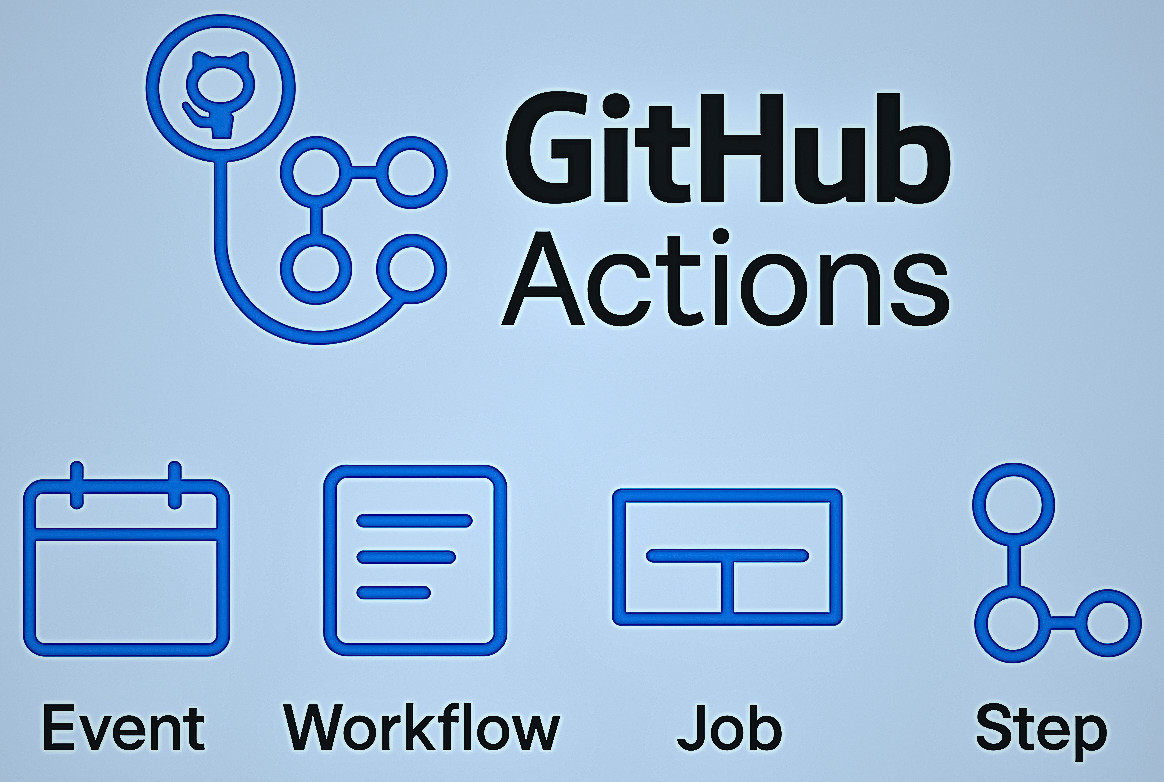
GitHub Actions helps automate processes such as continuous integration, continuous deployment, testing, and code reviews. Contrary to traditional CI/CD tools, GitHub Actions is event-driven, meaning it is triggered by various GitHub events like push, code commits, pull requests, issue creation, and release.
For example, a developer can set up an action to run every time a PR is created, merged, or closed.
GitHub Actions supports a wide range of programming languages and platforms so that developers can build, test, and deploy code in different languages and platforms.
Why Use GitHub Actions?
- Native Integration: GitHub Actions works natively with GitHub, and there is no need for external CI/CD tools. Workflows live in the same repository.
- Extensible Marketplace: There are thousands of reusable actions available, from deploying to AWS to running code coverage reports. These pre-built actions from the GitHub Marketplace can be utilized to simplify workflow creation.
- Flexible Runners: Developers can choose from GitHub-hosted runners (Linux, Windows, macOS) or set up self-hosted runners. These runners are flexible and work for diverse environments.
- Scalable: GitHub Actions is scalable and suitable for personal projects, startups, and large enterprises.
- Pay-As-You-Go: Public repositories are free to use, and private repos include minutes with additional paid tiers.
- Event-Driven Automation: Workflows are triggered based on repository events like pushes, pull requests, and issues.
- Parallel Execution: Multiple jobs can run concurrently, which speeds up CI/CD pipelines.
- Customizable Workflows: Workflows can be customized in YAML files to suit specific project requirements.
Key Components of GitHub Actions
GitHub Actions have the following key components:
1. Workflow
A workflow is a configurable, automated process that executes one or more jobs. It is defined in a YAML file inside the .github/workflows/ directory. Each repository can have multiple workflows.
A workflow runs when an event triggers it. It can also be triggered manually or on a defined schedule.
- Building and testing pull requests (PRs)
- Deploying your application on the cloud
- Running a test on every PR
2. Event
An event is a specific activity in a repository that triggers or executes a workflow in your GitHub repository. For example, when you push the code to the repository, a push event is triggered, and when you create a new issue, an issues event is triggered.
pushPull_requestreleasescheduleworkflow_dispatch(manual trigger)labelissuesmilestonelabel
Specifying the event type in a GitHub Action is a good idea. For example, defining the pull_request event will trigger the action whenever any user creates a PR in the GitHub repository.
# .github/workflows/example.yml

on:
  issues:
    types: [opened, edited, milestoned]

  pull_request:
    types:
      - opened
    branches:
      - 'releases/**'
If a specific event is not specified, it can lead to unnecessary resource utilization. In the above example, the GitHub Action will be triggered with every new PR.
3. Job
A GitHub Action job is a set of steps executed in sequence. Jobs run on virtual machines called runners. Jobs within the same workflow can run sequentially or in parallel.
A GitHub Action workflow contains one or more jobs, each containing a set of steps that execute commands or actions. Here’s an example showing two jobs in a workflow:
# .github/workflows/example.yml

name: Action Workflows

on:
   push:

# A workflow consists of one or more jobs that can run sequentially or in parallel
jobs:

jobs:
If a job is dependent on another job, they will run sequentially. If jobs are independent, they will run in parallel.
# .github/workflows/example.yml

jobs:
  build:
    name: Build
    needs: [ Development ]
    steps:
      - name: Build and deploy on Cloud
  dev:
    name: Development
    steps:
      - name: Run the developer

  Test:
    needs: [ build, dev ]
    name: Testing
    steps:
      - name: Testing the application
In this example, the Build job depends on Development, whereas the Testing job waits on Build and Development.
4. Runners
A runner is a server that executes workflows when triggered. Each runner can handle only one job at a time.
# .github/workflows/example.yml

name: Action Workflows

on:
  # Triggers the workflow on push or pull request events, but only for the "main" branch
   push:
    branches: [ "main" ]

jobs:
  # This workflow contains a single job called "build"
  build:
    # The type of runner that the job will run on
    runs-on: ubuntu-latest
To specify the runners, provide the runner value in the runs-on option as a single string or an array of strings.
GitHub offers runners for Ubuntu Linux, Microsoft Windows, and macOS platforms to run your workflows.
# .github/workflows/example.yml

# String
runs-on: ubuntu-latest
# Array of string
runs-on: [ ubuntu-latest, windows-latest, macos-latest ]
5. Step
A step is an individual task that can run commands, user actions, and execute scripts.
6. Action
actions/checkout: Checks out your repository.actions/setup-node: Sets up a Node.js environment.
The following is the usual sequence of executing these core concepts:
Workflow => Job => Step => Action
Thus, each workflow consists of one or more jobs, and each job consists of one or more steps.
GitHub Actions Beginner’s Guide
Let’s start from the very beginning. To get started with GitHub Actions, you need a GitHub account. If you don’t have one, you can sign up for free.
Once you have a GitHub account, you can create a new GitHub repository by clicking on the “New” button on your GitHub dashboard. Once the repository is created, you can proceed with GitHub Actions.
- Using the GitHub UI
- Locally with your IDE
Using GitHub UI to create an Action is a common way. You need not generate the .github/workflow folder when you use the GitHub UI because ereates it for you.
You can use an IDE for complex GitHub actions.
Getting Started with GitHub Actions
Let’s look at the two ways to create GitHub Actions above.
1. Create a GitHub Action Using the GitHub UI
To create a GitHub Action using GitHub UI, first go to the GitHub repository where you want to create your GitHub Action.
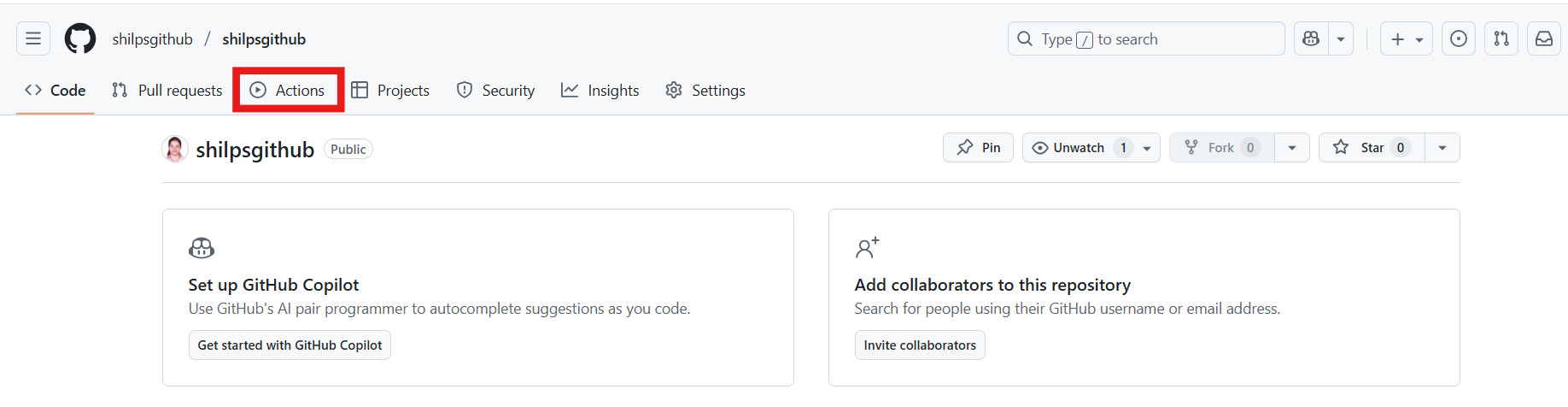
Step 1: Click the Action tab to create a GitHub Action.
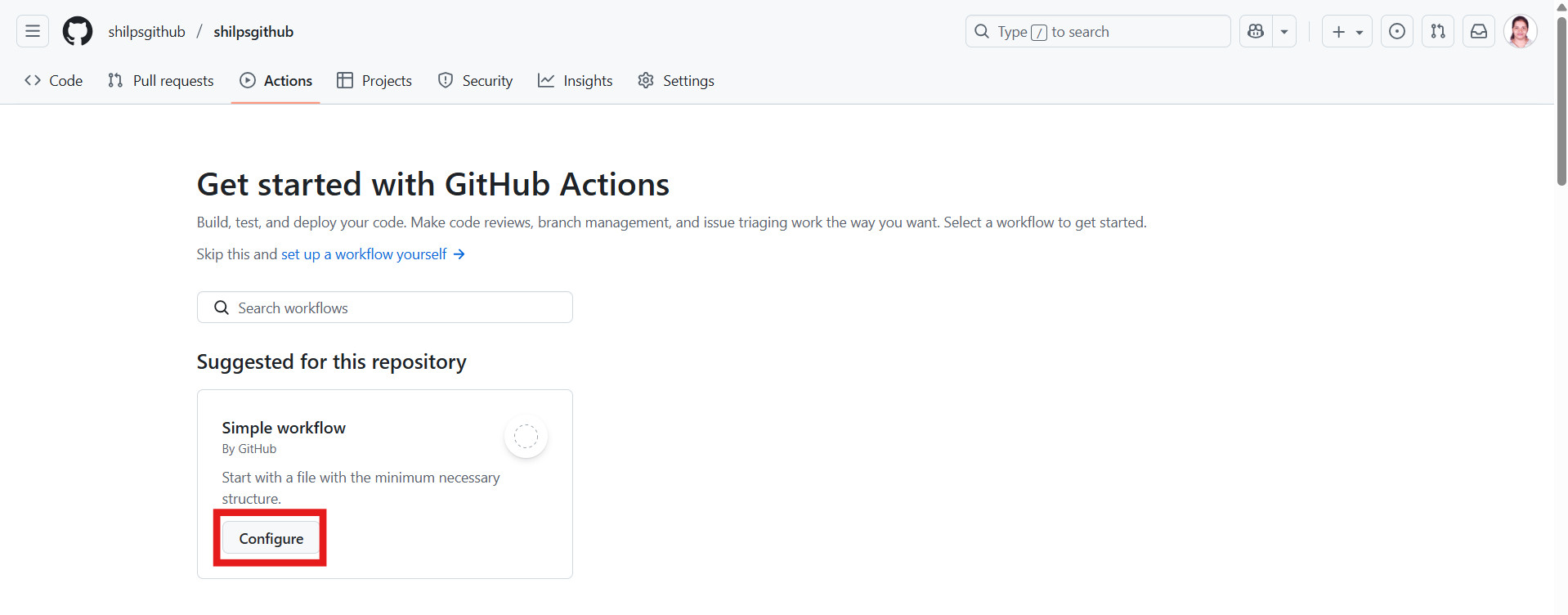
Step 2: Select the workflow action
GitHub automatically provides suggestions according to the nature of your project. Select the GitHub workflow and click the Configure button to create your action.
Step 3: Create the GitHub workflow
Clicking the Configure button will display the following screen:
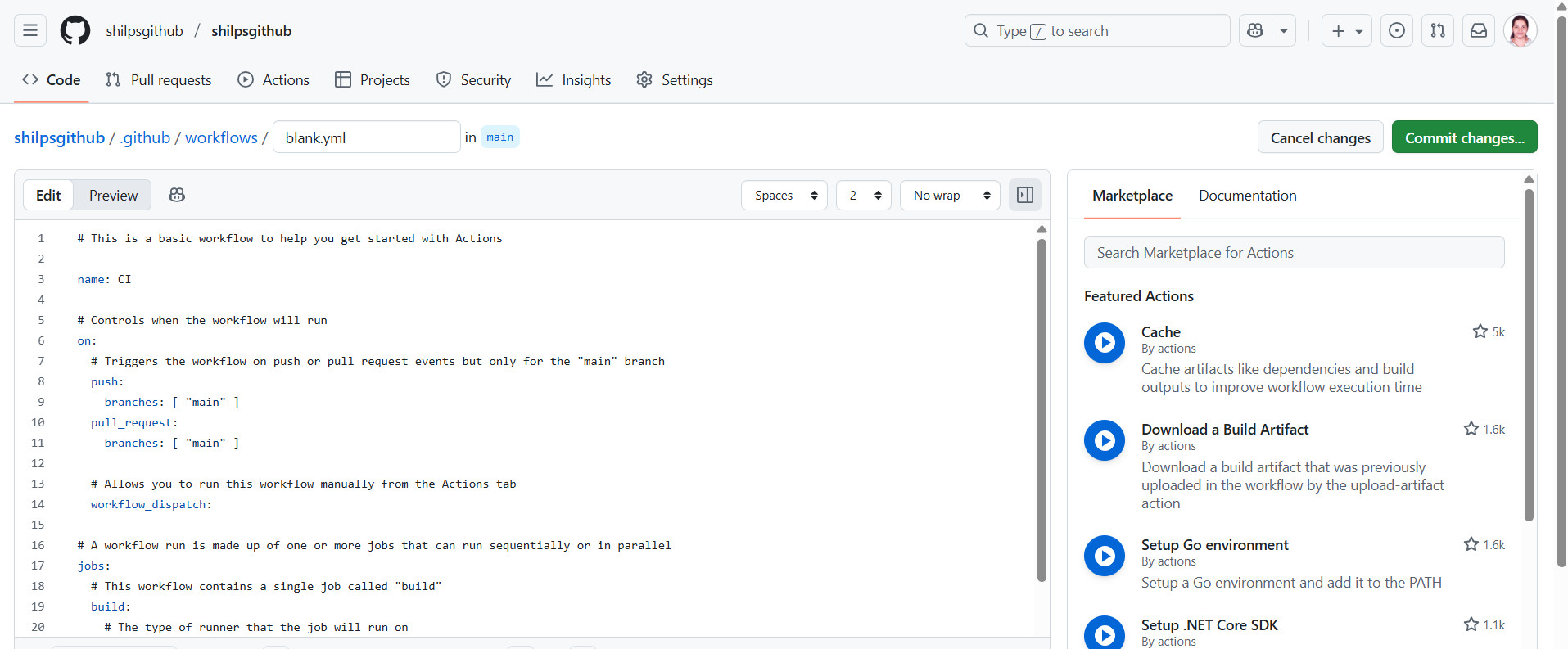
Here, you can edit and create your action. Once you have completed the editing, you can also preview your work.
Step 4: Commit the actions and save the changes
Once the changes are done, click the Commit Changes button to save the action.
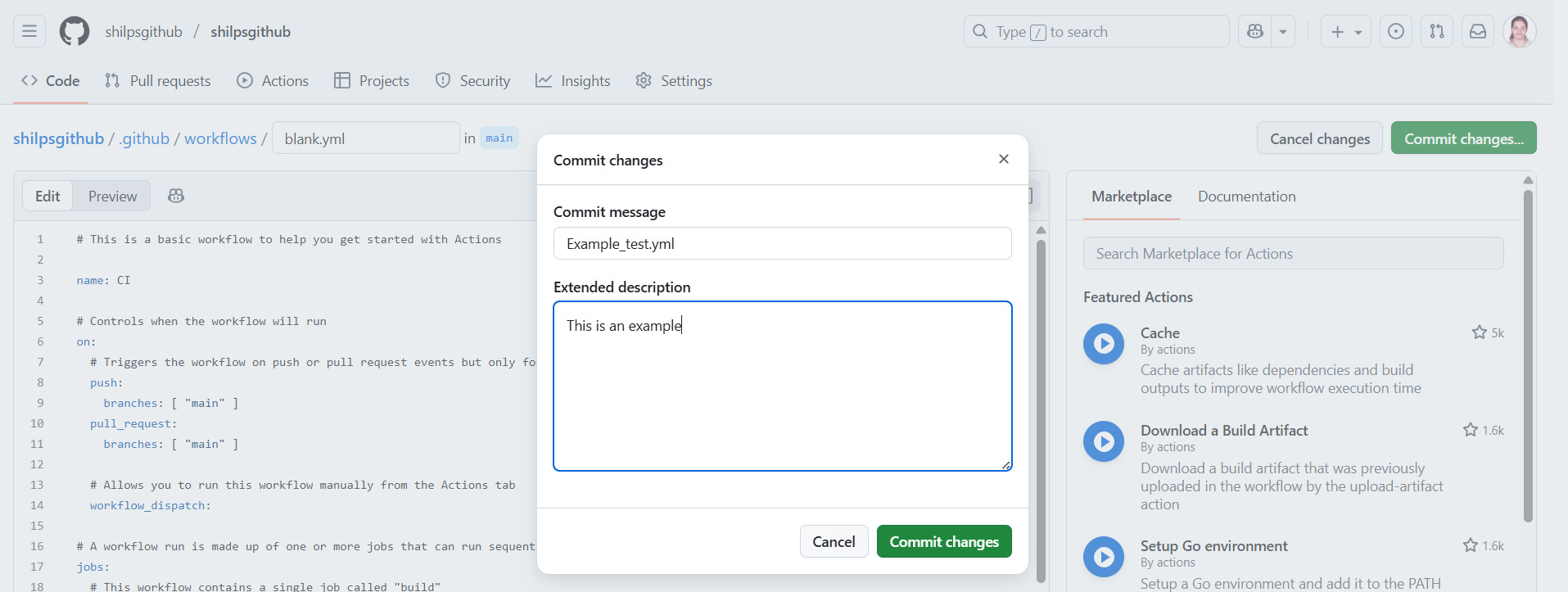
That’s it, and your GitHub Action has been created.
2. Create a GitHub Action Locally with Your IDE
- Open your project in a particular IDE like VS Code.
- Create a
.github/workflow/name-of-workflow.ymlfile in your project. - Copy and paste the following sample YAML code. Save the file as
example.ymland push your local code into the GitHub repository. - Below is the workflow action example mentioned, which will print the simple “
Hello, world!” message.
# .github/workflows/example.yml

name: CI
on:
    push:
        branches: ["main"]
jobs:
    build:
        runs-on: ubuntu-latest

        steps:
            - uses: actions/checkout@v4

            - name: Run a one-line script
              run: echo Hello, world!
GitHub Actions Workflow Basics – Examples
Here are some example YAML files for workflows:
1. Scheduled Jobs
Routine jobs can be scheduled to run at a particular time of the day using the CRON scheduler with GitHub Actions. The YAML file for this is:
on:
  schedule:
    - cron: '0 1 * * *' # Every day at 1 AM
The code above schedules a CRON job to run at 1 am every day.
2. Deployment Workflow
Consider the following YAML code:
on:
  push:
    branches:
      - main

jobs:
  deploy:
    runs-on: ubuntu-latest
    steps:
      - uses: actions/checkout@v3
      - name: Deploy to server
        run: ./deploy.sh
This workflow deploys the code to production when merging to main.
How to Use GitHub Actions – Use Cases
GitHub Actions has a wide range of use cases, including:
Continuous Integration and Continuous Deployment (CI/CD)
GitHub Actions is used for CI/CD, as developers can define workflows that can build and test code automatically and deploy to staging and production. This ensures the code is always tested and deployment-ready.
Testing
Testers can define workflows to run tests automatically when code is pushed to a repository or when a PR is created. This ensures the code is always tested before it is merged to the main branch.
Notifications
Notifications are common in CI/CD pipelines. For example, a notification email or a Slack message is sent when a PR is merged or when a build is successful. These notifications are sent using GitHub Actions, which trigger them when a specific GitHub event occurs.
Code Analysis
Developers can perform code analysis using GitHub Actions workflows. Code analysis tools like linting or code coverage tools can be triggered automatically using GitHub Actions workflows. This ensures high-quality code that meets coding standards.
Advantages and Limitations of GitHub Actions
Here are the advantages and limitations of GitHub Actions:
Advantages of GitHub Actions
- Simplified Workflows: The process of building, testing, and deploying code is simplified by GitHub Actions, as developers can define the workflows using YAML files. The entire process is in a single file and is easier to manage.
- Integration with GitHub: GitHub Actions is integrated with GitHub and developers can trigger actions based on the events that occur within the repositories. It is easy to automate common tasks such as PR testing, deploying code, commits, etc.
- Large Ecosystem of Actions: GitHub Actions possesses a large ecosystem of actions that developers can use to automate common tasks. These pre-built actions are provided by GitHub community or third-party providers that cover wide range of use cases. Developers don’t have to write their own scripts to perform tasks.
- Platforms and Languages Support: GitHub Actions support a wide range of programming languages and platforms. Developers can use the same automation tool for different projects and languages. This simplifies the workflows and reduces the need for multiple tools.
- Secure and Reliable: GitHub Actions is secure and reliable. Workflows are executed in isolated environments, and developers can be assured that their code is being tested and deployed in a controlled and secure environment. It also provides built-in security features such as control access to workflows.
- Cost-effective: GitHub Actions is a cost-effective automation tool that developers can use for free with its public repositories. There is also a generous free tier of private repositories, which makes it an affordable option for developers to automate their workflows in a cost-effective manner.
- Easy to Get Started: GitHub Actions provides a visual editor to create workflows which make it easy for beginners. It also provides YAML syntax to define workflows manually. GitHub also provides wide documentation to help developers get started with GitHub Actions.
Limitations of GitHub Actions
- Job Timeouts: Each job in GitHub Actions has a maximum runtime of six hours, exceeding which terminates it.
- Artifact Retention: The free public repositories can only retain artifacts for 1 to 90 days.
- Schedule Event Limitations: The schedule event can only trigger workflow from the main branch. It runs no more frequently than every five minutes.
- Matrix Strategy: Matrix strategy has a limitation of up to 256 job combinations.
- Steep Learning Curve: YAML syntax has a steep learning curve, especially for beginners.
Future of GitHub Actions
- Enhanced Features: GitHub continues to expand GitHub Actions with enterprise features, reusable workflows, and enhanced security controls.
- Cloud Automation: As organizations move toward cloud-native development, GitHub Actions is set to become a standard tool for automation pipelines.
- DevOps-Centric Features: GitHub Actions will continue to evolve with a strong focus on supporting DevOps practices such as streamlining CI/CD, enhancing deployment strategies, and integrating seamlessly with other tools in the DevOps ecosystem.
Conclusion
With GitHub Actions, automation is accessible to every developer directly within GitHub. Whether it is a personal project or a large-scale enterprise application, Actions can streamline the workflow and free up valuable resources and time.
GitHub Actions’ vast ecosystem of actions and its ability to create custom actions streamline various development tasks from building, testing, to deploying and managing applications. It also helps developers ensure code quality and deliver software more efficiently.
Developers can move faster, reduce errors, and confidently ship code using GitHub Actions.
 |