
OpenAI Codex Explained: Code Smarter, Not Harder
As a developer, imagine starting your day by delegating minor bugs in the backlog instead of tackling them yourself. And you are not delegating these bugs to your fellow developers but to a capable AI teammate so that you can dive into architectural works that need your attention.
The good news is that this is the reality with the new paradigm of AI-powered delegation that OpenAI Codex explores. It shifts from a real-time pair programmer to an asynchronous AI software engineering agent.
| Key Takeaways: |
|---|
|
This article explores OpenAI Codex, its working, functionality, setup, and use cases that shape AI-assisted software development.
What is OpenAI Codex?
OpenAI Codex is a cloud-based software engineering agent released in 2025 as part of the ChatGPT ecosystem, capable of writing and editing code, running tests, fixing bugs, and even proposing pull requests.
Each task in OpenAI Codex is executed in its own sandboxed environment. This agent is built for safety and developer productivity. Developers can guide Codex using the AGENTS.md file or interact with it using the ChatGPT interface.
The OpenAI Codex capabilities can also be used directly in the developer terminal using Codex CLI.
- OpenAI Codex is an autonomous AI agent for software development, available in the cloud or as a Command-Line Interface (CLI).
- It can read, write, and execute code.
- The original Codex model, introduced in 2021, was deprecated in March 2023. The current version, released in May 2025, represents a significant advancement, capable of handling entire software engineering tasks.
- OpenAI Codex performs development tasks in a secure, sandboxed environment.
- Instead of suggesting changes, it directly carries them out by handling tasks asynchronously.
- For every task request, Codex launches a dedicated container to perform the work, where it runs terminal commands, analyzes dependencies, checks outcomes, and finally presents a solution for the developer’s review.
- At its core, Codex is powered by
Codex-1, OpenAI’so3model variant specifically fine-tuned on actual software development workflows. - Codex is available to users on ChatGPT Team, Enterprise, or Pro plans.
OpenAI Codex Functionality
- Task Delegation: Developers can delegate routine, repetitive tasks to Codex, from fixing bugs and writing tests to implementing features.
- Natural Language Processing: It understands instructions in plain English and translates them into functional code across various programming languages.
- Code Generation and Refinement: Codex generates code based on input prompts, utilizing its training on billions of code examples to adhere to best practices. It can also iteratively test its own code until it passes.
- Context Awareness: It analyzes the project’s codebase to generate and refine code based on existing context, including variables, functions, and dependencies.
- Approval Modes: Codex operates with a rich approval workflow that includes modes such as Read Only, Auto (within the working directory), and Full Access (caution advised).
- GitHub Integration: Codex integrates with GitHub and works with developer code repositories. It also creates pull requests from its work.
- Custom Instructions: Developers can place a file named
AGENTS.mdin a repository to provide Codex with project-specific instructions on coding conventions, testing procedures, and workflow.
How to use Codex?
Codex can be accessed in several ways, which require a ChatGPT Plus, Pro, Team, Edu, or Enterprise plan. A developer can use Codex in three ways, as shown here:
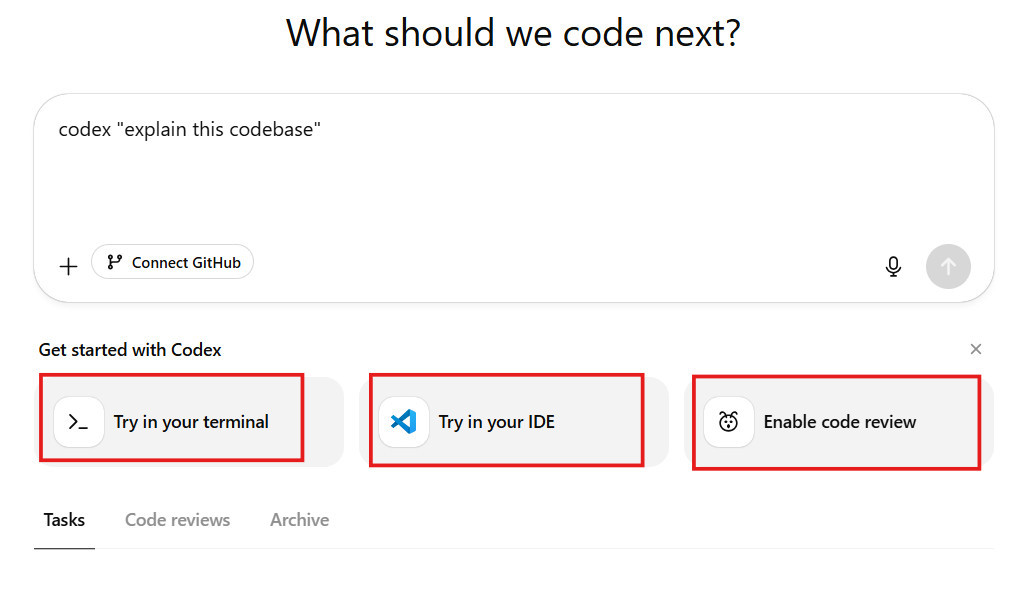
Codex CLI (Try in your terminal)
- Installation: Use a package manager like npm (
npm install -g @openai/codex) or Homebrew (brew install codex). - Execution: The commands can be executed in the following modes:
- Interactive Mode: Run codex in your project directory to start a conversation with the agent.
- Prompt with a Command: Run
codex "explain this codebase"to ask a direct question. - Non-interactive Mode: Run
codex exec "fix the CI failure"to run Codex non-interactively.
- Authentication: The first time you run the CLI, you need to sign in with your ChatGPT account.
ChatGPT web interface
- Access: Find Codex in the sidebar on chatgpt.com/codex.
- Usage: Connect your GitHub account, then use the interface to assign tasks.
We will walk through the detailed setup of Codex inside the ChatGPT interface in the next section.
IDE extension
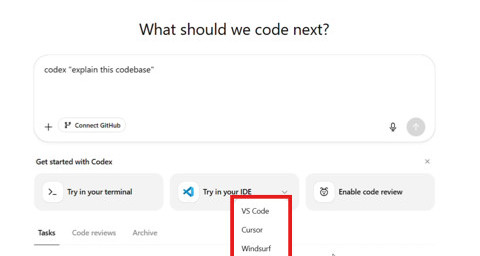
Using this option brings the Codex agent extension into your IDE, such as Visual Studio Code and its forks. Currently, Codex supports three IDEs: VSCode, Cursor, and WindSurf, shown in the screenshot below:
- Functionality: Enables faster, context-aware assistance based on open files and selections, and allows you to manage cloud tasks directly from your editor.
Setting up Codex inside ChatGPT
A brief one-time setup is needed to connect Codex with your development environment before Codex can begin working with your codebase. The setup process is straightforward and guided by the ChatGPT interface. Let’s walk through it:
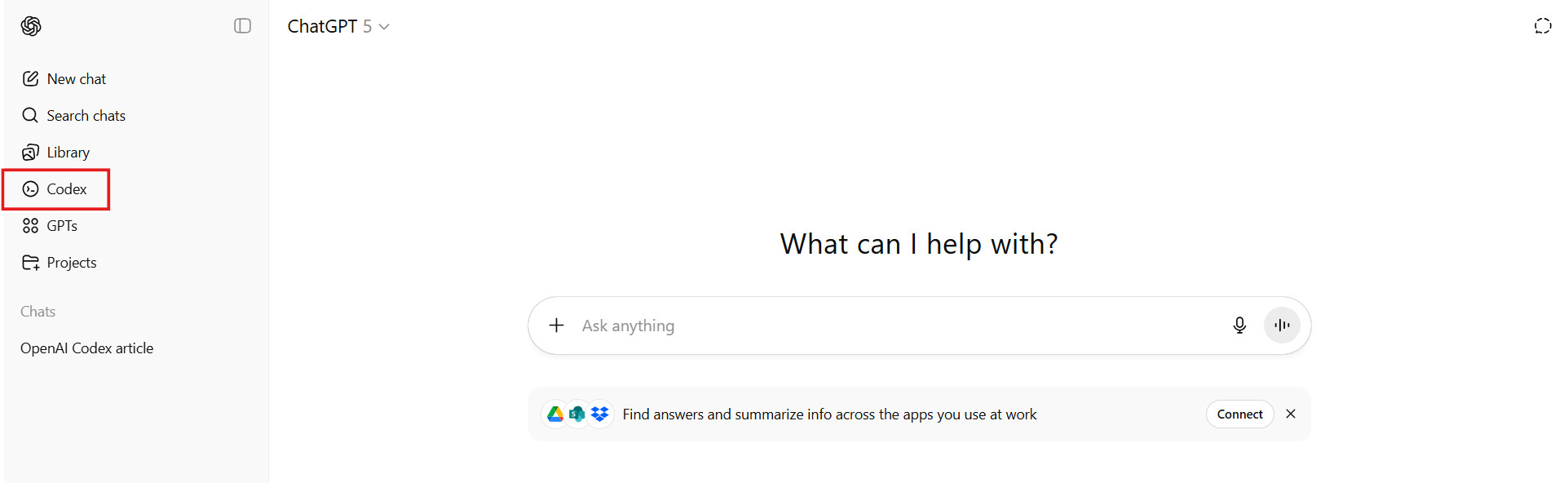
Step 1: Locate the Codex tool in the ChatGPT interface
After logging in to the ChatGPT interface account (Team, Enterprise, or Pro), locate the Codex tool in the primary sidebar on the left of the screen.
Step 2: Start the Codex setup process
Click “Codex” in the sidebar to open the Codex workspace. The ChatGPT interface opens a new tab for the Codex workspace.
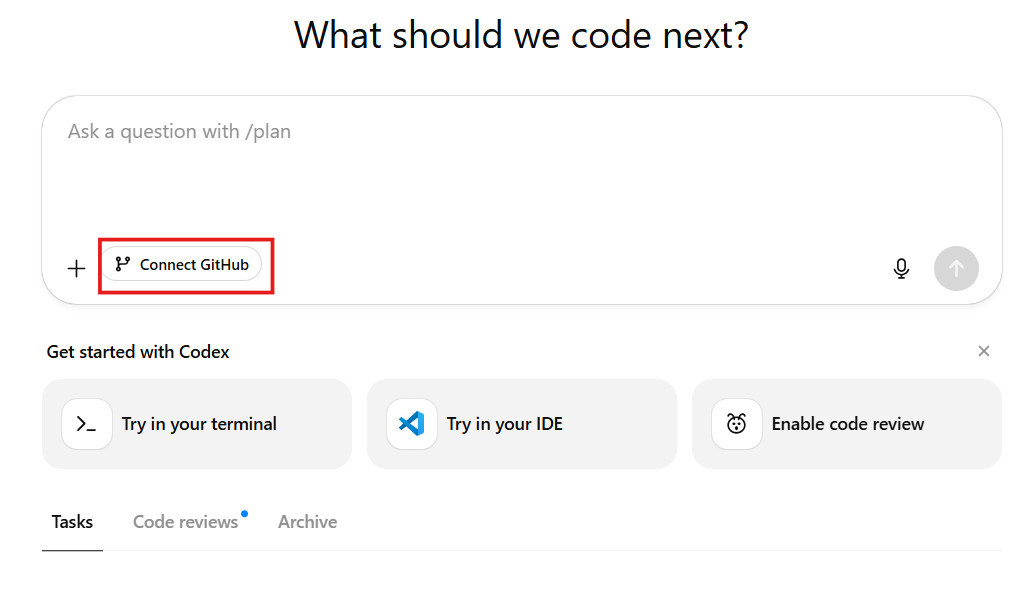
This is the location where all task executions, configurations, and code interactions will occur. The setup process begins by linking the Codex with your GitHub Account to access the codebase.
Step 3: Connect to GitHub
As Codex operates directly on repositories, it needs permission to access our GitHub account. Click the “Connect to GitHub” button. The following window is shown.
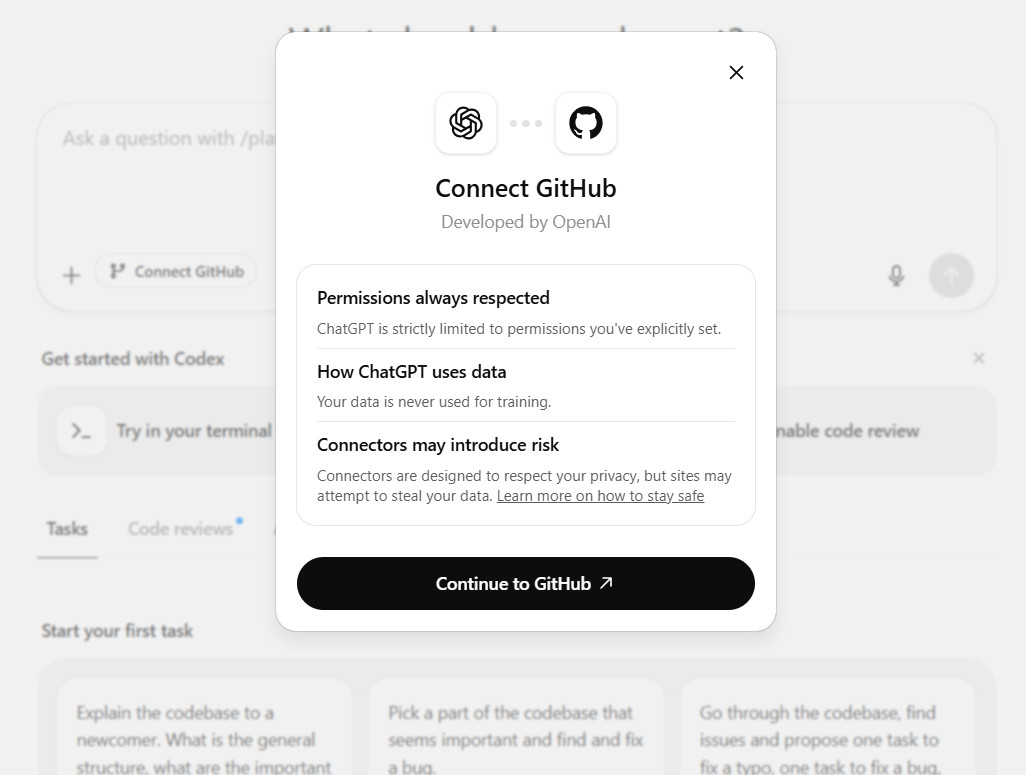
Click “Continue to GitHub,” and you are shown the login screen for GitHub.
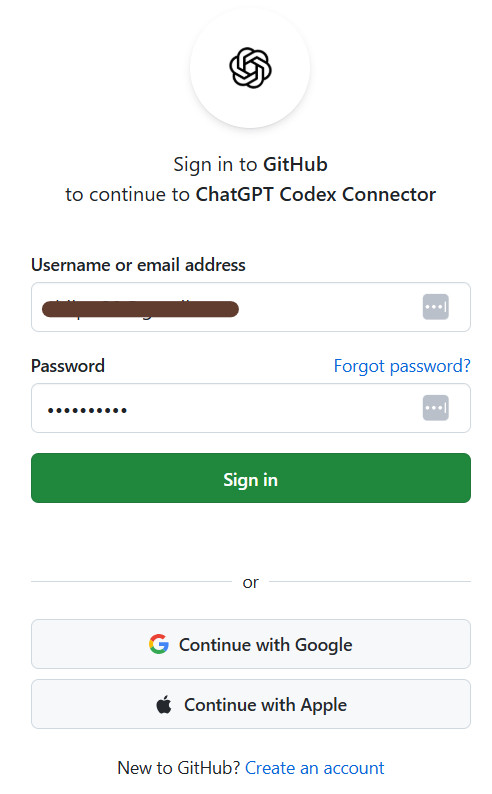
Log in to GitHub appropriately and verify the account.
Step 4: Authorize Codex to access GitHub
Once you log in to GitHub successfully, you are presented with the authorization screen, which requests permission for Codex to interact with GitHub.
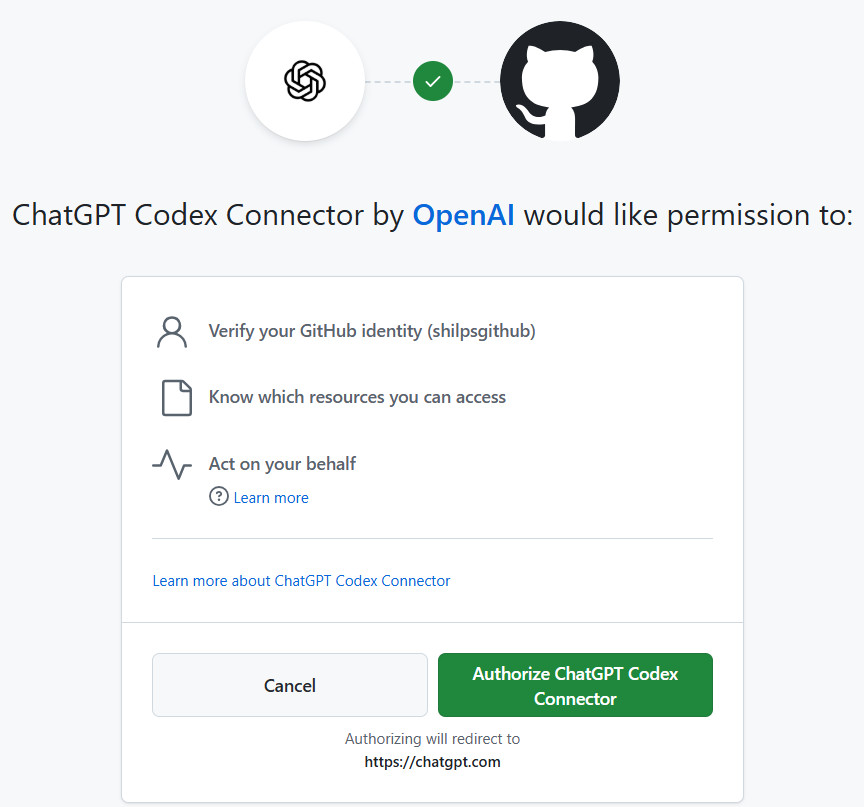
Click the “Authorize ChatGPT Codex Connector” button.
Step 5: Install and Authorize ChatGPT Codex Connector
You are presented with the following screen, wherein you can select the repositories from your GitHub account for which Codex will have access.
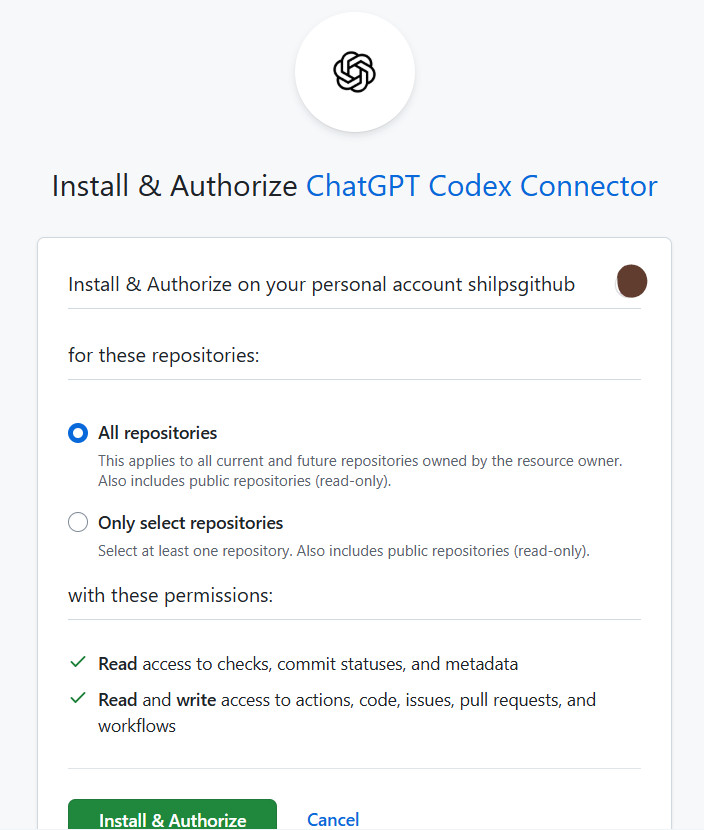
For this example, we will select “All repositories” and click “Install & Authorize”.
Step 6: Setup complete
Clicking “Install & Authorize” allows Codex to view and interact with the repositories you have provided access to. In this case, since we selected “All repositories”, the Codex gets access to all the repositories as seen below:
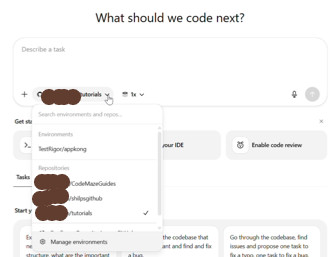
Select the repository you want to work on from the dropdown list, and you are ready to start your first task.
Click the “Tasks” tab below the prompt window and then click the “Start Task” button for the first example task, which explains the codebase.
Once Codex completes the task, the following screen will appear.
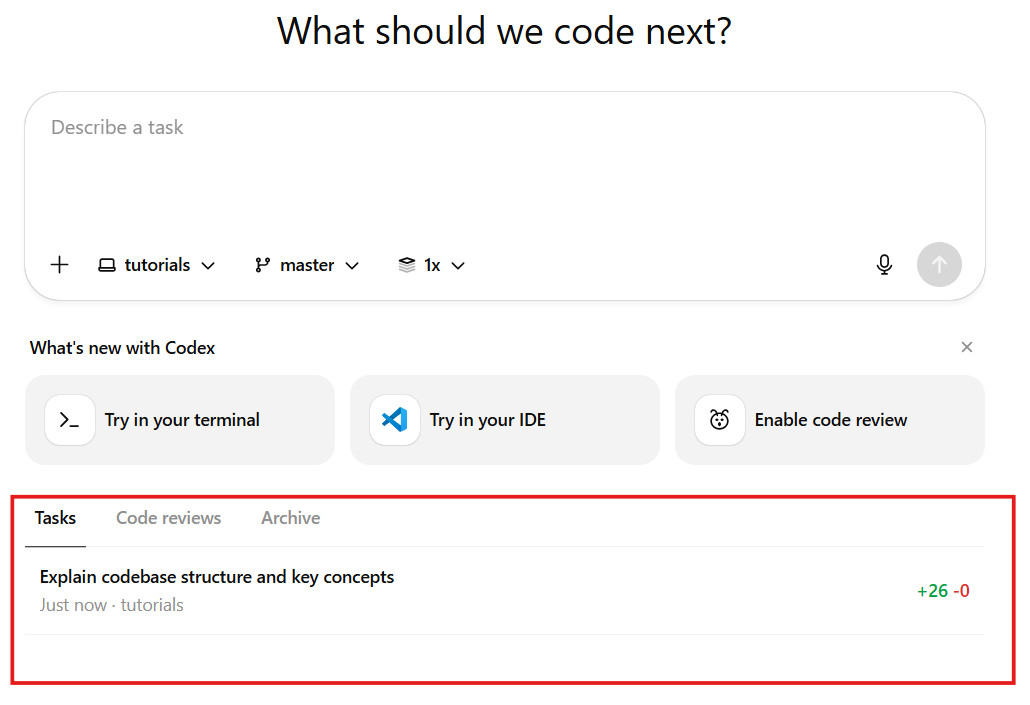
You can click the task and view the report generated by Codex as seen in the screenshot below:
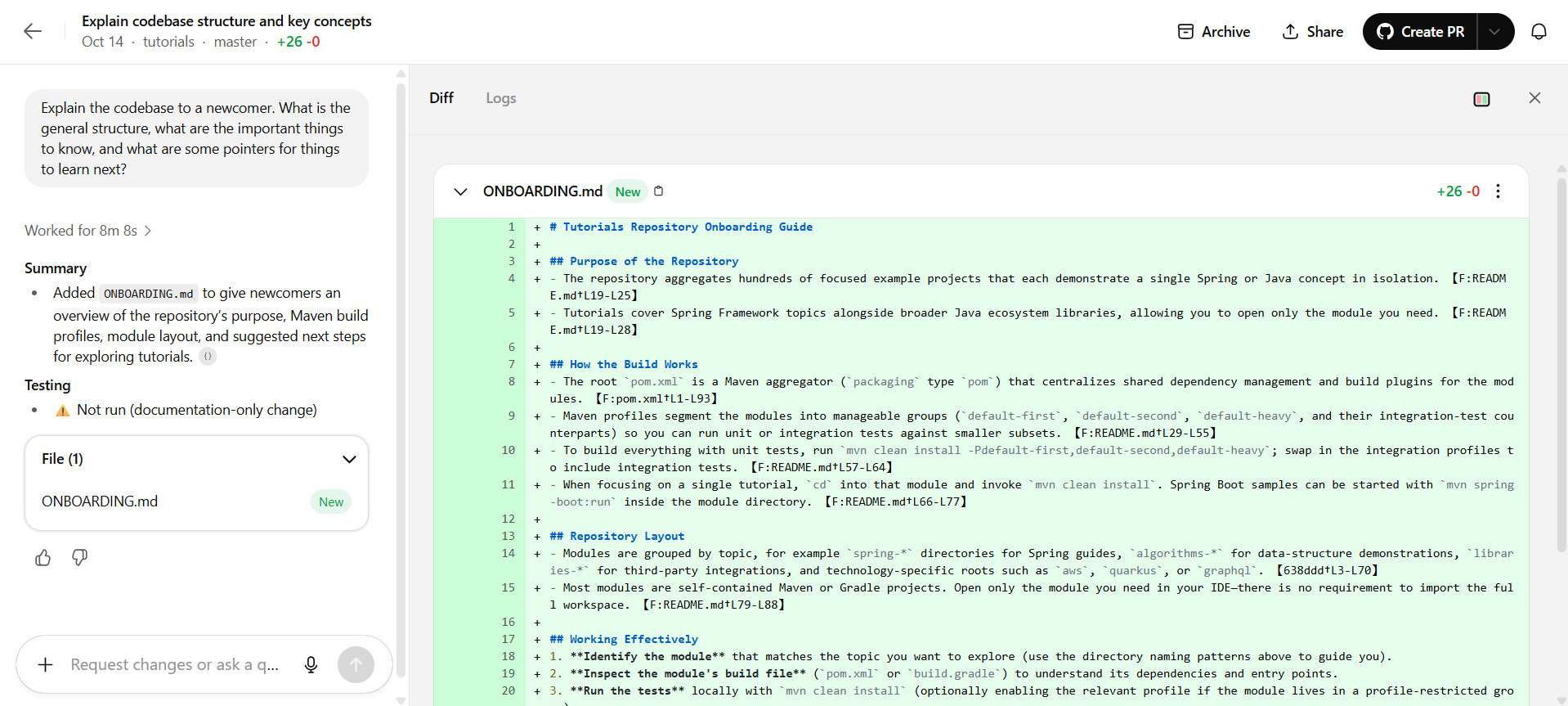
With this example task, we have completed the setup for Codex using the ChatGPT interface.
Interacting with Codex
The way you interact with Codex is fundamentally different from using a real-time AI assistant. Codex operates on an asynchronous delegation model, freeing developers from waiting on tasks. It enables multitasking as developers can perform other tasks while the Codex performs a task. A typical task in Codex can take anywhere from 1 to 30 minutes, depending on its complexity.
- Ask
- Code
Each mode is designed for a different type of developer workflow. Let us understand them both.
The “Ask” mode: AI Code Analyst
In this mode, Codex acts as an analyst, not an implementer. It performs a read-only analysis of our codebase. In Ask mode, it can explore the repository to understand its structure, dependencies, and logic, but it will not change the files. It also does not require preparing an environment for running tests or applying changes. Due to this, the Ask mode is generally faster.
This mode is the perfect choice for tasks that require insight, rather than implementation.
- Codebase Onboarding: Asking Codex to “Explain the purpose of the auth module”, “Explain Codebase to a newcomer”, or “Summarize how the payment processing flow works.”
- Architecture Review: These prompts include requesting Codex to “Generate an Ocean.js diagram of the full request flow for the primary API endpoint.”
- Refactoring Strategy: You can brainstorm improvements by asking, “What are some ways we could refactor utils.js to be more modular and testable?”
The example task in the section “Setting Up Codex Inside ChatGPT” is an example of Ask mode.
The “Code” mode: AI Action Taker
When you want Codex to write or modify your code, the “Code” mode is used. It involves a process where the agent creates a full-fledged, interactive environment that can run tests, execute linters, and validate work using other tools defined in the setup scripts.
The final script generated is not just text but a concrete set of code changes that you can directly push into a pull request.
- Applying Bug Fixes: A prompt to instruct Codex to “Find and fix the bug in <packagename> causing the error.”
- Writing Unit Tests: Referencing a file and asking Codex to “Add comprehensive unit tests for the functions in salesdetails.js.”
- Automating Refactors: Providing a prompt Codex to “Rename the myApi function to newApiV2 across the entire project.”
Once Codex completes the task, it displays proposed changes and presents a clean “Diff” view, allowing developers to review the exact lines of code that have been added or modified to solve the problem.
Codex provides a “Logs” tab to solve the problem of “opaque-box” AI, where we can’t see the process. The “Logs” tab provides the step-by-step terminal commands the agent executed within its sandbox. It shows everything from cloning the repository, installing dependencies, executing tests, and encountering errors.
It helps understand how the agent reasoned about the request and debug the process if a task fails or produces an unexpected outcome. Once you are satisfied with the proposed code, you can have Codex create a pull request.
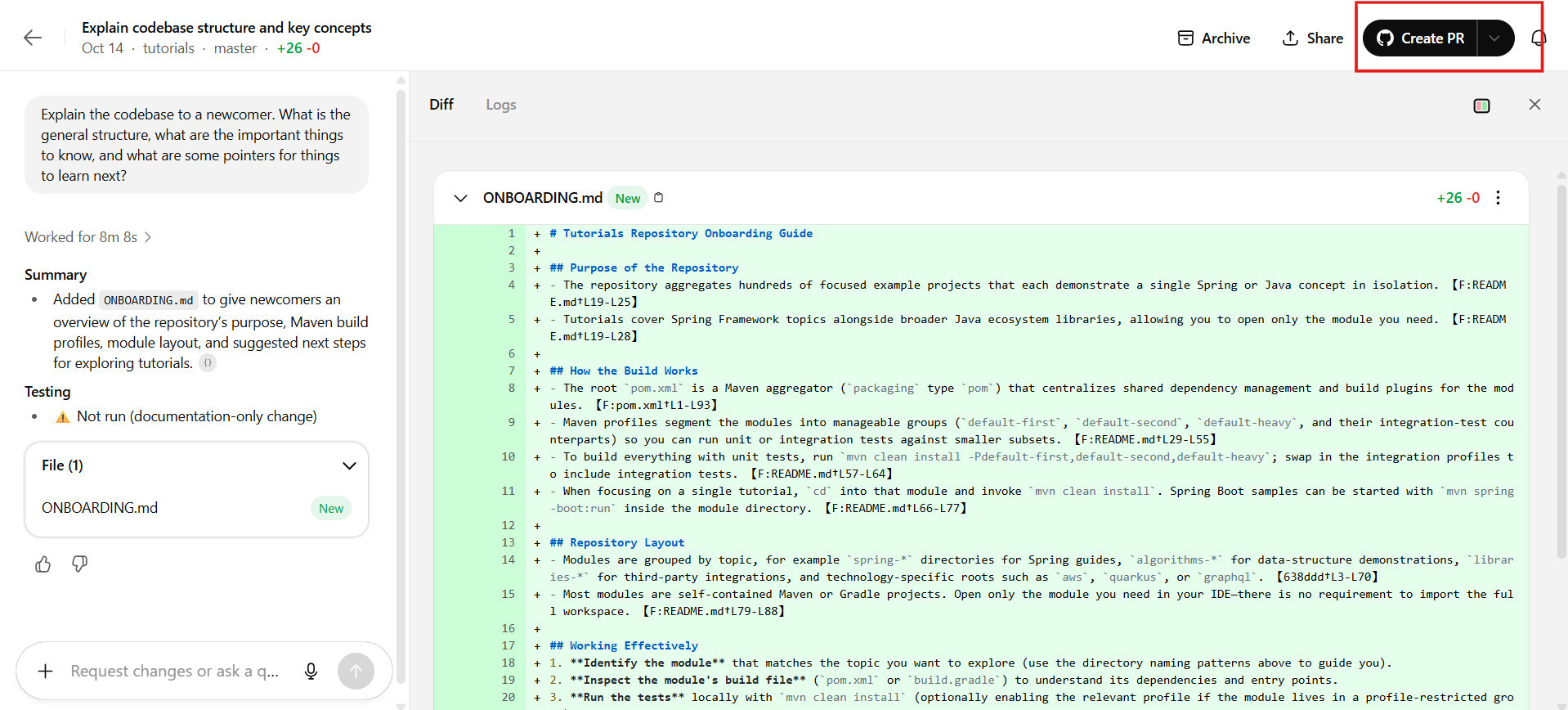
Once Codex creates a PR, the above button changes to “View PR”, using which you can view the PR. If there is no problem, you can merge the PR.
OpenAI Codex with the AGENTS.md file
Although Codex can operate successfully without any special configuration, it performs exceptionally well when we provide context and project-specific rules. To get the best results, we must give clear instructions and context to Codex. This is done using a special file called AGENTS.md.
This is a highly recommended contributor’s guide for this AI teammate, although it is optional.
An AGENTS.md file is a standard Markdown file in your repository, providing Codex with clear, explicit instructions on how to operate within the codebase. It ensures that the code it produces is functional, consistent, high-quality, and easy to review. An AGENTS.md file is a bridge between the development team’s standards and the AI’s execution.
When Codex begins a task, it automatically searches for AGENTS.md files relevant to the code that needs to be changed. If there are multiple files in nested directories, it will prioritize the instructions in the file “closest” to the changed code.
What should be included in an AGENTS.md File?
AGENTS.md file are:- Project Structure: Include the key directories and their purposes to help Codex understand where to find relevant code and where the modifications should be made.
- Coding Conventions: Define the team’s standards and conventions for languages, style, naming, and commenting.
- Testing Protocols: Include the exact commands required to run our test suite, allowing Codex to validate its work before presenting it for review.
- Pull request (PR) Guidelines: Instructions on how to format PR titles and descriptions, how to reference related issues, and whether to include screenshots for UI changes should be provided to ensure their contributions align with the team’s workflow.
- Programmatic Checks: Any other linting, type-checking, or build commands that must be run before code can be merged should also be added here. Codex will attempt to run these checks to ensure its changes are safe and correct.
Benefits of OpenAI Codex
- Increased Productivity: Codex reduces the time spent on routine and repetitive coding, such as writing boilerplate, test cases, and documentation. Developers can thus focus on higher-level problem-solving and creative design.
- Parallel Development: Codex executes multiple, separate tasks simultaneously, thus encouraging parallel development.
- Improved Code Quality: Codex promotes coding best practices and enforces project standards, resulting in more consistent and reliable code with fewer common errors.
- Learning and Accessibility: Codex acts as a learning tool for both new and experienced developers. It explains unfamiliar code, presents different approaches to a problem, and lowers the barrier to entry for non-coders.
- Transparency: OpenAI Codex provides detailed logs of every command it executes, along with test outputs. Developers get a clear, verifiable audit trail of their actions, which is essential for code review.
- Increased Security: The cloud environment running in an isolated sandbox with disabled network access prevents data leakage. It also contains any potentially malicious actions, protecting the local system and codebase.
- Streamlined Workflows: Codex generates pull requests in GitHub and provides automatic code reviews by integrating directly with developer workflows.
Drawbacks of OpenAI Codex
- Accuracy Concerns: Codex may produce syntactically correct code that contains subtle logical errors or fails to handle edge cases correctly. This necessitates the human review.
- Misinterpreting Complex Instructions: Providing ambiguous or vague prompts can lead to unintended or suboptimal outcomes. Codex may misinterpret instructions and generate wrong results.
- Limited Context Awareness: In the case of a large codebase, Codex may struggle to maintain a long-term deep understanding, which can affect its performance on highly intricate or lengthy tasks.
- Risk of Over-reliance: Over-reliance on Codex, especially among new developers, may hinder their fundamental understanding of programming concepts, problem-solving skills, and debugging abilities.
- Limited Visual Understanding: Codex does not accept images as direct input and is focused on code. This limits front-end tasks that require a visual mockup or UI design.
- Bias from Training Data: Biases in training data can lead to skewed results in certain situations.
- Dependence on External Platforms: Codex currently integrates only with GitHub. Teams using other platforms may find this disadvantageous.
Best Practices for OpenAI Codex
- Use Minimal Prompts: Over-prompting can reduce the quality of outcomes. Start with minimal prompts and add only necessary guidance.
- Focus on Single-repository: The current Codex workflow is designed around a single repository at a time. So, focus on a single repository when starting a task, as interacting with code in other repositories (such as other microservices) would require advanced, custom configurations.
- Go for Discrete Tasks: The OpenAI Codex agent excels at well-defined, discrete tasks that can be completed in a single pass.
- Use “Best of N”: Generate multiple responses for complex tasks to compare solutions and select the best one, or even combine parts of different outputs.
- Use
AGENTS.mdFile: Create anAGENTS.mdfile in the repository to provide persistent context about your project’s conventions, logic, and quirks.
Conclusion
With OpenAI Codex, large language models (LLMs) became practical coding collaborators. It represents the shift towards an asynchronous development model. Although OpenAI Codex may not replace senior developers for complex, architectural work, it is a powerful teammate for clearing backlogs and handling daily tasks of software maintenance.
By delegating routine and repetitive tasks to this AI agent, developers can reclaim their time and focus on bigger challenges.
Additional Resources
- What are the Different Types of Code Smells?
- Claude Code: Unlock AI-Powered Coding Capabilities
- How to Get Better Results from Claude Code Every Time
- What is Code Optimization?
 |