
How to Use Claude for Code Generation: A Beginner’s Guide
I don’t code anymore!!
No, this is not an exaggeration but a reality.
Nowadays, artificial intelligence (AI) is everywhere. Whether it is software, manufacturing, or healthcare, everyone uses AI. There are various tools and technologies that are AI-based and provide advanced features to simplify your work. As far as software development is concerned, AI has rapidly transformed how developers write, debug, and understand code.
Today, you have various tools that are powerful and aid in software development. One of them is Claude, an AI assistant developed by Anthropic.
| Key Takeaways: |
|---|
|
This beginner-friendly guide will walk you through everything you need to know to start using Claude for coding, from installation to basic prompts to advanced workflows.
What is Claude?
Claude is developed by Anthropic and is a next-generation AI assistant and family of large language models (LLMs). Claude is designed for performing software development and code-generation tasks and is intended to be safe, accurate, and secure.

- Writing code for developing applications
- Debugging errors in the code
- Explaining complex logic
- Generating documentation for the written code
- Refactoring and optimizing code
- Analyzing documents
- Automating complex tasks
The tasks are accomplished via Claude.ai, Claude Code, and its APIs.
Claude understands natural language instructions. So you can instruct Claude in plain English to perform a coding task, and you will get working code as an answer.
Read: Top 10 Natural Language Processing Tools.
Claude: Key Capabilities and Features
- Advanced Capabilities: Claude is excellent at understanding natural language, generating human-like text, coding, and complex reasoning.
- Constitutional AI: Claude is trained using a “constitutional AI” approach that relies on a set of safety and honesty principles. Hence, it just doesn’t match patterns when generating output.
- Context Window: It has a large context window, enabling it to efficiently process large documents, lengthy conversations, or extensive codebases.
- Use Cases: Here are a few use cases for Claude:
- Content Generation: It can write, edit, and create content.
- Coding & Technical Tasks: It can generate, debug, and modify code (Including specialized tools like Claude Code, which works directly in terminals).
- Analysis: Claude summarizes, analyzes data, and interprets images.
- Interactions: Users can interact with Claude in various ways through the web interface, mobile app, terminal, or by utilizing API integrations for workflows, including connecting to tools like Google Workspace.
- Artifacts: Users can preview, edit, and create content or code directly in a slide window of Claude.
- Multi-language Support: Claude works with different programming languages, including C++, Java, Python, JavaScript, Go, and SQL.
Read: Prompt Engineering for Beginners: How to Write Better AI Prompts.
Getting Started with Claude
To get started with Claude, you need to first sign up with claude.ai. You can then use the browser-based web chat interface to use Claude. Alternatively, you can also download the desktop app for Claude that provides built-in code assistance. Apart from this, you can use Claude Code directly in integration with your libraries and code.
Once the setup is complete (web interface or desktop), you can enter your coding requests in natural language and get outputs.
-
Go to https://claude.ai/ to get started with Claude. Sign up using your email ID.
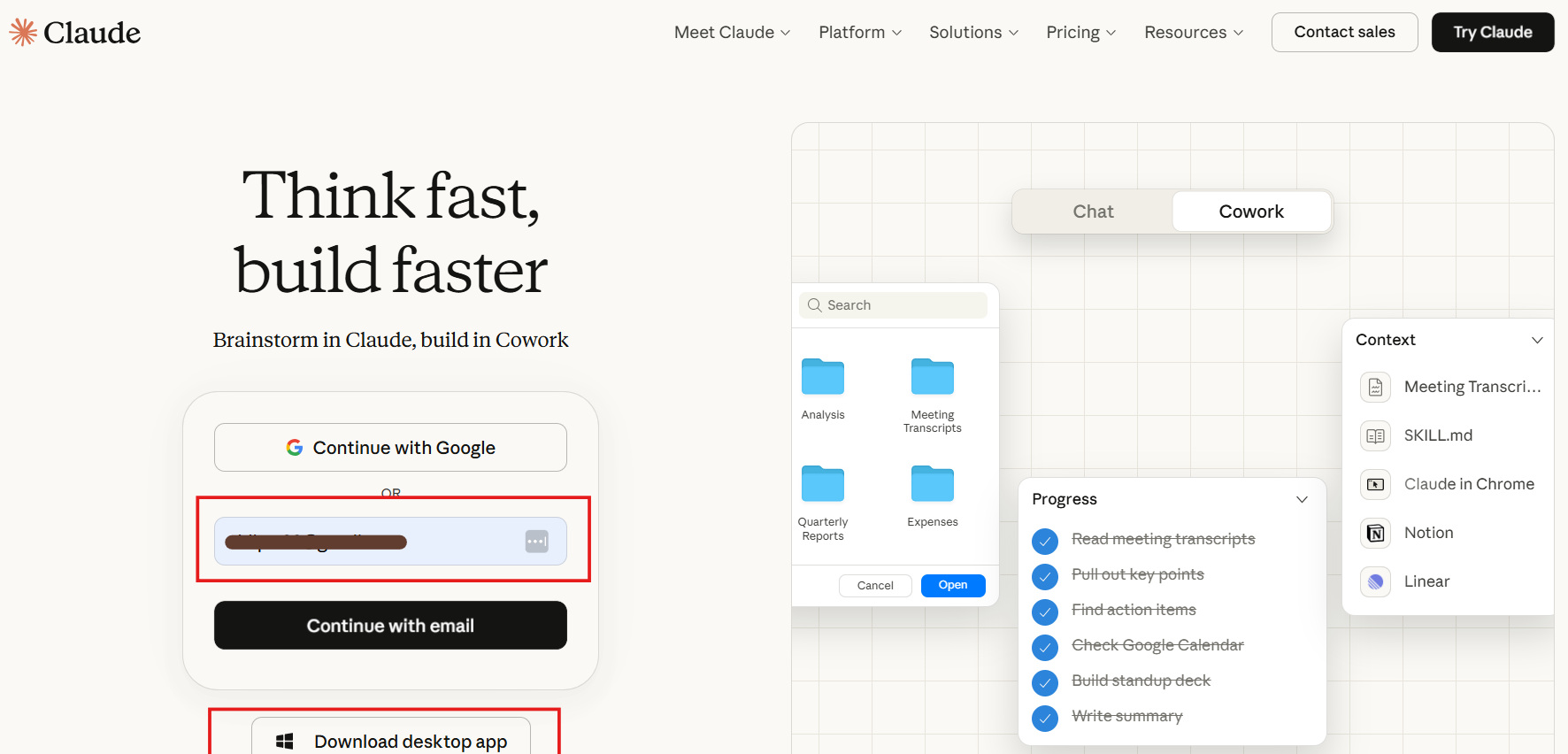 You will receive a verification code at your email ID.
 - Sign in to Claude.ai using the “Sign in to Claude.ai” button in the email.

-
You are prompted to create an account.
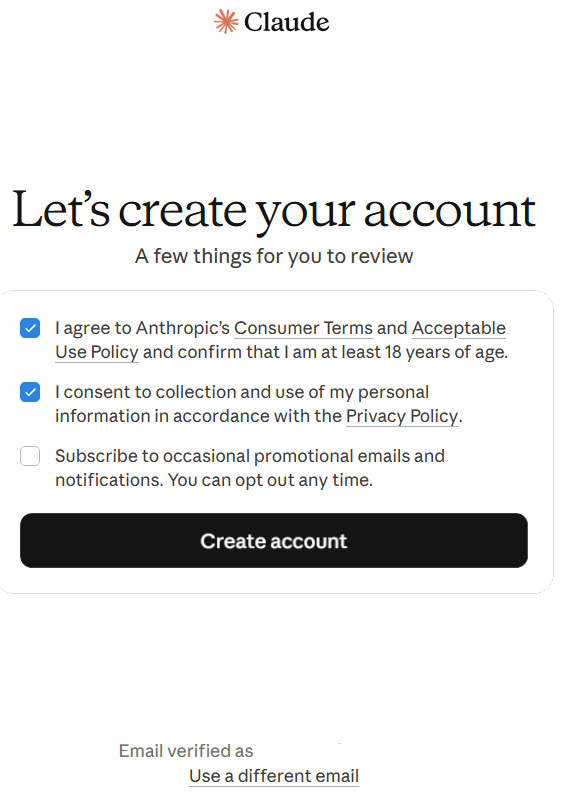 Click Create Account in the above screenshot.
 -
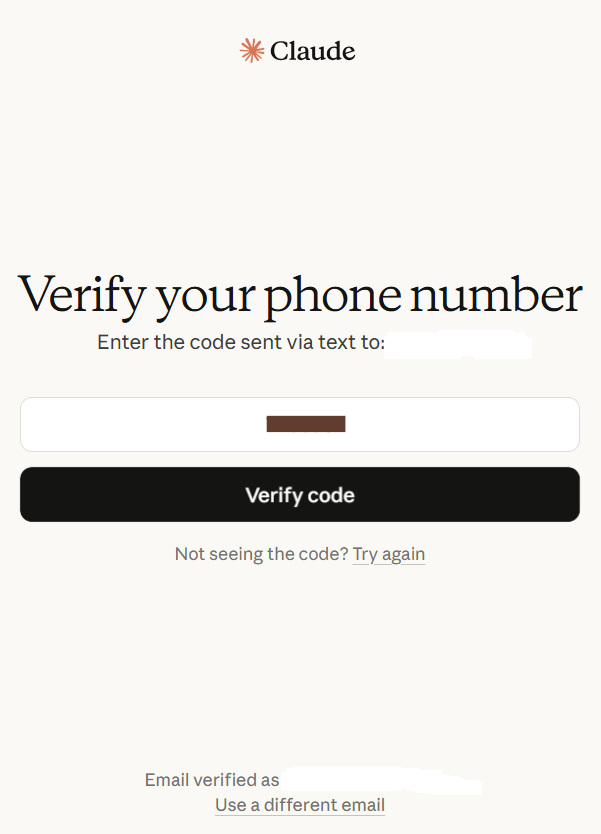
A screen to verify your phone number is displayed. Provide a valid phone number to verify the Claude account.

-
Next, verify your phone number to be linked to the Claude account by giving the verification code sent to the phone number you entered in the previous step.
-
After successfully verifying the phone number, a “Pricing” page will appear with the available plans.
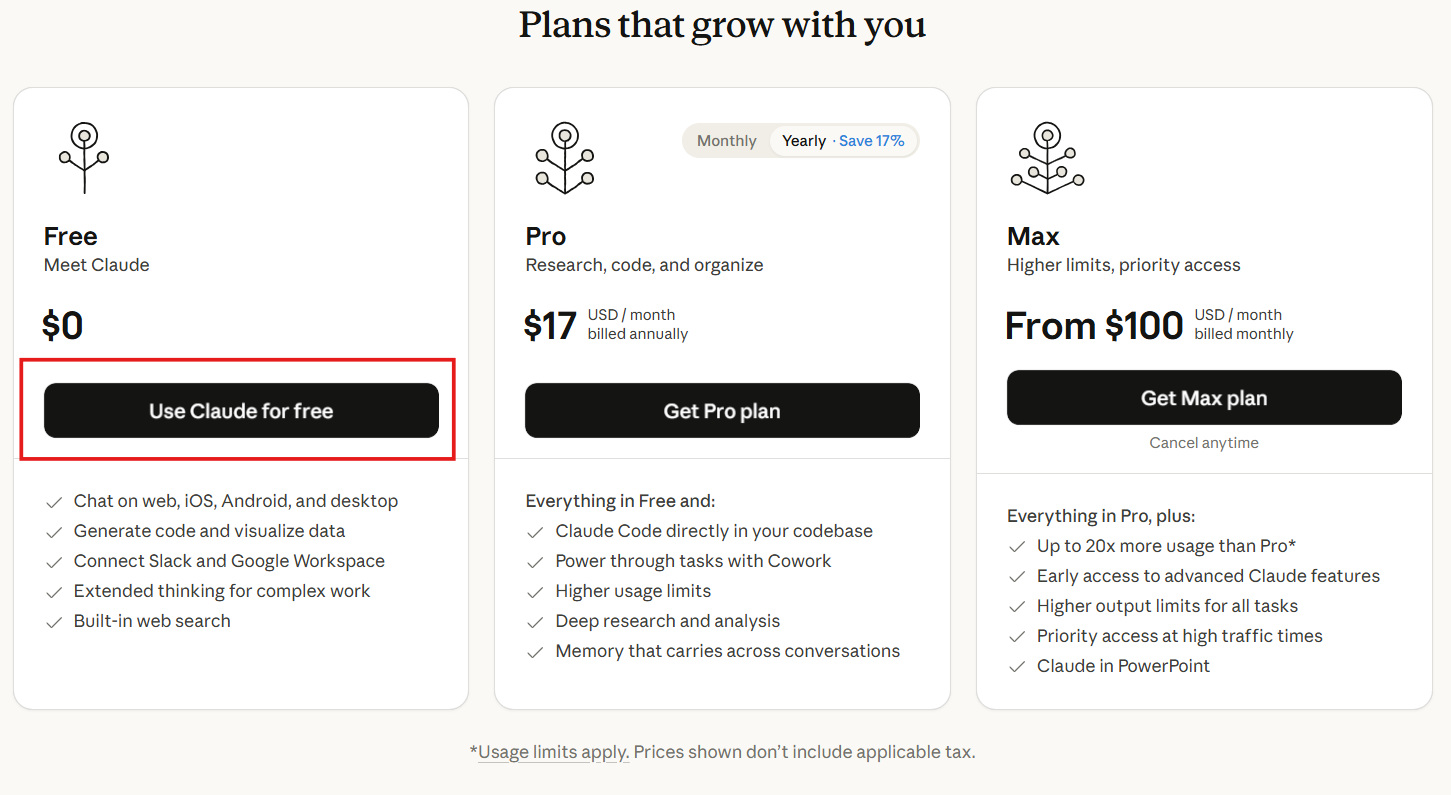
- Select “Free” plan. The next screen shows details of the available Desktop app.
Note: Claude Code is Anthropic’s agentic coding tool, available in the terminal CLI, VS Code, JetBrains IDEs, a desktop app, and on the web. It can scan your entire codebase, edit files, and execute commands via natural-language prompts.For Claude Code to work, a Claude subscription Pro, Max, Team, or EnterpriseA Claude Console account, or access through a supported cloud provider, is needed.
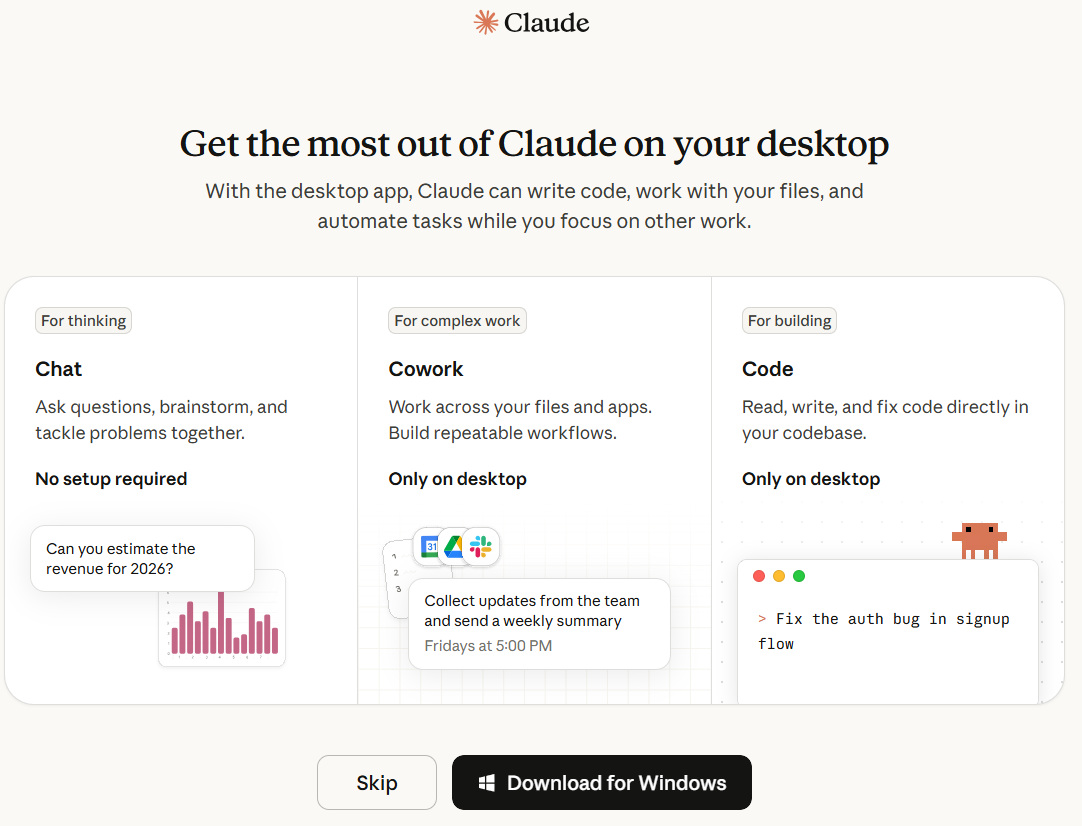 You can download the app for Windows or “Skip” the download.
 -
Next screen appears showing the features of this Claude instance.
 Simply click “Continue” and proceed.
 -
The next screen asks for your alias, which you will be using for Claude. Provide the appropriate name.
-
The next step is to choose the topics you want to explore. Here, you can select up to 3 topics.
 Select the topics you want to work with Claude and click “Let’s go”.
 -
A screen will appear showing you installation options for Claude Code.
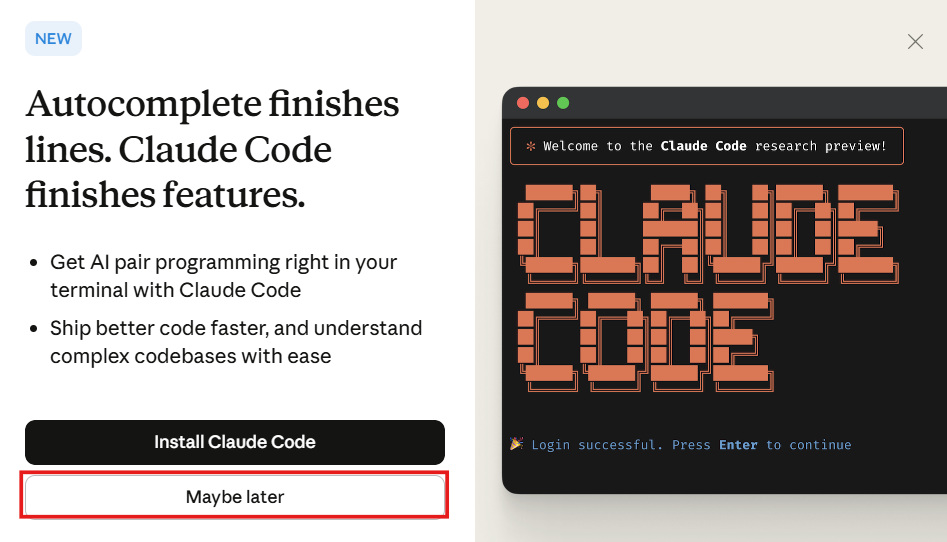 Choose “Maybe Later” in the above screen, as we are using Claude’s web interface in this section.
 -
The next screen provides ideas to start with the topics.
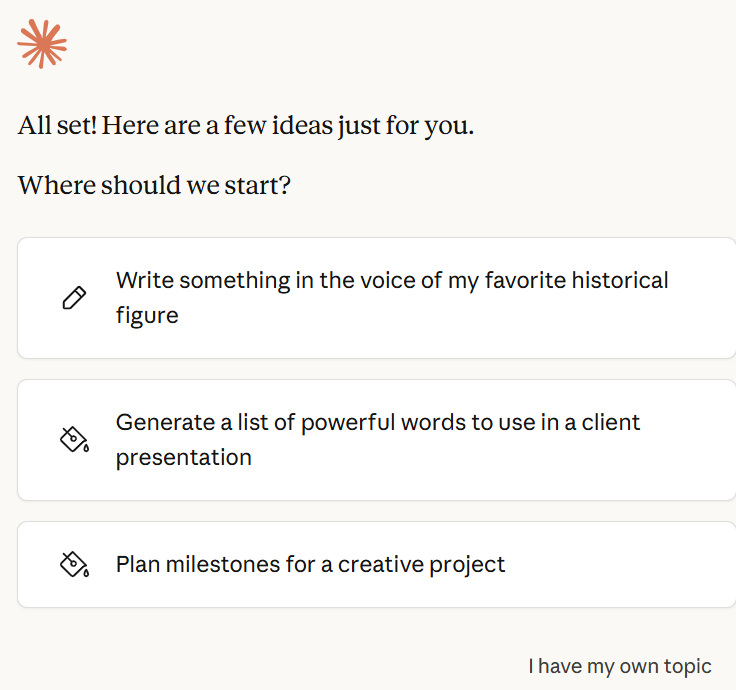 Either select the appropriate option or click “I have my own topics” to proceed.
 -
The final screen displays the Claude dashboard for you to start working.
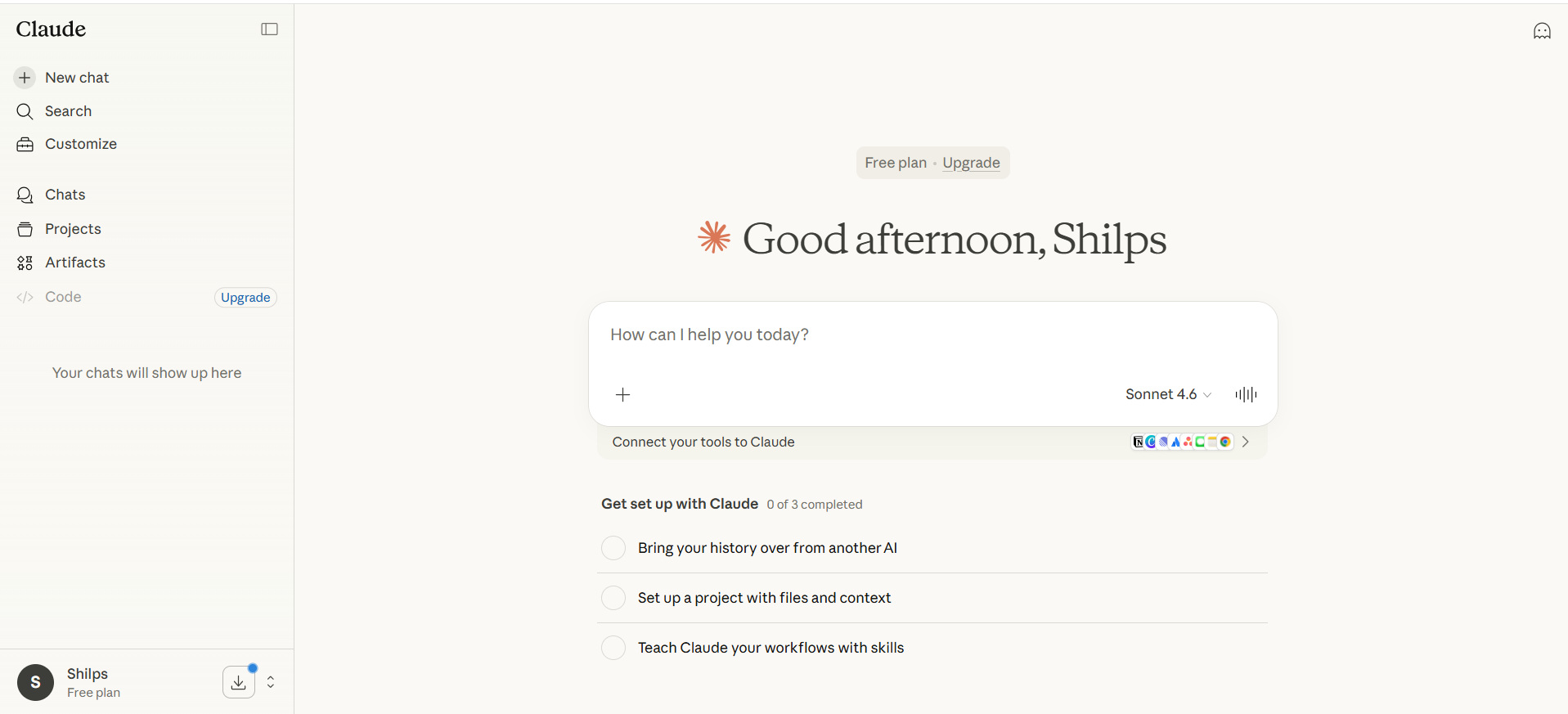
What is Claude Code?
Claude Code is Anthropic’s terminal-native AI coding agent that runs directly inside your computer’s terminal and has full access to your local files, folders, and project structure. It understands your codebase and assists with development tasks via natural language commands.
Claude Code integrates with your development environment with minimal setup, so you can focus on writing and improving code.
- Editing and Refactoring: Claude Code provides AI-powered suggestions to modify, optimize, and enhance your codebase.
- Bug Fixing: It identifies and resolves errors, missing dependencies, and performance bottlenecks.
- Code Understanding: Claude Code asks questions about your code’s architecture, logic, and dependencies to understand it better and improve it further.
- Automated Testing & Linting: It executes and fixes failing tests, runs linting commands, and improves code quality.
- Git Integration: Since it has full access to project directories, Claude Code can also search through git history, resolve merge conflicts, create commits, and generate pull requests effortlessly.
With its intelligent automation, Claude Code adapts to your coding style and project requirements, whether you are working on an open-source project or managing enterprise-level codebases.
- Software Developers: They use Claude Code to improve code quality and maintainability.
- Open Source Contributors: Understand and enhance unfamiliar codebases.
- DevOps Engineers: They can automate code review and linting tasks using Claude Code.
Claude Code now uses the Claude Sonnet 4.6 version.
Claude Code is available as a terminal CLI, a VS Code extension, a JetBrains plugin, a desktop app, and on the web. However, the terminal CLI is the most powerful and recommended starting point, especially for beginners.
Prerequisites for Claude Code
- Claude Subscription: You need a subscription to Claude Pro ($20/month) to start, which gives you enough usage for everyday coding tasks.
Claude Max ($100/month) provides more usage and full access to Opus 4.6.
- Node.js Installed: Claude Code requires Node.js version 18 or higher.
- A Terminal Application: You need a PowerShell/Command prompt for Windows 10/11, a terminal on macOS, or any Linux terminal.
- Supported Operating System: Claude Code works on Windows 10 (version 1809) or later, macOS 13.0 or later, and Ubuntu 20.04 or later.
- Minimum Memory: Though Claude Code is lightweight locally, it still communicates with Anthropic’s servers, so a stable internet connection is also required. It also requires a minimum of 4 GB RAM.
Note: Using the native installer is the recommended installation method because it automatically updates Claude Code in the background, so you always have the latest version without doing anything manually.
Claude Code Installation and Set Up
Let’s get started with setting up Claude Code.
Step 1: Install Claude Code
Windows PowerShell:
irm https://claude.ai/install.ps1 | iex
Windows CMD:
curl -fsSL https://claude.ai/install.cmd -o install.cmd && install.cmd && del install.cmd
You might see an error, “the token ‘&&’ is not a valid statement separator,” during PowerShell installation. This is because you are in Command Prompt instead of PowerShell. Switch to PowerShell and try again.
macOS / Linux / WSL:
curl -fsSL https://claude.ai/install.sh | bash
The above command automatically downloads and installs Claude Code in a few minutes over a normal internet connection.
cd your-project-directory
Claude -version
You should see the Claude Code version number displayed in your terminal. If you see a 'command not found' error, close your terminal, reopen it, and try again. This refreshes the PATH.
Step 2: Log In and Start Your First Session
On its first launch after installation, Claude Code will prompt you to choose a text style, then log in. You can authenticate using your Claude Pro or Max subscription, an Anthropic Console API key, or a supported cloud provider like Amazon Bedrock.
Once you log in successfully, you will see the Claude Code prompt. This is the working environment, where you can type natural-language prompts to get your coding tasks done.
Step 3: Set Up CLAUDE.md: Your Project Memory
By default, no memory persists between Claude Code sessions. Thus, you close the session and start a new one; you always start fresh. It does not remember your tech stack, your coding style, or your project preferences.
CLAUDE.md file. This is a simple text file you create in the root of your project and typically includes:- Tech Stack: Include your framework, language version, database, and any key libraries.
- Coding Conventions: Add naming rules, file structure preferences, and style guidelines.
- Run Commands: Specify how to start the dev server, run tests, and build the project.
- Testing Requirements: Specify your requirements, saying whether every change needs a test, and which test framework to use.
- Important Notes: Add any other details Claude should always know, such as authentication patterns, environment variables, or deployment targets.
Claude Code reads this file automatically at the start of every session.
The fastest way to create a CLAUDE.md file is to run the /init command inside Claude Code:
/init
Claude Code then examines your codebase and automatically generates a tailored CLAUDE.md file. You can then add/edit this file as per your requirements.
Step 4: Use Plan Mode for Complex Tasks
Beginners can start by using the Plan Mode. In this mode, when you type /plan before your request, Claude Code shifts into a reasoning mode.
It accesses your codebase, reads relevant files, traces dependencies, and identifies everything that will be affected to outline a step-by-step plan.
It then waits for your approval. Plan mode is useful when you are doing complex refactoring, adding a brand-new feature that might touch routes, models, controllers, or running simultaneous tests. It is also used when you explore an unfamiliar codebase. In this case, you use plan mode to understand the impact before making changes.
You do not need Plan mode for single-file tasks like bug fixing or commenting.
Claude Code Commands
Here are a few commands you can try with Claude.
| Command | Action |
|---|---|
| /clear | Frees up context and clears conversation history |
| /compact | Clears conversation history, keeping a summary in context |
| /cost | Displays the total cost and duration of the current session |
| /doctor | Checks the health of your Claude Code installation, including version and update status |
| /help | Shows help and available commands |
| /init | Initializes a new CLAUDE.md file with codebase documentation |
| /bug | Submits feedback about Claude Code |
| /review | Reviews a pull request |
| /config | Views and changes the Claude Code configuration, including permissions |
| /stats | View usage stats for your Claude Code sessions |
Read more about Claude Code: Claude Code: Unlock AI-Powered Coding Capabilities.
Writing Your First Code Prompt
Clear prompting is the key to getting good results from Claude.
Let us start with the first code prompt in Claude.
Prompt:
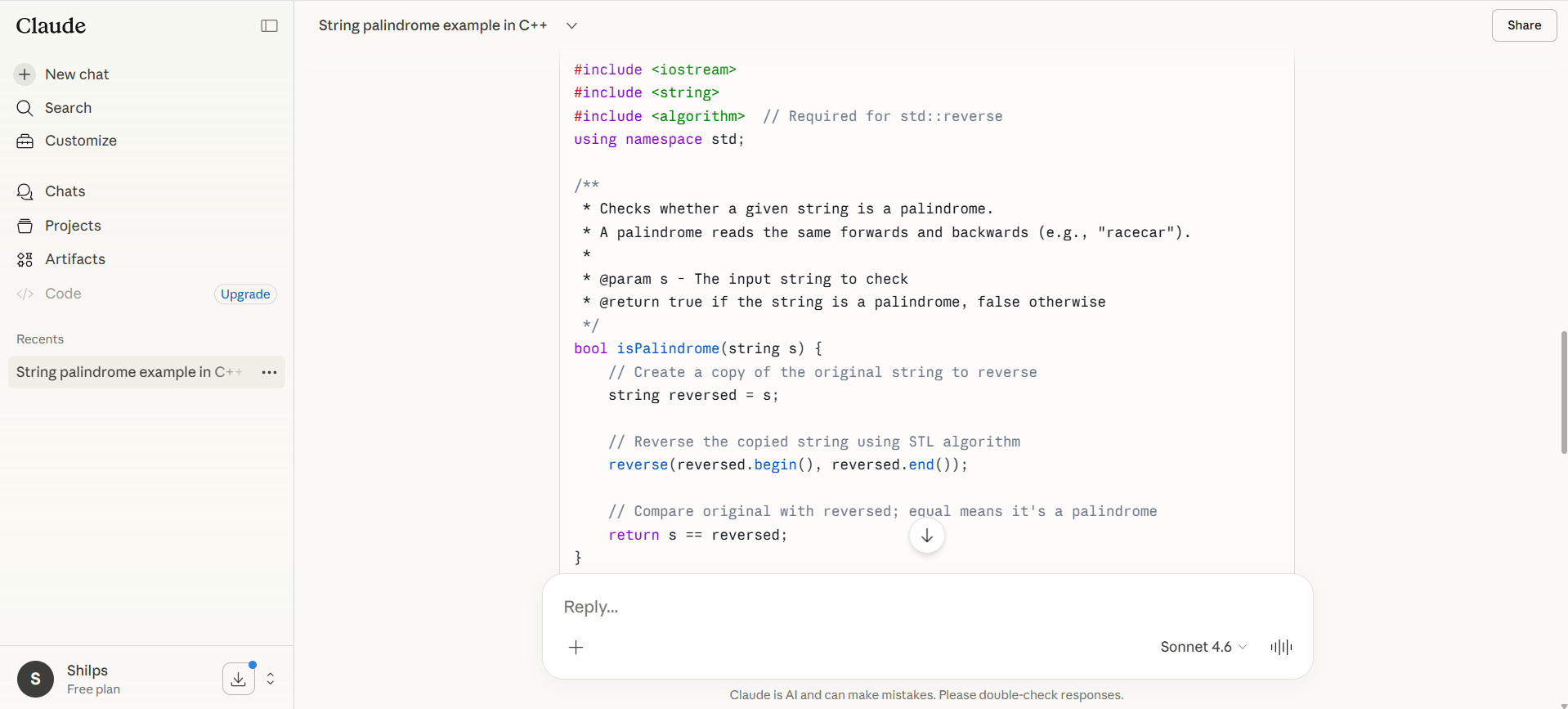
Write a basic example of a palindrome of a string in C++.
Claude’s output is shown in the screenshots below:
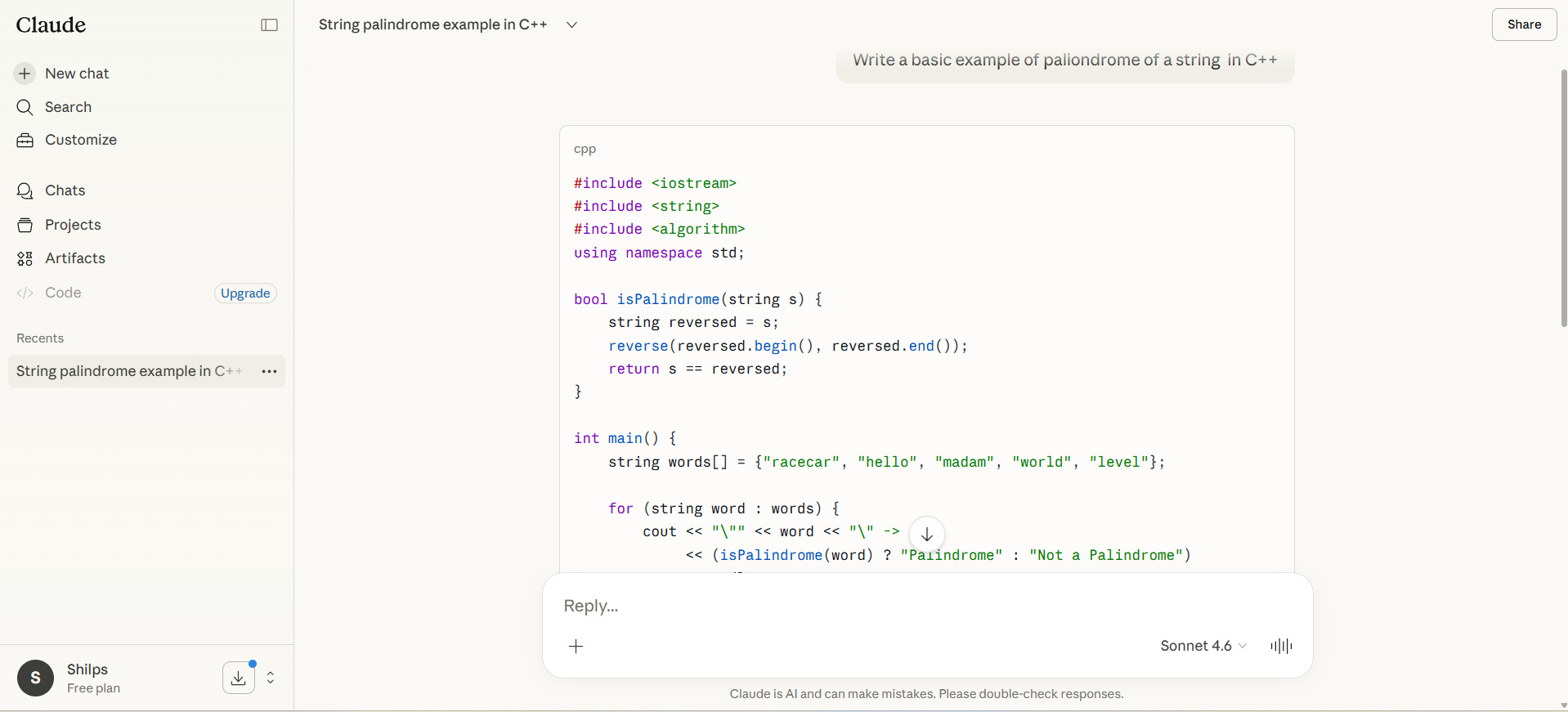
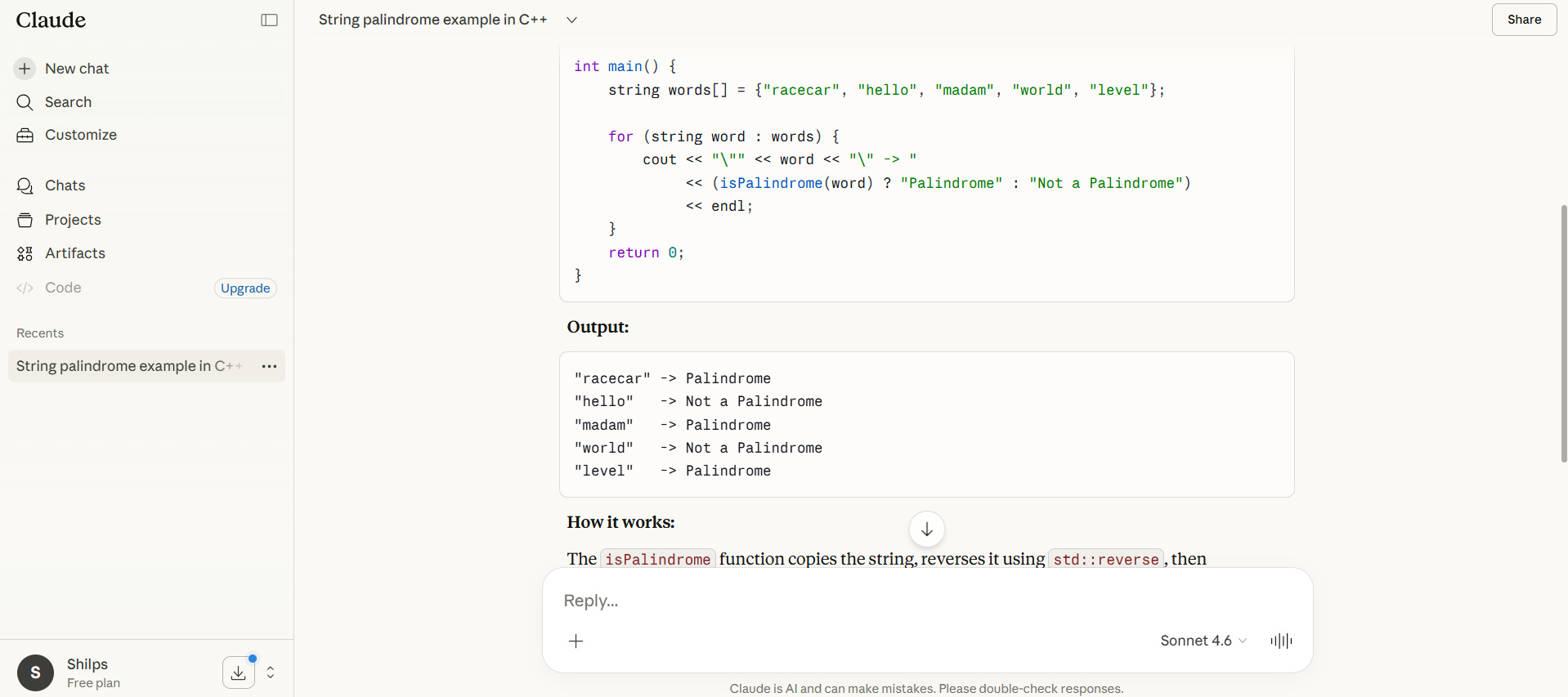
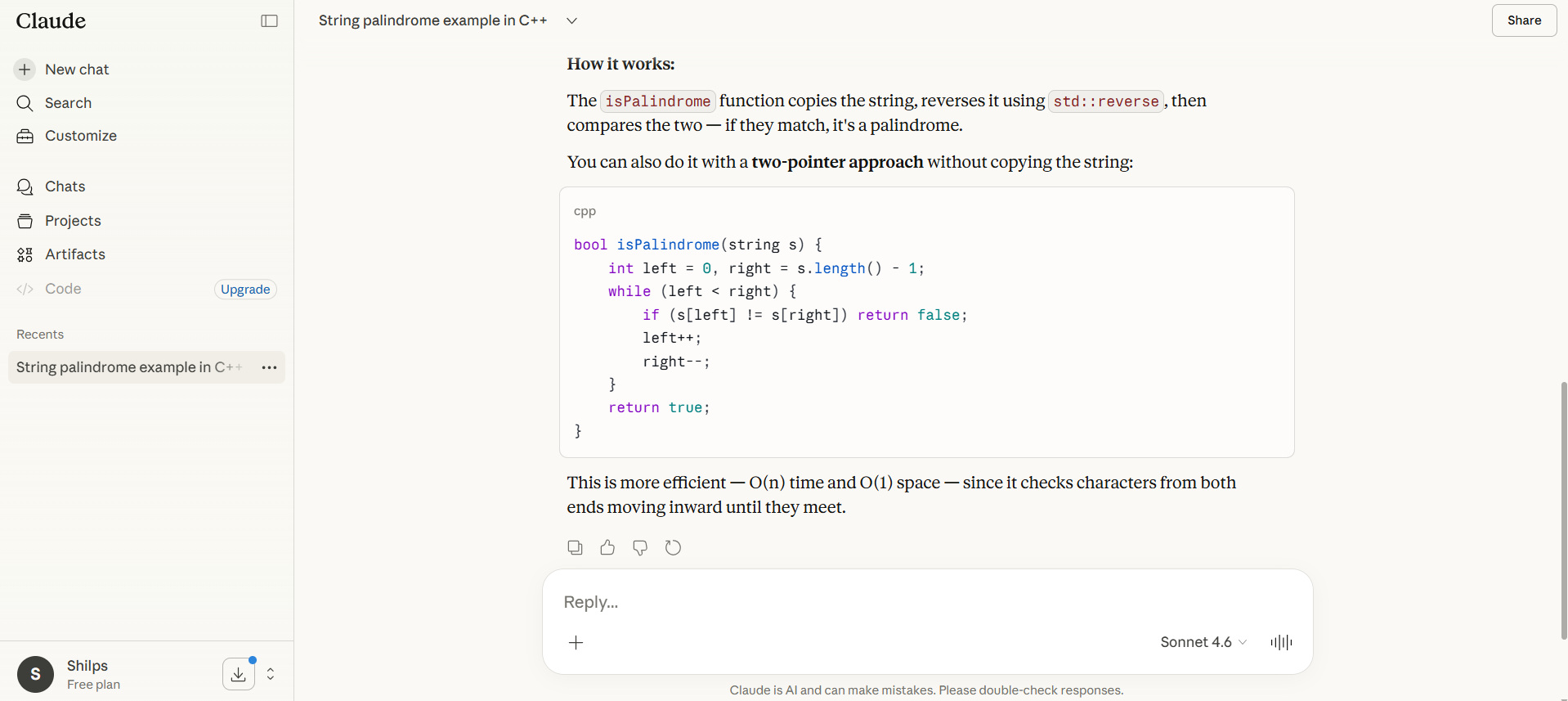
This is a basic example of a code prompt. You can specify more complex prompts to perform advanced functions.
Documenting Code
Claude Code can be used to generate, enhance, and standardize code documentation. It can generate structured comments or docstrings, identify missing sections, and ensure compliance with project documentation standards and conventions. As an example, let us document the above “Palindrome” program in C++.
Here, you provide the following prompt:
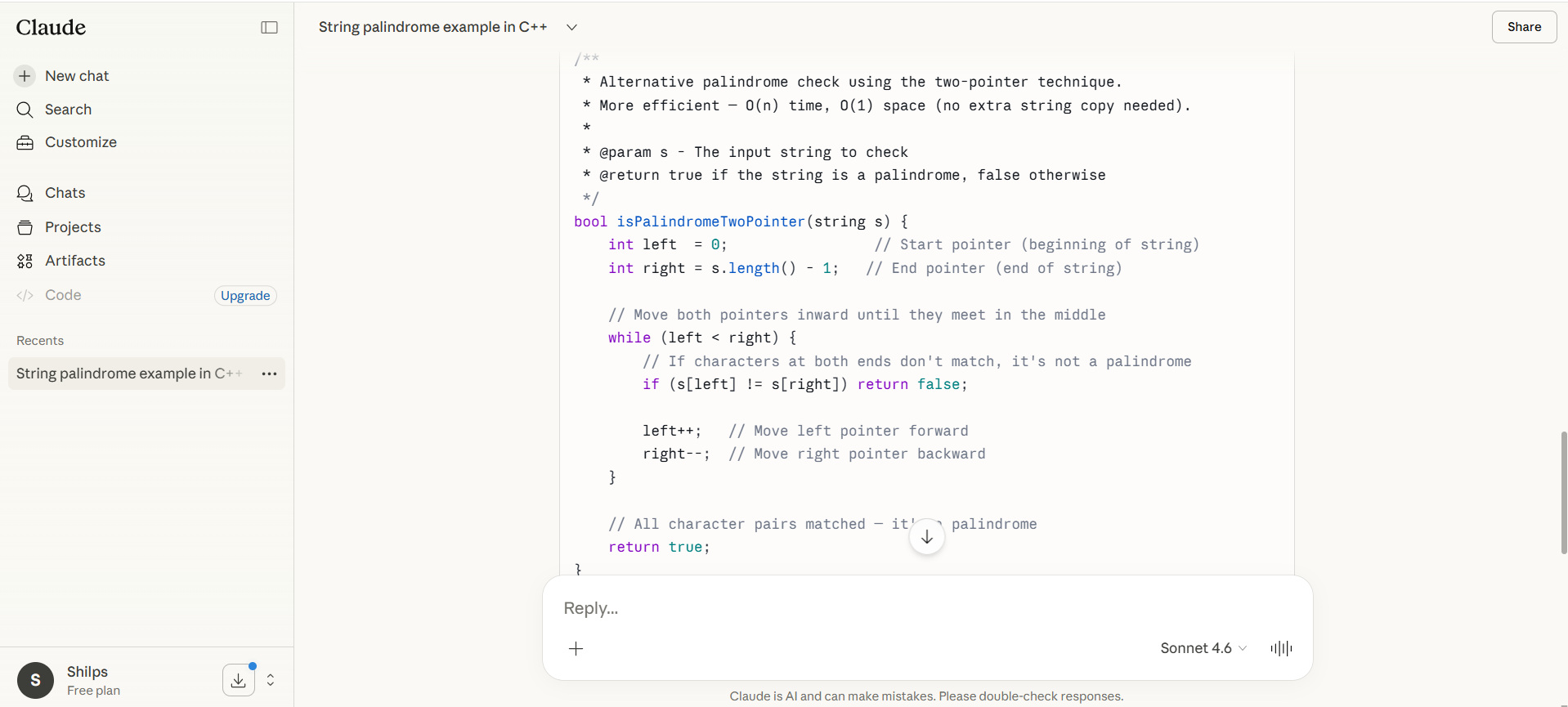
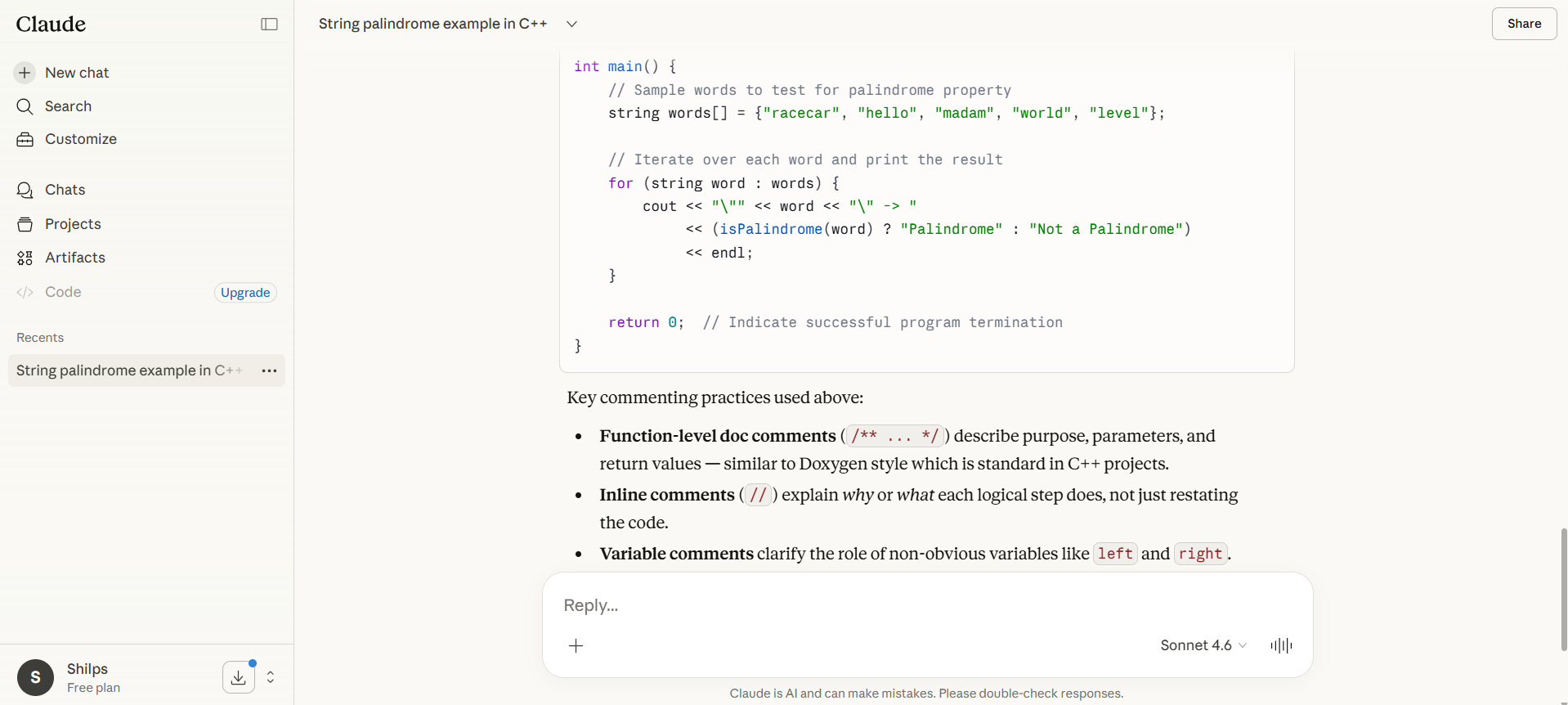
Document the above code by adding comments to improve understanding.
- Function-level doc comments (
/** ... */) describing the purpose, parameters, and return values for methods used in the program. - Inline comments (
//) explaining each logical step. - Variable comments clarifying the role of non-obvious variables, such as
leftandright. - Algorithm comments highlighting the technique used (two-pointer, STL reverse), making the program readable.
The following sequence of screenshots shows the output generated for the documentation prompt above.
Output:
Generating Different Types of Code Using Claude Prompts
You can use the Claude model for various coding tasks. Here are a few examples of Claude prompts that help you perform different coding tasks:
Writing Functions
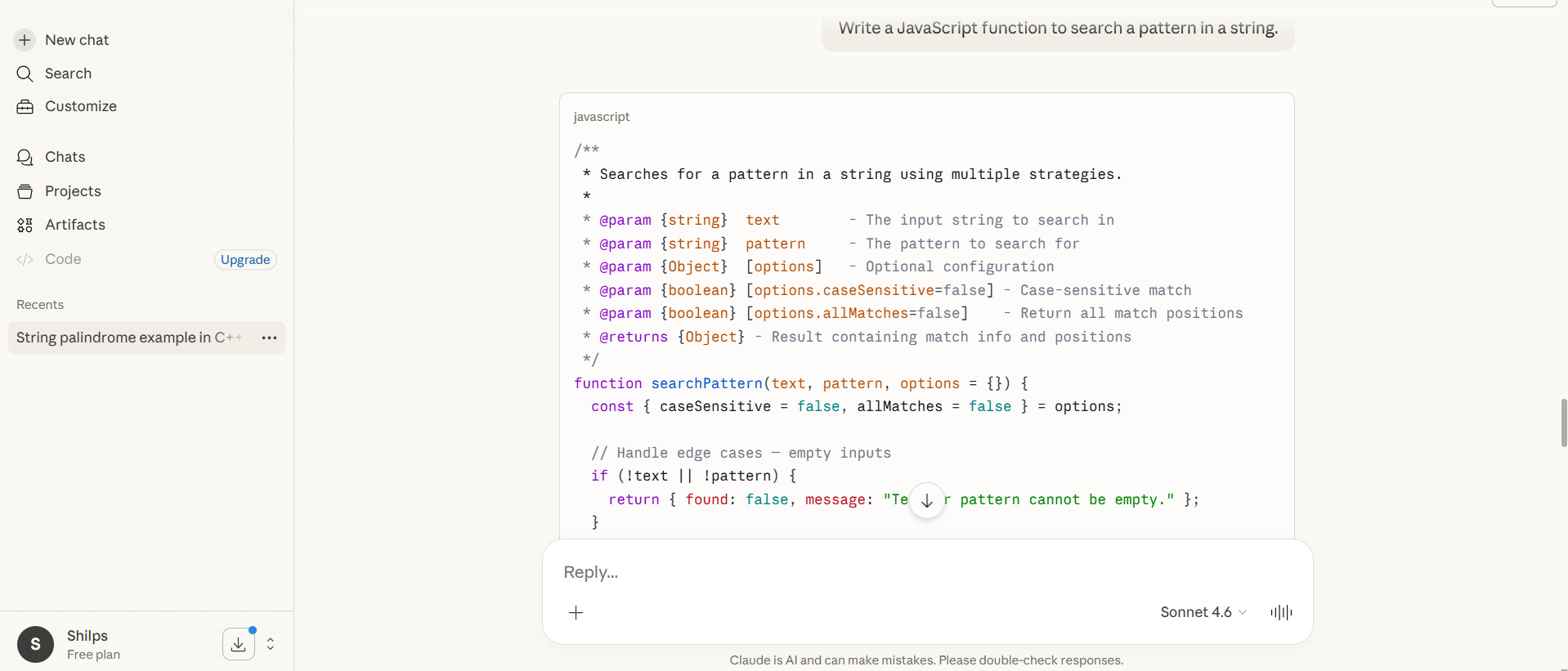
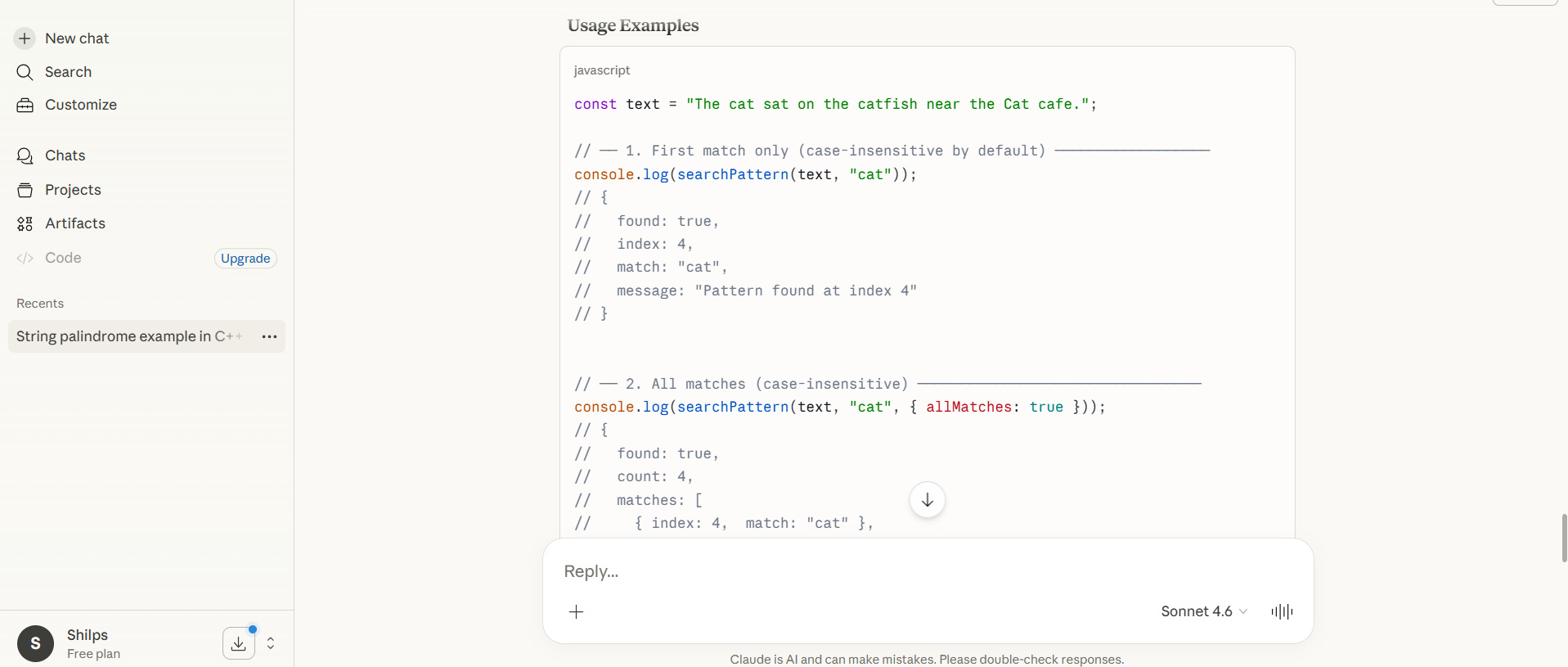
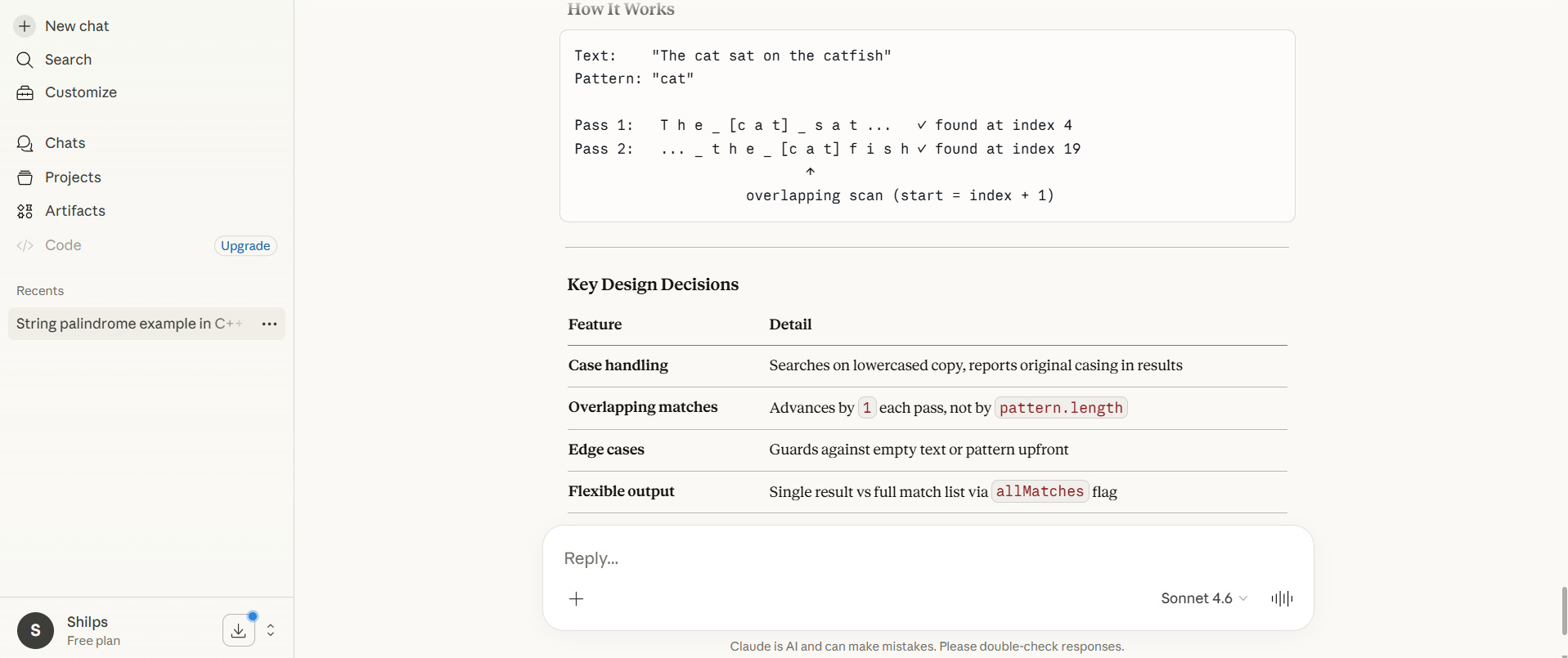
You can write individual functions in any language using the Claude prompt. An example is:
Write a JavaScript function to search for a pattern in a string.
The part of the output generated is provided in the screenshots below:
Building Full Programs
You can also build full programs using the Claude prompt. In this case, you specify the features you need in the program.
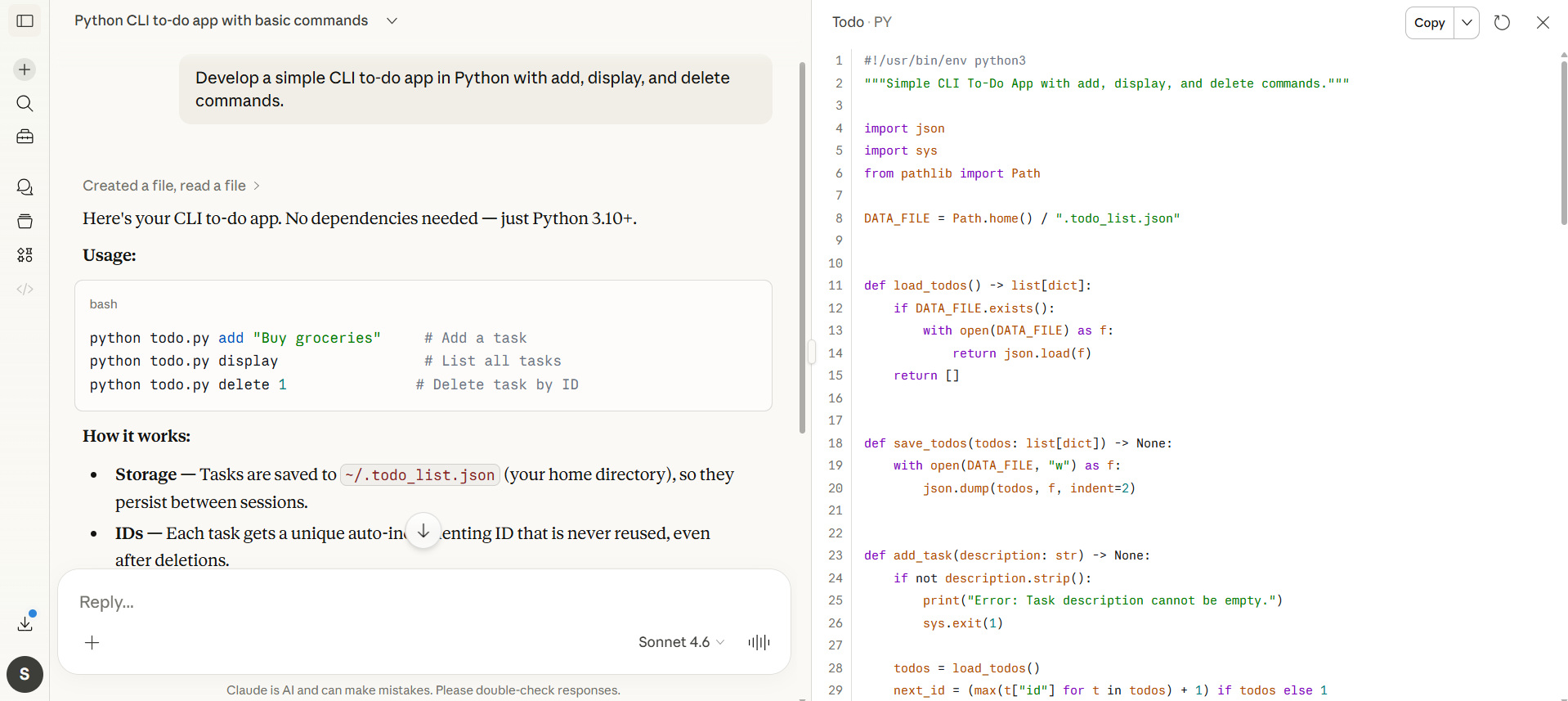
An example of a Claude prompt to build a full CLI model in Python is as follows:
Develop a simple CLI to-do app in Python with add, display, and delete commands.
The partial output for the above prompt is:
Generating APIs
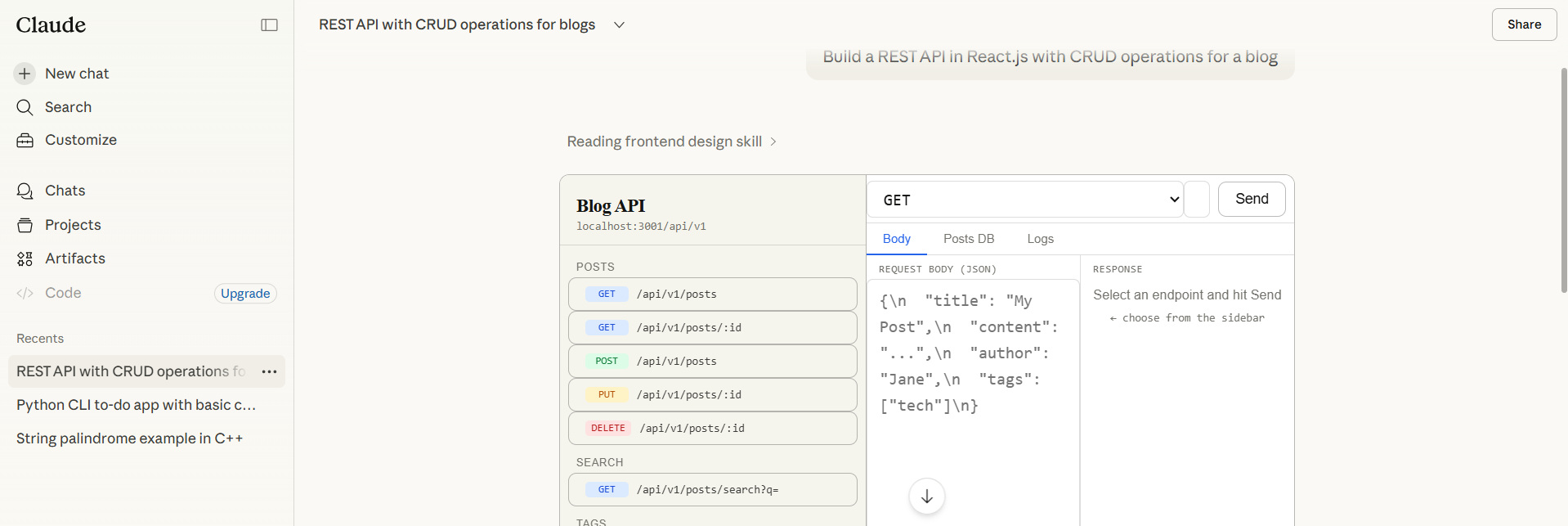
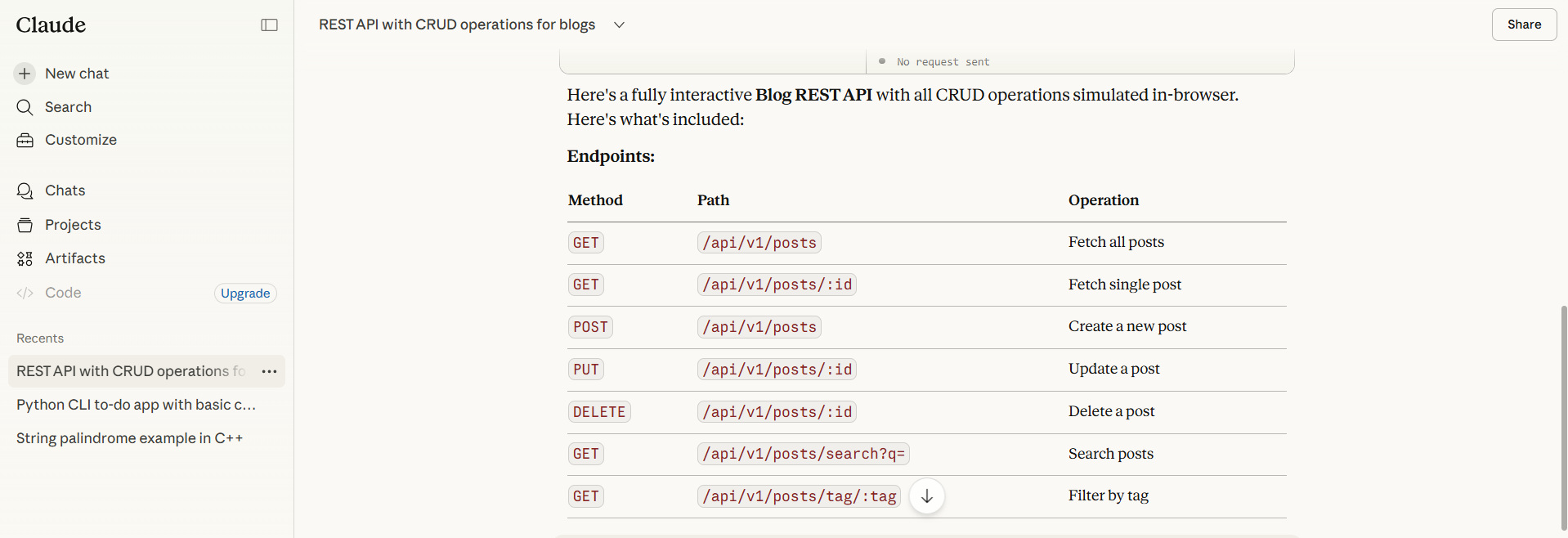
The Claude prompt for generating a REST API is as follows:
Build a REST API in React.js with CRUD operations for a blog
Here are some of the screenshots for the output:
SQL Queries
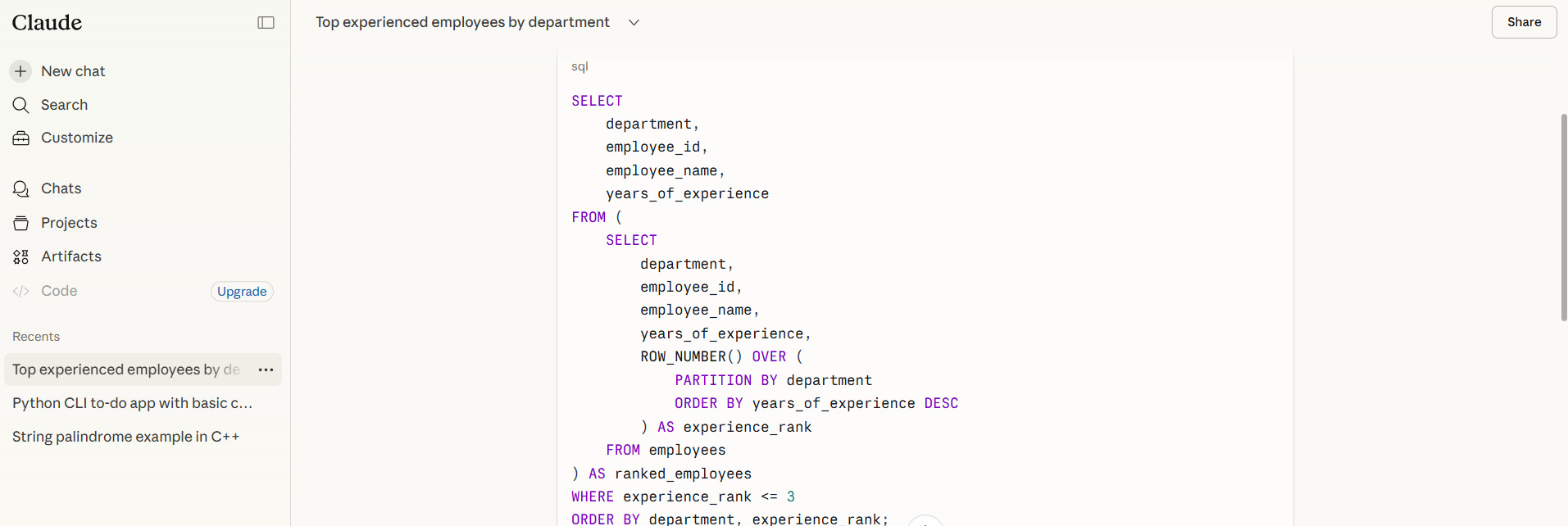
You can generate SQL queries for your database using Claude prompts. One example is shown below:
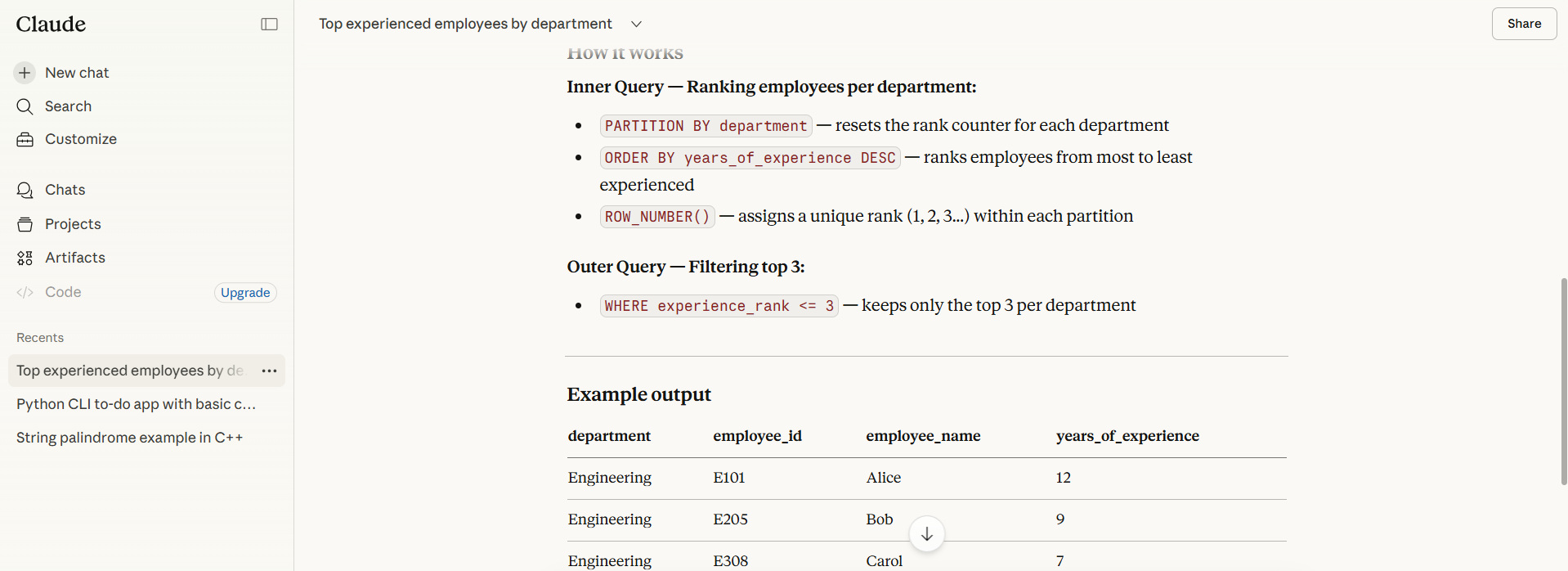
Write a SQL query to find the top 3 employees with the highest experience in each department.
This query lists employees with the highest experience across departments. A few screenshots from the output generated are shown below:
Frontend Components
You can use the Claude tool to create frontend, UI/UX components. Claude prompts you to develop these components with minimal effort, so you can readily use them in your project.
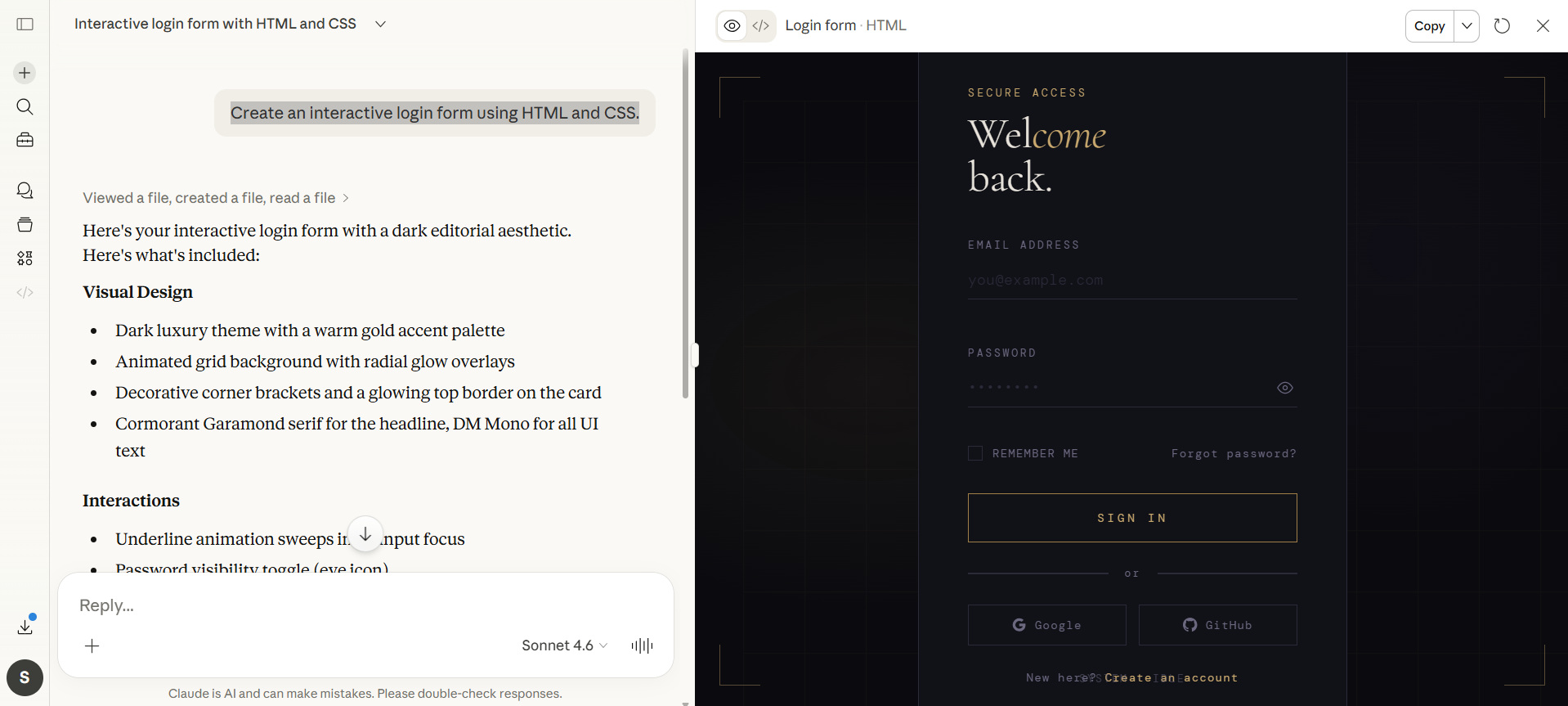
Here is an example Claude prompt:
Create an interactive login form using HTML and CSS.
The output for the above prompt is here:
Read: How to Get Better Results from Claude Code Every Time.
Debugging Code with Claude
Claude is extremely useful for debugging. This is an iterative process where the AI analyzes your environment, executes commands, and suggests fixes.
def calculate_average(numbers):
  return sum(numbers) / len(numbers)

What is wrong with the calculate_average([ ]) function?
Claude generates the following output for this prompt:
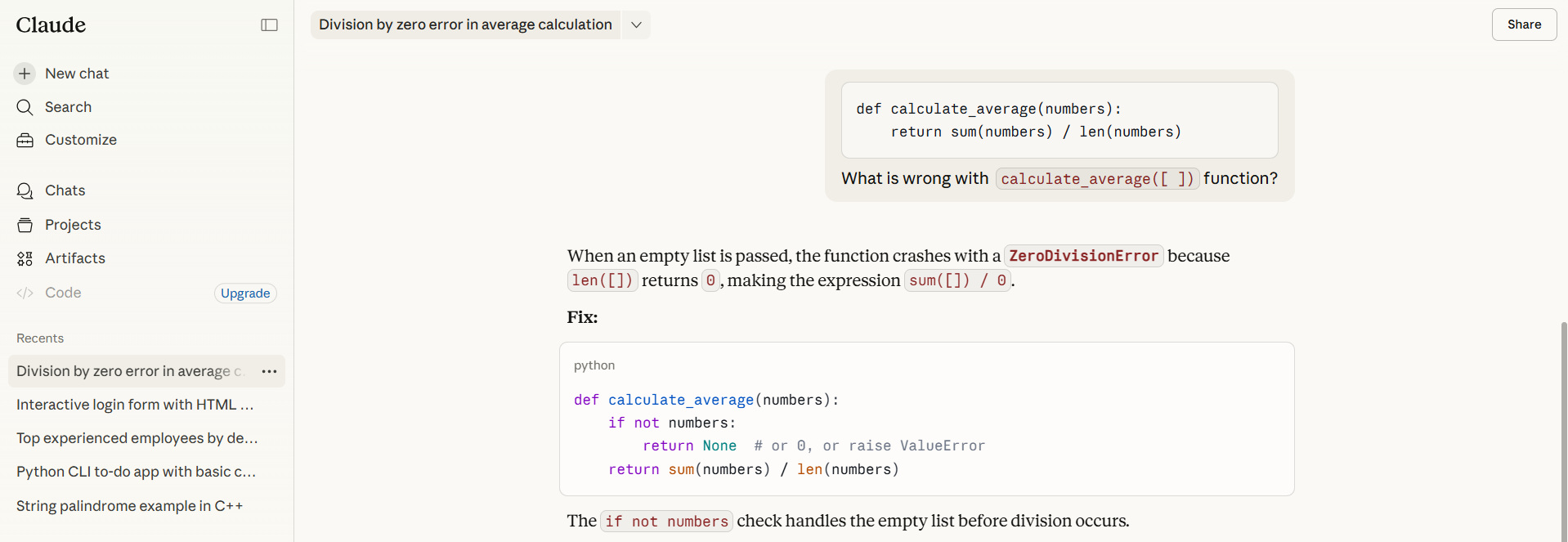
As seen in the output, Claude not only debugs the error in the program, but also suggests fixes (the if check in the above program).
In general, if a function behaves unexpectedly (e.g., crashing on empty inputs), Claude identifies the edge case immediately.
Apart from finding simple bugs and fixing them as seen in the above example, Claude catches complex “invisible” errors like mutable default arguments in Python. It uses visual tools or command-line execution to solve issues that don’t produce clear text errors.
Code Refactoring and Optimization
Claude can improve existing code. Refactoring and optimizing code with Claude can improve the existing code. A structured workflow is involved here that transitions from analyzing legacy logic to incremental, verified implementation. You can also automate tedious cleanup while maintaining the highest code quality with continuous testing. For this purpose, you can leverage tools like Claude Code (the agentic CLI).
For example, the following prompt,
Refactor this Python code to make it more efficient and readable.
- Simplify the logic of the program
- Improve variable names to align with conventions and standards
- Reduce redundancy by removing unnecessary instructions
- Suggest better algorithms for improved performance and efficiency.
Prompting Best Practices for Claude
To get high-quality code, follow these best practices while writing code prompts:
- Be Specific: Provide a specific prompt describing what you want exactly.
For example, instead of the prompt
“Write a sorting algorithm.”You can say“Write a Python function to sort a list of items using quicksort.” - Provide Context: Specify the context of your code (background, programming language, technology, etc. ).
For example, the prompt
“I am building a REST API in Node.js. Write an endpoint to create a user with validation.”specifies the detailed context of the code you want. - Specify Constraints: While writing your code prompt, do not forget the constraints or limitations you want for your code.
For example, this prompt,
“Write a function in Java that uses O(n) time complexity and avoids recursion,”limits the program’s complexity and requires it to avoid recursion. - Ask for Explanations: The output provided by the prompt is code, and as a user, it should be understandable and readable. You can ask for code explanations. The following prompt achieves this.
“Explain how this code works step by step.”
Read: Best ChatGPT Prompts for Code Generation (With Examples).
A Holistic Alternative to Generating Code with Claude
While Claude acts as a reliable code companion for developers and helps out greatly with code generation, it is still difficult to ensure the quality of its output. Claude seems to rely only on the vibes, which is not enough to generate reliable and functional code. Hence, a solution that lets you code with QA guardrails in place is a better one.
Read: Agentic Coding vs. Vibe Coding: Comparing AI-Coding Paradigms for Developers.
codeCake is the name that comes to mind when we consider alternatives to Claude for code generation.
codeCake is an AI tool from testRigor that uses Spec-Driven-Development (SDD) to generate application code. It leverages the strengths of testRigor test cases to simplify coding and ensure the generated code is fit for purpose.
Using codeCake, you basically delegate the creation of a test case to a person who wants to build new functionalities into your application. Using the power of testRigor’s free-flowing plain English test cases to provide details on how a new feature should work or how a functionality should work, providing a different way to fix bugs.
- A previously passing test that now fails. In this case, codeCake will fix the underlying code so that the test now passes.
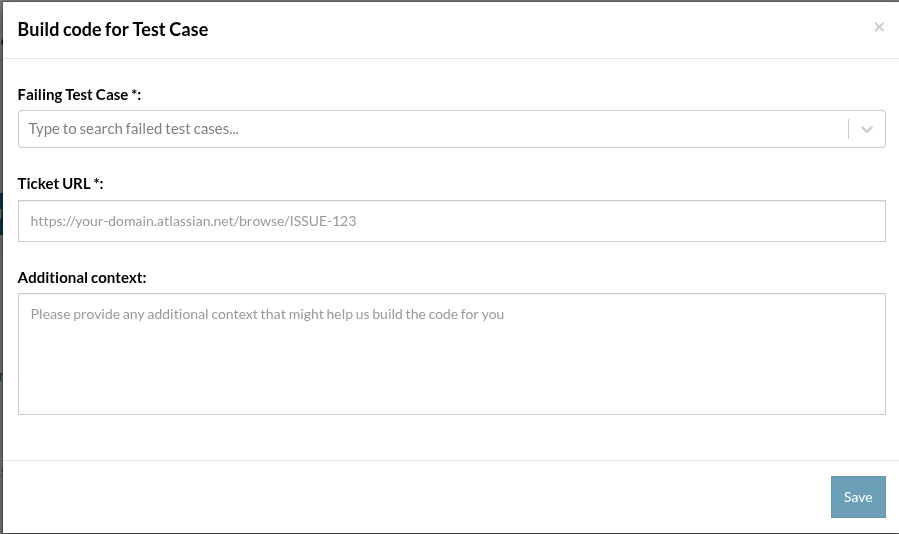
- It can also be a test for functionality that does not yet exist. codeCake will write the needed application code to implement this new functionality so that the test passes.
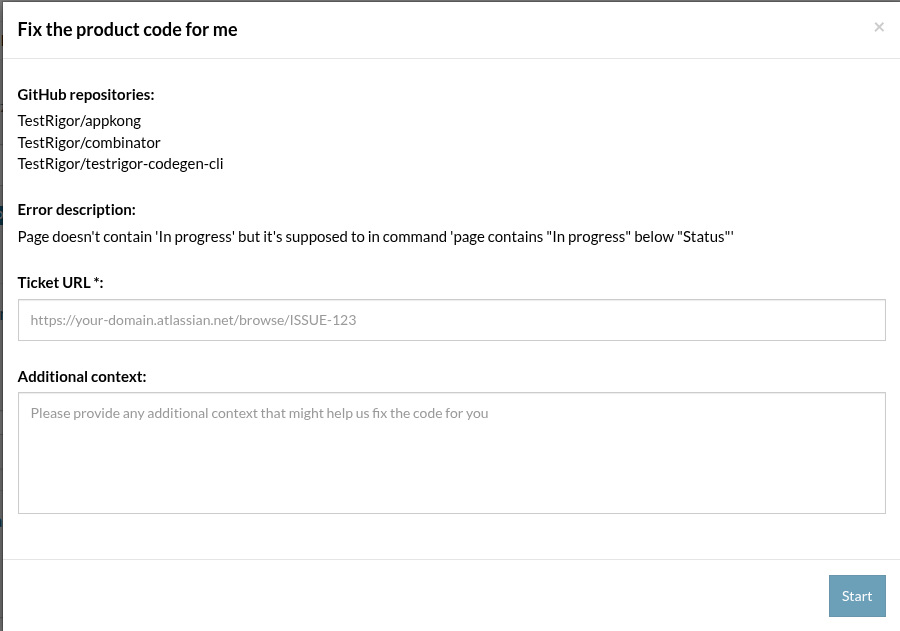
- Other inputs to codeCake are user requirements from a ticket in the customer’s ticketing system (e.g., Jira) and user documentation from the web, an internal wiki, or Google Docs.
It is this focus on using tests to define requirements that is the unique feature of codeCake over tools such as Claude.
codeCake can make changes across multiple applications, even if these applications are in different repositories.
- A single platform for all
- No integration needed with other testing frameworks like Selenium
- No need to decode and maintain the Claude-generated test script code
- Lower maintenance costs
Code Review Integration in codeCake
Once code is generated, either failing test case is passed or required functionality implemented, codeCake does not directly push its changes into production. Instead, it opens a Pull Request (PR) just like the way it is done during manual review.
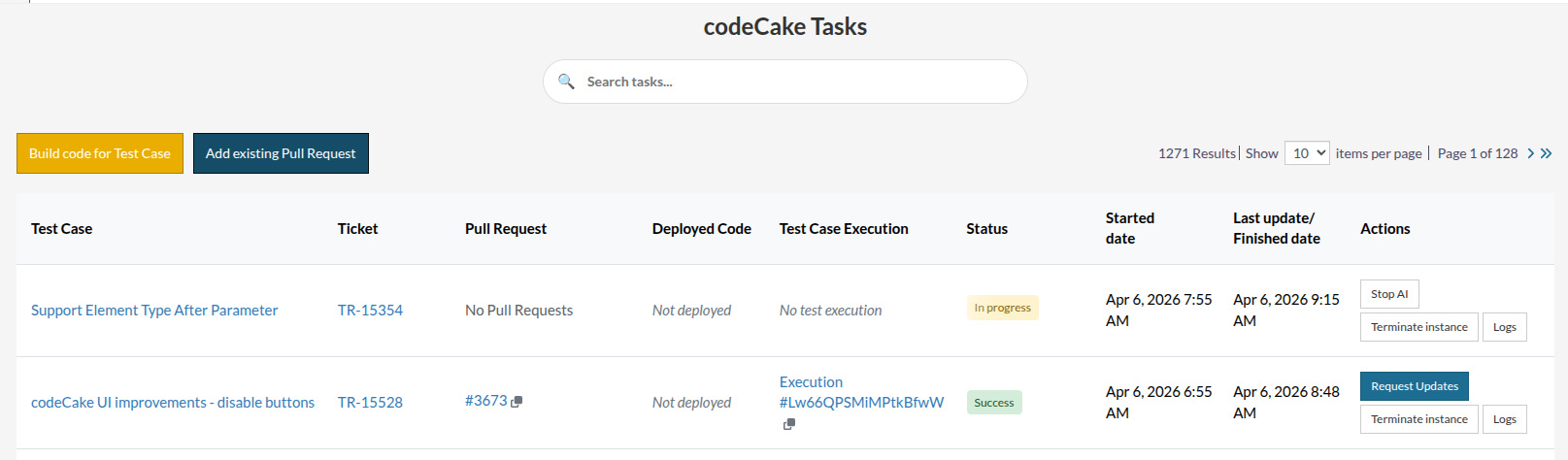
Code reviewers then review the changes and add review comments.
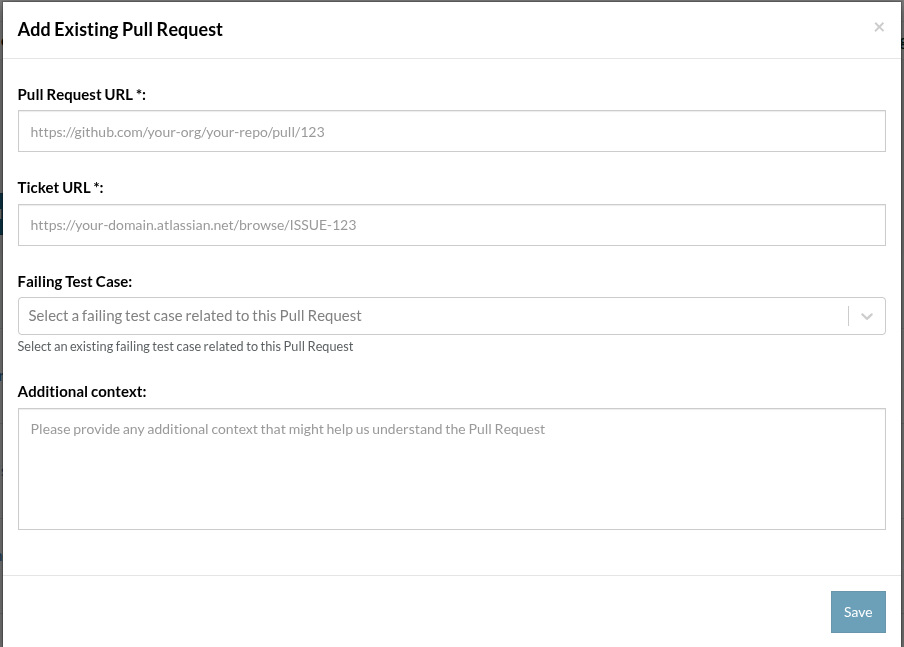
codeCake responds to these comments, makes changes to the code, and once the test case passes again, the PR is updated, and changes are committed.
Conclusion
Claude is a powerful tool that helps developers perform software development and code generation tasks. It can dramatically improve your coding workflow, whether you’re a fresher learning syntax or an experienced developer building complex systems.
- A coding assistant
- A debugging partner
- A learning companion
Remember to start small, experiment often, and gradually explore more advanced and complex use cases. Like most developers today, you will also find that Claude can significantly boost your productivity and understanding of code.
Frequently Asked Questions (FAQs)
- What is Claude, and how does it help with code generation?
Claude is an AI-powered assistant that uses natural language prompts to generate, debug, and explain code. Developers use Claude to write code faster, fix errors, and understand complex programming concepts.
- Do I need programming experience to use Claude for coding?
No, beginners can use Claude effectively since you need to provide natural language prompts. When you provide simple prompts, Claude will generate code along with explanations to help you learn.
- Which programming languages does Claude support?
Claude supports a wide range of languages, including Python, JavaScript, Java, C++, Go, SQL, and more. It can also work with frameworks and libraries.
- How do I write better prompts for code generation?
To get better results:
- Write prompts that are specific about your requirements
- Mention the programming language you want the code in
- Add constraints (e.g., performance, libraries) to the prompt
- Provide a context or sample input/output to make the prompt more meaningful so that the output is accurate.
- Can Claude debug and fix errors in my code?
Yes, Claude analyzes your code, identifies problems with the code, and suggests fixes. You can even paste error messages or code snippets and ask for help.
- Is the code generated by Claude always correct?
It may not be. While Claude produces high-quality code, a human intervention is always required. You should always review, test, and validate the output before using it in production.
 |