
File Permissions in Linux Explained: chmod, chown, and Access Control
The Linux operating system is renowned for its security, stability, and flexibility. One of the key mechanisms that contributes to its robust security model is the file permission system. Managing file permissions and ownership is crucial for maintaining security and access control.
| Key Takeaways: |
|---|
|
This article provides a detailed explanation of Linux file permissions, the chmod and chown commands, ownership concepts, and access control mechanisms that help secure Linux systems.

Understanding Linux File Permissions
In Linux, system security and multi-user privacy are managed through a strict system of file ownership and operational permissions. Every file and directory has associated permissions that control access and define what actions users can perform on them.
Every file and directory is assigned to a specific user and group, defining who can view, modify, or execute it.
There are three basic permission types in Linux:
| File Permission | Description |
|---|---|
| Read (r) | User/Group/Others can view the contents of a file or the directory listing. |
| Write (w) | User/Group/Others can modify a file or create/delete files within a directory. |
| Execute (x) | User/Group/Others can run a file as a program or access a directory. |
Linux assigns these permissions to three categories of users:
| Category | Description |
|---|---|
| Owner (User) | The user who owns the file |
| Group | Users belonging to the file’s assigned group |
| Others | Everyone else on the system |
The permission structure consists of nine permission bits divided into three groups, as explained above. The structure looks like this:
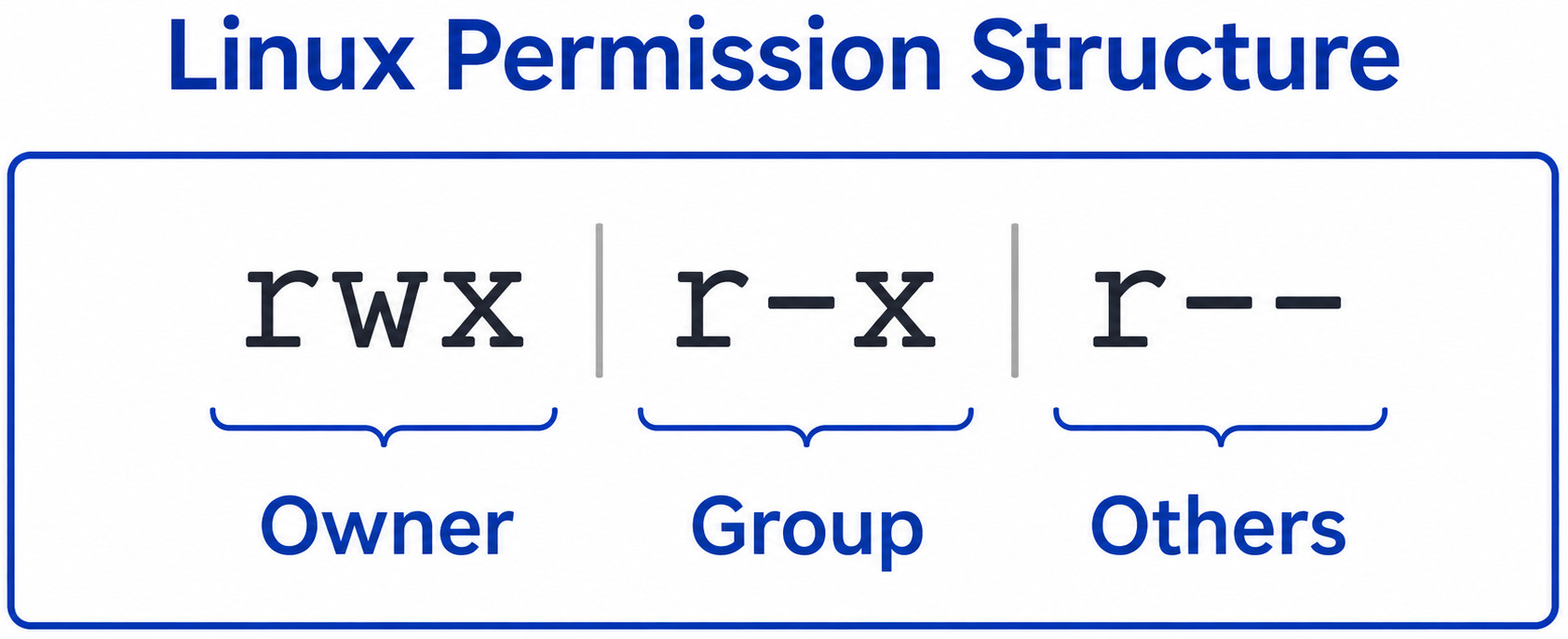
- Owner can read, write, and execute (
rwx). - Group can read and execute (
r-x). - Others can only read (
r--).
- What is an Operating System: A Beginner’s Guide
- NTFS vs. EXT4 vs. FAT32: Best File System for 2026
- How File Systems Work: Inodes, Directories, and Disk Structure Explained
Viewing File Permissions
In Linux, the most common way to view permissions is using the ls -l command. Long format displays file type, permissions, number of links, owner, group, size, and last modified date.
The following screenshot shows the working of this command:
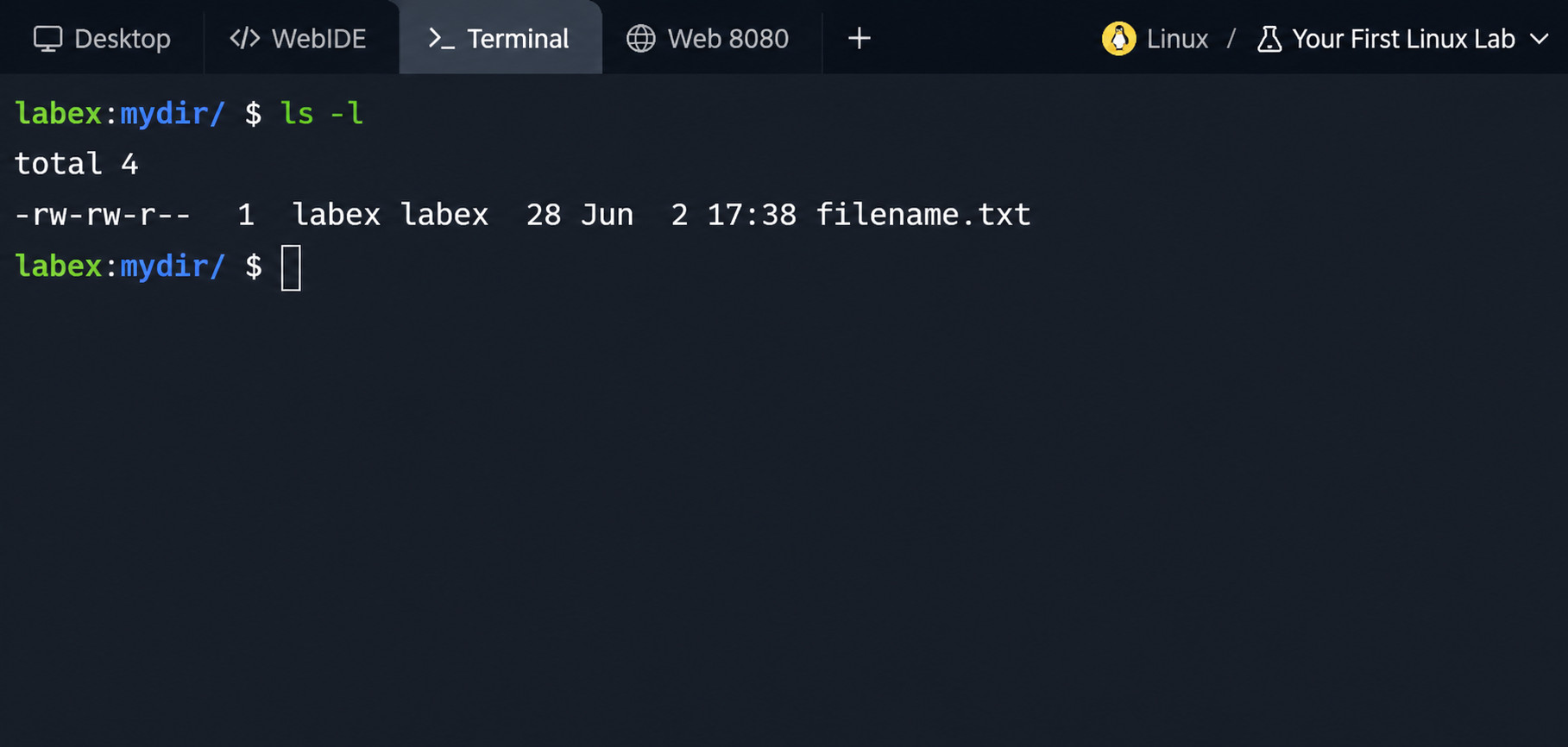
Now, let’s break down the output:
-rw-rw-r--
- First character (
-) indicates the file type. - Next three (
rw-) represent owner permissions. - Following three (
rw-) represent group permissions. - Last three (
r--) represent others’ permissions.
- Number of hard links (
1) - Owner name (
labex) - Group name (
labex) - File size (
28) - Modification date (
Jun 2 17:38) - Filename (
filename.txt)
File Types in Linux
In Linux, everything is represented as a file, and the system recognizes exactly seven distinct file types. Unlike other operating systems like Windows, Linux does not rely on file extensions such as .exe or .txt to determine a file’s nature. In Linux, the kernel identifies a file by its internal structure and metadata.
The first character in the permission string indicates the file type:
| Symbol | File Type | Description |
|---|---|---|
| – | Regular file | A file that stores standard data such as text, images, or compiled binaries. |
| d | Directory | A container to organize other files and folders. |
| l | Symbolic link | A pointer to another file or directory. |
| c | Character device | A sequential, unbuffered interface to hardware such as keyboards. |
| b | Block device | A buffered, random-access interface to storage such as SSDs. |
| s | Socket | Facilitates two-way communication between processes across a network or locally. |
| p | Named pipe | Allows unidirectional inter-process communication on the local machine. |
For example, consider the following string:
drwxr-xr-x
In this, the leading d indicates a directory.
Similarly, in the example above, the output of the ls -l command shows - indicating a regular file.
Numeric Representation of Permissions
Linux permissions can also be represented numerically. It uses octal notation to represent permissions numerically by assigning a specific value to each access right. The numerical representation of permissions is as follows:
| Permission | Value |
|---|---|
| Read (r) | 4 |
| Write (w) | 2 |
| Execute (x) | 1 |
You can quickly define the permissions for the user, group, and others by adding these numbers together.
For example, the permission rwx adds to 4+2+1 = 7.
Similarly:
rw- = (4+2+0) = 6
r-x = (4+0+1) = 5
r-- = (4+0+0) = 4
Consider the following permission string:
rwxr-xr--
- Owner: 4 + 2 + 1 = 7
- Group: 4 + 0 + 1 = 5
- Others: 4 + 0 + 0 = 4
Hence, the numeric notation of the above string is 754.
The chmod command commonly uses this numeric shorthand notation for representing permissions.
The chmod Command
The chmod command in Linux and Unix-like operating systems modifies the file and directory access permissions. Using this command, system administrators and file owners can precisely control who can read, write, or execute specific files.
Syntax for the chmod command is:
chmod [permissions] file
chmod Command Using Numeric Mode
Numeric mode uses a three-digit code to completely overwrite existing permissions. For example, the following command changes the permissions for filename.txt to 7 (rwx), 5 (r-x), and 5 (r-x).
chmod 755 filename.txt
The output of this command is shown below:
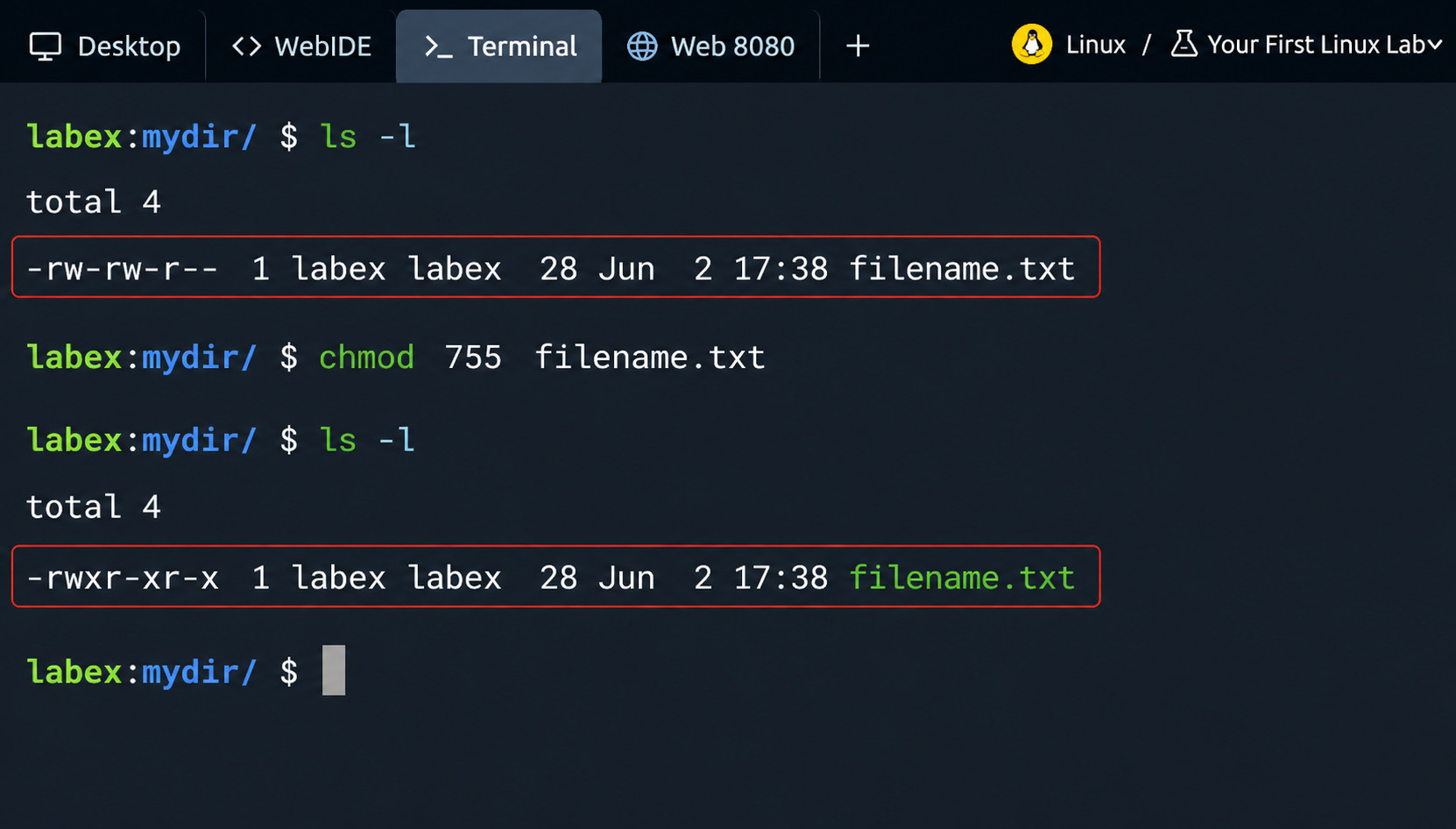
As seen in the above screenshot, the initial permissions for filename.txt are rw-rw-r--. After executing chmod, the permissions become rwxr-xr-x.
chmod are as follows:chmod 644 file: Owner can read and write; group and others can only read. This is standard for web documents.chmod 700 file: This command provides full access for the owner; completely blocked for everyone else.chmod 777 file: This provides unrestricted read, write, and execute for everyone. These permissions should be used with extreme caution as this creates security risks.
chmod Command Using Symbolic Mode
Symbolic mode uses characters and operators instead of numeric values to modify permissions dynamically.
The operators and symbols used with their meaning are given below:
| Symbol/Operator | Meaning |
|---|---|
| u | User (Owner) |
| g | Group |
| o | Others |
| a | All users |
| + | Add permission |
| – | Remove permission |
| = | Assign exact permission |
For example, the following command adds write permission to the file filename.txt:
chmod +w filename.txt
The output of the command is given below:
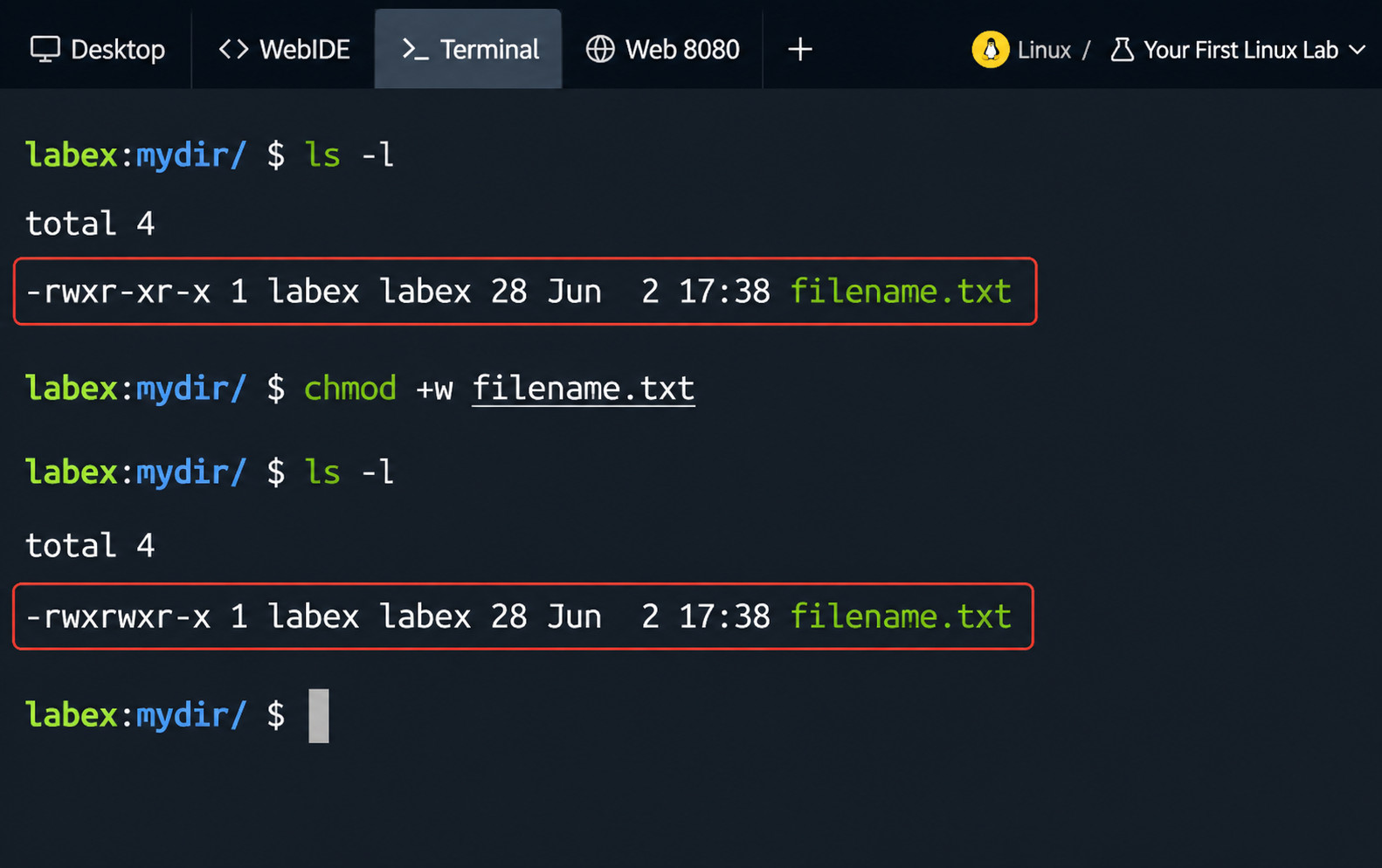
As you can see, the above command provides write permission to the specified file.
chmod using symbolic notations are given below:chmod g-w filename.txt: Remove write permission from group.chmod o+r filename.txt: Grant read permission to others.chmod u=rwx,g=rx,o=r filename.txt: Set exact permissions.
Changing Permissions Recursively
When working with directories, permissions often need to be changed recursively so that they apply to subdirectories and files inside the directory.
For this purpose, the -R flag is used. An example command to recursively change the directory permissions of the mydir folder is:
chmod -R 755 mydir
The output of the command is shown below:
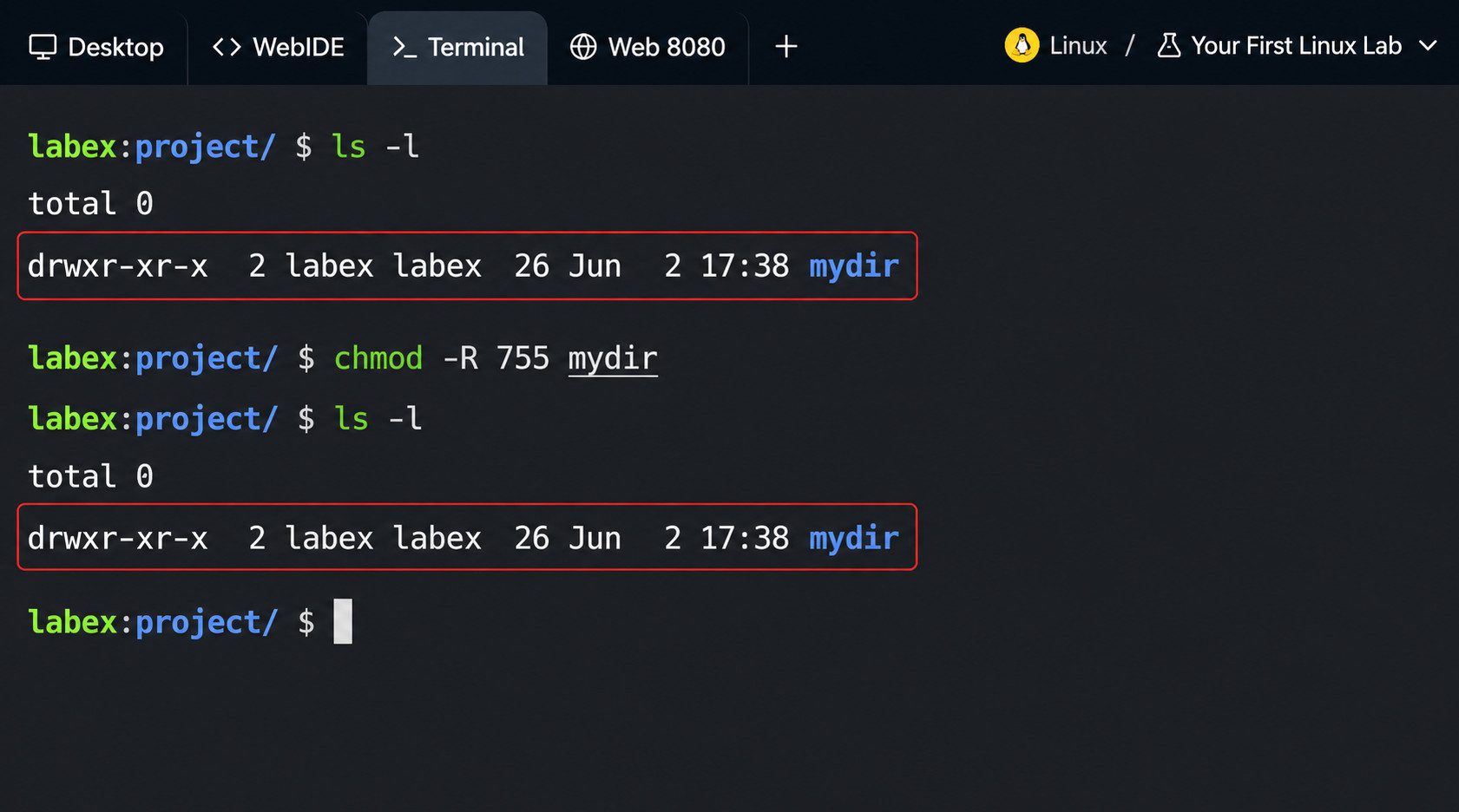
Note: This approach should be used with caution. For example, chmod -R 755 mydir makes all regular files executable, which is rarely desired for text documents, code files, or images.
Understanding File Ownership
We have already discussed that every single file and directory in Linux is tied to a specific user owner and a group owner to control access and protect data integrity. This is a multi-user security mechanism that isolates user environments and ensures that only authorized entities can view, edit, or execute system resources.
The three layers of ownership in the Linux file system are User (u), Group (g), and Others (o).
To view ownership of a specific file or directory, you can use ls -l.
If you execute the following command in your Linux terminal:
ls -l
The output generated is:
drwxrwxr-x 2 labex labex 6 Jun 2 21:06 mydir
- Owner:
labex - Group:
labex
Ownership determines who can modify permissions and access the file. Thus, in this example only the owner labex can change the file permissions and access.
The chown Command
The chown command in Linux modifies the user and/or group ownership of files, directories, and symbolic links. File ownership management is necessary to maintain system security and access control.
The syntax of the chown command is:
sudo chown [OPTIONS] [OWNER][:[GROUP]] FILE...
sudo is often used with chown because changing file ownership is a privileged operation in Linux. By default, only:- The root user can change a file’s owner.
- Regular users cannot transfer ownership of files to other users.
For example, the following command changes the owner of the file report.txt to Alice:
sudo chown alice report.txt
Changing Owner and Group
To change the owner and group of a specific file, the command is:
sudo chown owner:group file
For example, if you want to change owner and group of the file report.txt to alice and developers respectively, the command is:
sudo chown alice:developers report.txt
This changes both the owner and group of the specified file.
Changing Group Only
To change only the group for a file, you can use the following command:
sudo chown :developers file.txt
However, the preferred command is:
chgrp developers file.txt
Recursive Ownership Changes
Just like the chmod command, to change ownership of an entire directory tree, you can use the -R flag with chown:
sudo chown -R alice:developers project/
With this command, all files and subdirectories inherit the new ownership.
This command is useful when transferring project ownership or fixing permission issues.
Directory Permissions Explained
Directory permissions behave differently from file permissions. Directories have read, write, and execute permissions just like files. Each of these permissions is explained here.
Read Permission on Directories
When you have read permission on a directory, it allows listing contents as shown in the example below:
ls mydir/
This command will list the contents of the directory mydir.
Write Permission on Directories
Write permission on directories allows creating, deleting, and renaming files.
For example, when you have write permission on a directory, you can use the following command to create a file filename.txt:
echo "This is my text" > filename.txt
Execute Permission on Directories
The execute permission (x) on a directory allows you to traverse it. This means you can access files inside, change into the directory using the cd command, or execute scripts stored within it.
For example, the following set of permissions:
drwxr-x---
Means:
- Owner can fully access the directory.
- Group can list and enter the directory.
- Others have no access.
Special Permissions
Linux includes three special permission types as follows:
SetUID (SUID)
This is a special Linux file permission that allows an executable to run with the owner’s privileges rather than the user who launched it.
The presence of SUID permissions can be identified by the presence of the s bit as shown in the following example:
-rwsr-xr-x
Notice the s for execute (x) permission.
SUID bit is set using the chmod command as follows:
chmod u+s file
Its numerical representation is as follows:
chmod 4755 file
Here, 4 represents SUID.
A common example where SUID privileges are used is:
/usr/bin/passwd
Because of SUID privileges, users can change passwords even though password files belong to root.
SetGID (SGID)
SetGID (Set Group ID) is a special Linux file permission using which files or directories inherit specific group privileges rather than relying on the user’s primary group.
When SGID privileges are applied to executable programs, they run with group privileges. When applied to directories, the new files inherit the directory’s group.
SGID is set using the following command:
chmod g+s directory
Its corresponding numeric representation is given as:
chmod 2755 directory
Here, 2 represents SGID.
Sticky Bit
The Sticky Bit in Linux is a special file system permission flag applied to directories, restricting the deletion and renaming of files. It ensures that only the file’s owner, the directory’s owner, or the root user can delete or modify its contents when the sticky bit is active. This is true even if a directory has full write permissions (777).
This permission is commonly used on shared directories and prevents users from deleting files owned by others.
For example, look at the following directory permission structure:
drwxrwxrwt
The very last character of the permission string, the others execute field, is a sticky bit. A lowercase t means both the execution bit (x) and the sticky bit are turned on.
Sticky bit is set using the command:
chmod +t directory
Its corresponding numeric representation is:
chmod 1777 directory
Here, 1 is the designated numeric value for the sticky bit.
The /tmp directory in Linux typically uses this permission.
- What Are System Calls? How Operating Systems Communicate with Applications
- User Mode vs Kernel Mode: Understanding Privilege Levels in OS
- What Happens When You Delete a File? OS File Deletion Explained
Access Control Lists (ACLs)
Traditional permissions only support one owner, one group, and others. However, sometimes more granular control is required. ACLs in Linux provide fine-grained permission control for specific users and groups beyond the traditional permission model.
ACLs allow you to add independent custom rules for multiple unique users or alternative groups.
Checking ACLs
You can check the current detailed access rules applied to a specific file or directory using the getfacl command.
For example, the following command provides details of the permissions on the specified file:
getfacl filename.txt
The output of this command is given below:
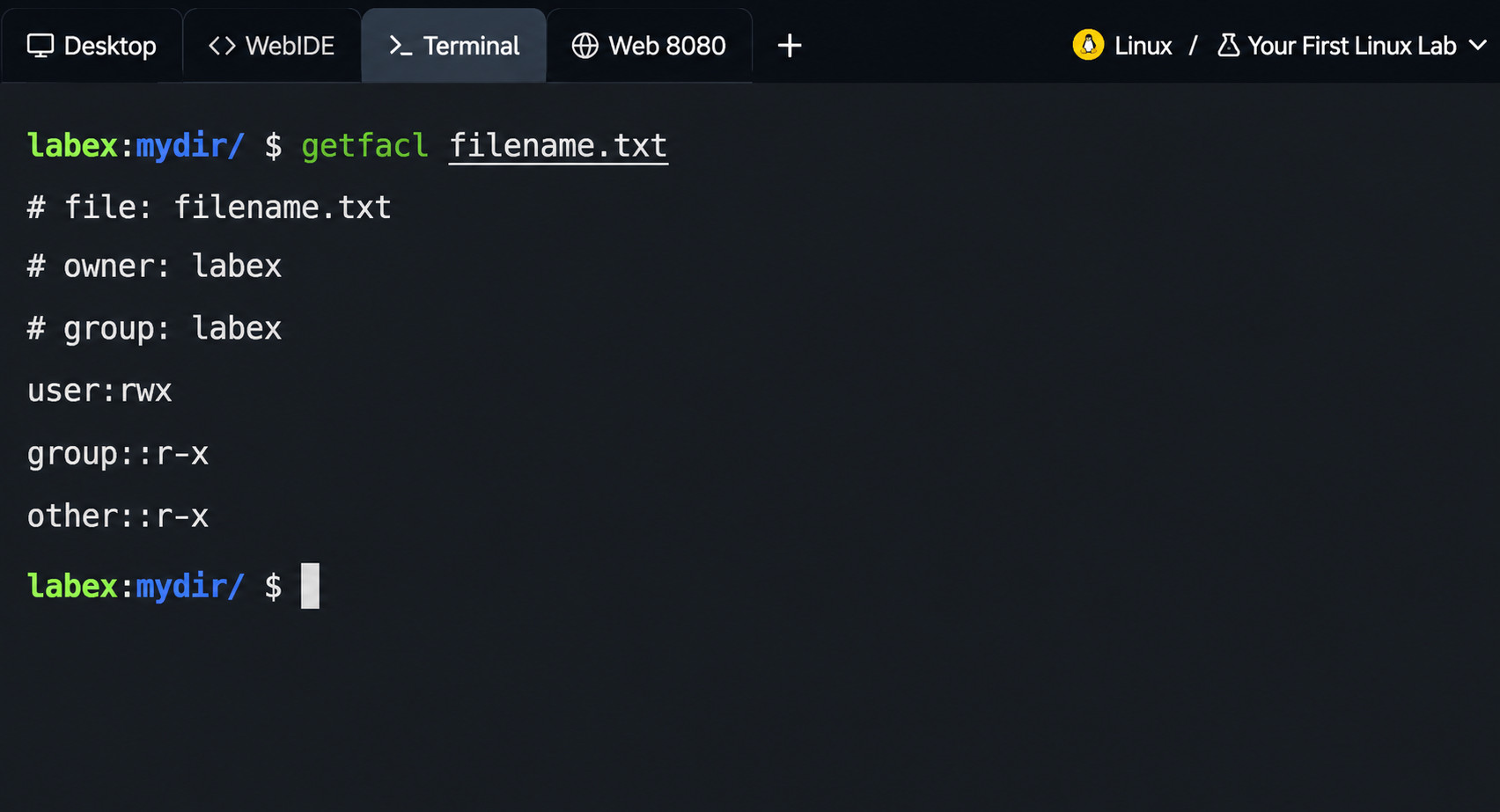
As you can see, the details of the owner, group, and their respective permissions are displayed.
Setting ACLs
The setfacl command is used to grant specific permissions to a user who is neither the owner nor a member of the primary group, and uses the -m modify flag.
For example, to grant read access to user Alice, use the command:
setfacl -m u:alice:r file.txt
To grant a group permissions, use the command:
setfacl -m g:developers:rwx project/
Removing ACLs
You can remove the ACL entry using the -x flag with the setfacl command.
For example, to remove Alice’s ACL entry:
setfacl -x u:alice file.txt
To remove all ACLs, use the setfacl command with the -b flag:
setfacl -b file.txt
ACLs are especially valuable when multiple teams require varying access levels and are used in enterprise environments.
Best Practices for Linux File Permissions
Here are some of the best practices you can use for Linux file permissions:
- Follow the Principle of Least Privilege: Always grant only the permissions necessary for users to perform their tasks. Avoid using
777permissions that allow everyone to read, write, and execute. - Protect Sensitive Files: Restrict access to sensitive files such as password files, configuration files, and SSH keys.
- Use Groups Effectively: Instead of granting permissions individually, create groups, assign users to groups, and manage access centrally.
- Audit Permissions Regularly: Check for overly permissive files with
777access or SUID files. Security of file systems can be maintained with regular audits. - Use ACLs for Complex Requirements: Use ACLs for complex permission requirements, rather than creating multiple duplicate groups.
Conclusion
Linux file permissions are the foundation of system security and resource management. Users have to understand how various permissions work for files and directories to effectively control access to files and directories.
The chmod command provides flexible permission management, while ownership assignments are handled by the chown and chgrp commands. For more advanced and complex requirements, Access Control Lists (ACLs) offer fine-grained control beyond traditional permission models.
As a Linux user, it is essential to master these concepts, whether managing a personal workstation, developing applications, or administering enterprise servers.
Frequently Asked Questions (FAQs)
What causes the “Permission Denied” error in Linux?
The “Permission Denied” error usually occurs when:
- The user lacks the necessary permissions.
- The file is not executable.
- Ownership settings are incorrect.
Why should I avoid using chmod 777?
The permission 777 gives everyone full read, write, and execute access, which can create serious security risks. It is generally recommended to follow the principle of least privilege and grant only the permissions that are necessary.
What are Access Control Lists (ACLs) in Linux?
ACLs provide more granular permission control than standard Linux permissions. They allow administrators to assign specific permissions to individual users or groups without changing ownership or primary group settings.
What are special permissions in Linux?
Linux supports three special permissions:
- SUID (Set User ID): Runs a program with the file owner’s privileges.
- SGID (Set Group ID): Runs a program with group privileges or ensures new files inherit the directory’s group.
- Sticky Bit: Prevents users from deleting files they do not own in shared directories.
What is the difference between chmod and chown?
- chmod changes the permissions of a file or directory.
- chown changes the ownership of a file or directory.
The first changes permissions, while the second changes the owner.
 |