
What is an Operating System: A Beginner’s Guide
You mostly click a few buttons or touch a few screens on computers, laptops, smartphones, and get your work done in no time! Are you aware of how things work in the background or how everything is managed so you get the output so efficiently?
Let’s introduce you to the boss of the computer system: the operating system.
| Key Takeaways: |
|---|
|
This beginner-friendly article explains the concept of operating systems in simple, clear language. By the end of this article, you’ll understand what an operating system is, what it does, how it works, and why it matters.
What is an Operating System?
An operating system (OS) is system software that serves as the interface between the user and the computer’s hardware. It manages a computer’s hardware and software resources and provides a platform for other software applications to run.
In simple terms, the OS controls all the parts of the computer and also ensures that applications and system programs run smoothly.
Imagine a computer has no operating system. What will happen in this case? You would have to manually control the memory, storage, and even the processor. In addition, you have to manage every connected device. How complicated would that be?
The presence of an OS simplifies everything by handling these tasks for you.
But having explained OS, remember that it is not a physical device. An operating system is a software program that manages everything related to the computer for you, including hardware, memory, resources, and applications.
In fact, the OS plays a vital role in ensuring efficient and reliable computing by performing the functions from managing memory and file systems to scheduling tasks and handling input/output operations.
Evolution of the Operating System
Operating systems (OS) have moved from manual, single-task systems to complex, AI-driven, networked environments, closely tracking advances in hardware. Key stages in OS evolution are:
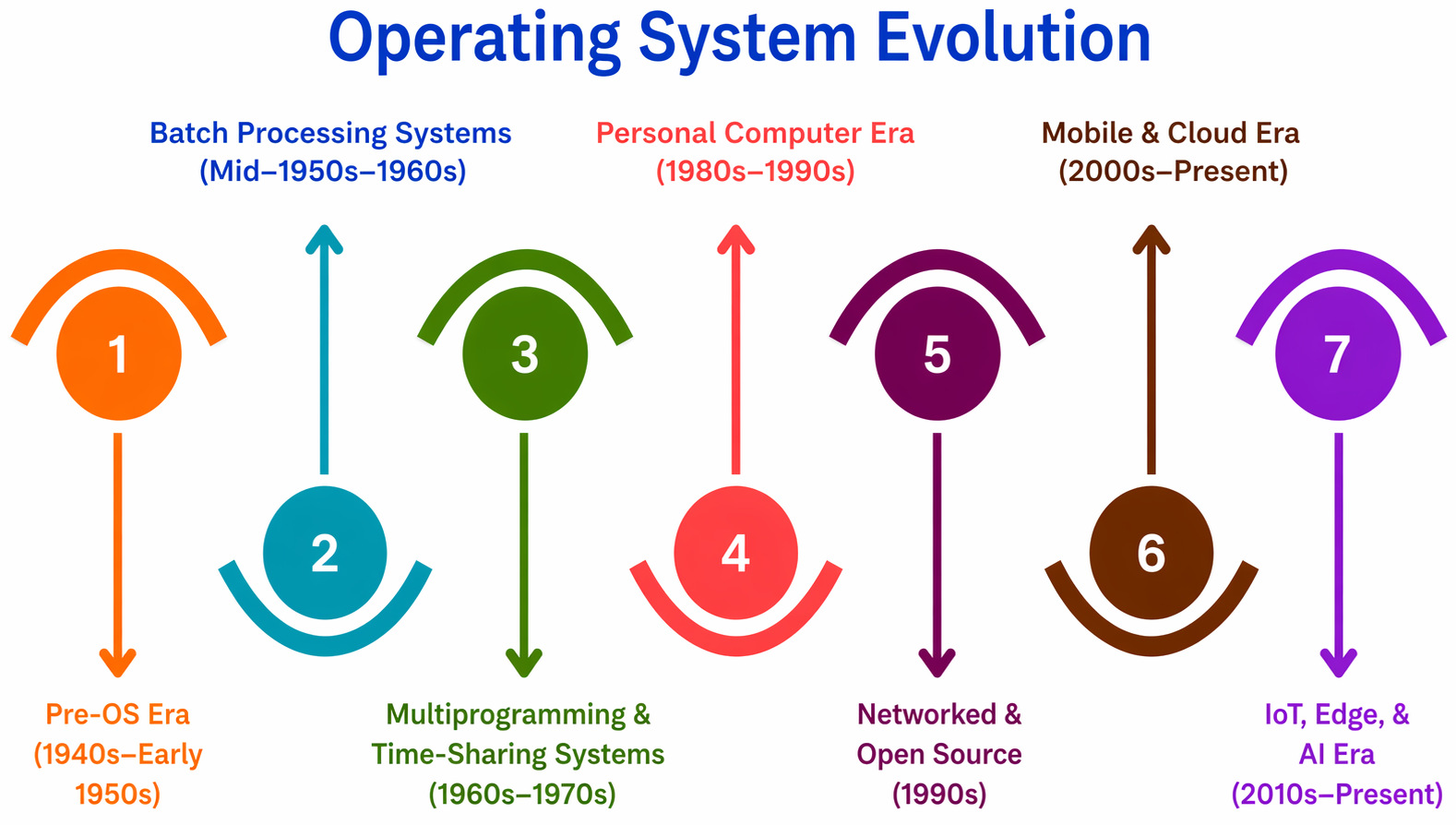
- Pre-OS Era (1940s-Early 1950s): This is a period of no operating system. Programmers actually loaded the programs manually via punched cards or vacuum tubes. The whole process required direct, exclusive access to hardware.
- Batch Processing Systems (Mid-1950s-1960s): Jobs/programs with similar requirements were “batched” together and processed sequentially. This reduced the idle time. Tape storage was used to allow automatic job-to-job transition.
- Multiprogramming & Time-Sharing Systems (1960s-1970s): In this era, memory held multiple jobs at once (multiprogramming) to increase CPU utilization. Multiple users could interact with the system simultaneously using time-sharing. This paved the way for interactive computing.
- Personal Computer Era (1980s-1990s): This is the era of microprocessors. Huge innovation and the rise of microprocessors led to MS-DOS (1981), followed by user-friendly Graphical User Interfaces (GUIs) such as the Apple Macintosh (1984) and Windows.
- Networked & Open Source (1990s): Operating systems such as Unix, Linux, and Windows NT were introduced in the 90s, featuring advanced networking, multitasking, and stability. In the same period, Linux fostered open-source development.
- Mobile & Cloud Era (2000s-Present): This period marked a major shift to mobile (portable) computing with the launch of iOS (2007) and Android (2008). These modern systems are heavily integrated with cloud computing for data storage and processing.
- IoT, Edge, and AI Era (2010s-Present): Nowadays, operating systems handle lightweight IoT devices, edge computing, and integrate AI to improve efficiency and user experience.
As you can see from the chronology above, operating systems have consistently moved towards greater efficiency, better resource management, increased user-friendliness through GUIs, and ubiquitous connectivity.
What are the Key Components of an Operating System?
- Kernel
- Shell/User Interface
- Process scheduler
- Memory manager
- Input/output manager
- File system manager
- System programs
Each of these components is discussed next.
Kernel
- Managing critical system processes
- Enabling interaction between software and hardware
- Controlling memory
- Managing CPU
The kernel operates at a very low level and interacts directly with hardware.
Reference Link: User Mode vs Kernel Mode: Understanding Privilege Levels in OS.
Shell/User Interface
This is the interface between the user and the kernel. A shell can be a graphical interface (like in Windows) or a command-line interface (as in Linux).
The shell is responsible for translating user commands into instructions that the kernel understands.
Process Scheduler
The process scheduler allocates CPU time to processes, ensuring efficient resource usage, preventing process monopolization, and managing multitasking. The process scheduler also handles context switching between applications to ensure smooth performance.
Read: What is Concurrency?
Memory Manager
The OS’s memory manager component is responsible for allocating and reallocating memory to processes. It manages both RAM and virtual memory. Advanced techniques such as demand paging and distributed memory management are used in enterprise systems that optimize resource utilization and ensure scalability.
Input/output (I/O) Manager
- Handles data transfer
- Manages device access
- Ensures error-free communication
In enterprises, it ensures smooth data flow between servers, networked storage, and peripherals.
File System Manager
The file system manager organizes, retrieves, and secures files across multiple file systems (e.g., FAT and NTFS). Apart from these, it also maintains data integrity, enforces permissions, and optimizes access performance.
In enterprise environments, you can see centralized file management for efficiency across large networks.
System Programs
- File managers
- Disk cleanup tools
- System monitors
Reference Link: What Are System Calls? How Operating Systems Communicate with Applications.
Why do we Need an Operating System?
The importance of operating systems cannot be overstated in today’s digital landscape. It forms the foundation of all computing devices, from personal computers and servers to smartphones, tablets, and embedded systems. An OS acts as an interface between user hardware and software, managing system resources, providing a user-friendly interface, enabling multitasking, and ensuring security. It serves as the backbone of a computer, allowing applications to run, managing memory/storage, and handling peripherals like printers and keyboards.
- Programs would not run.
- Files could not be saved or opened.
- Devices like printers and keyboards would not work properly.
- You would not see a graphical interface to interact with.
- Interface & Convenience: OS provides a user-friendly GUI or CLI for users to interact with hardware without needing to know machine code or assembly language.
- Resource Management: It efficiently allocates CPU time, memory, and storage among various applications to optimize performance.
- Hardware Abstraction & Control: The OS manages peripheral devices (printers, scanners, drives) through drivers, without exposing applications to the complexities of hardware.
- File System Management: It creates, deletes, and organizes data and files on storage drives in a structured manner.
- Multitasking & Process Management: The OS allows multiple programs to run simultaneously (multitasking), managing their execution, priority, and memory usage.
- Security & Protection: It provides user authentication, permissions, and file security, protecting data from unauthorized access.
What are the Main Functions of an Operating System?
An operating system performs many important tasks. Let’s explore the most important functions it performs.
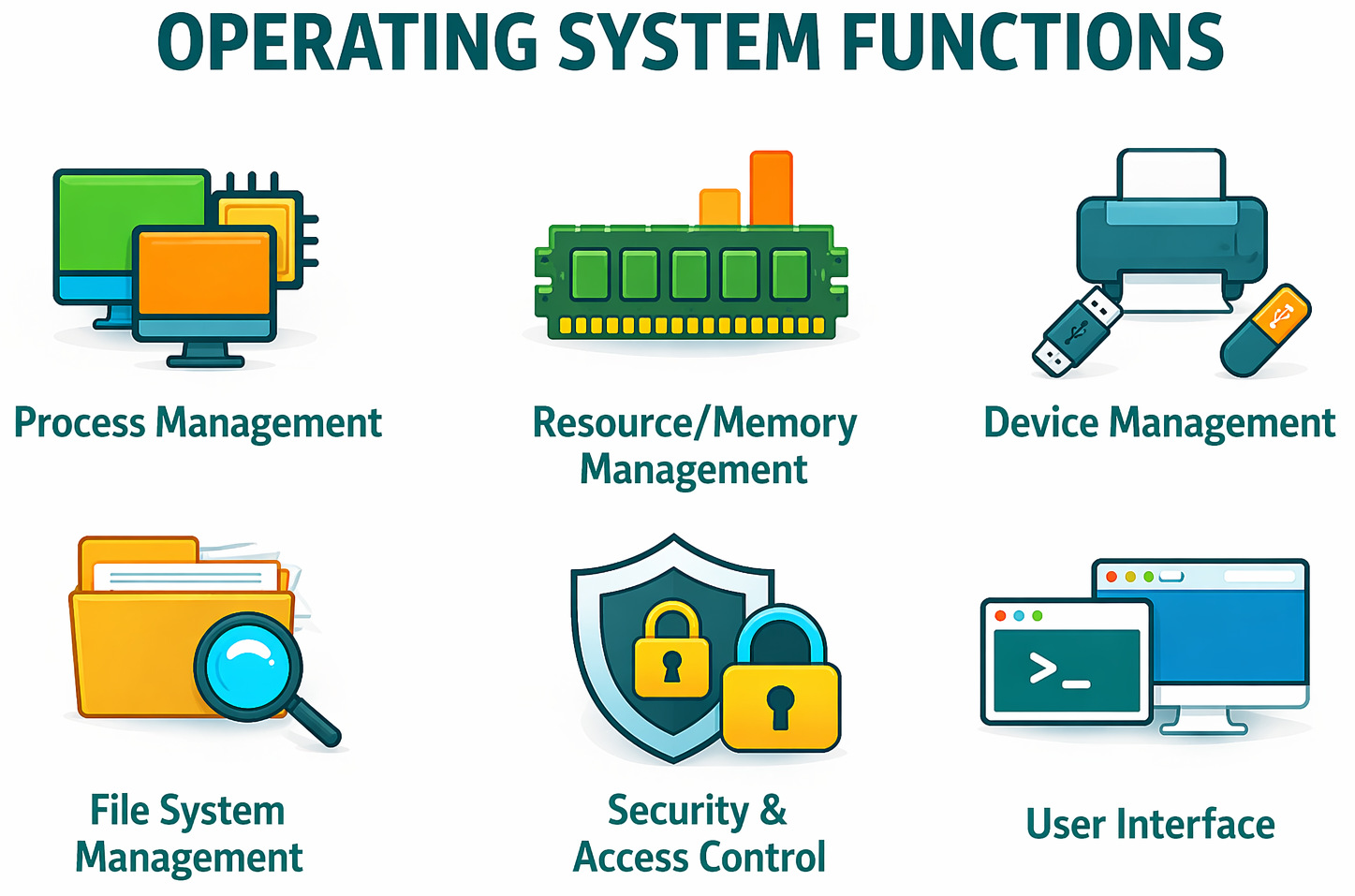
1. Process Management
- Starting and stopping the processes
- Allocating CPU time to different programs and scheduling the processes
- Ensuring multiple programs can run at the same time (multitasking)
For example, if you have a music player playing music while browsing the internet, the OS manages both tasks efficiently.
- Process Control Block (PCB) Explained
- Process vs. Thread: Key Differences Explained with Examples
- Context Switching in OS Explained: How it Works and Unveiling its Hidden Costs
2. Memory/Resource Management
- Allocates/deallocates the memory to each process
- Prevents programs from interfering with each other’s memory
- Manages processor utilization through task scheduling
- Controls input/output devices such as mice, keyboards, and printers
- Paging vs. Segmentation: Difference Between Memory Management Techniques
- Page Replacement Algorithms Explained (FIFO, LRU, Optimal)
- What is Thrashing in OS? Causes, Effects, and Solutions
- Deadlock in Operating Systems: Causes, Conditions, and Prevention Techniques
3. Device Management
This is another critical function performed by the OS. It involves controlling and coordinating various I/O devices, including keyboard, mouse, printer, scanner, and USB drives.
The various tasks the OS performs as part of the device management are device detection, device driver (special programs allowing the OS to interact with hardware) installation, and handling device interrupts and errors.
4. File System Management
- Create files and directories (folders)
- Save/delete files and documents
- Search for information
- Ensure data integrity via file permissions and access control
The OS ensures efficient data organization and keeps track of where each file is stored.
5. Security and Access Control
- User accounts access control
- Password protection
- File permissions
- Encryption
- Firewall systems
6. User Interface
- Graphical User Interface (GUI): Uses windows, frames, dialogs, icons, buttons, and menus (e.g., Windows, macOS).
- Command Line Interface (CLI): Uses text commands (e.g., Linux terminal, Command Prompt).
The GUI is beginner-friendly, while the CLI gives advanced users more control. Some operating systems offer a combination of both GUI and CLI, depending on the OS and user preferences. For example, Linux distributions like Ubuntu, Fedora, or Mint offer a powerful GUI (e.g., GNOME, KDE) while allowing users to open a Terminal for CLI access at any time.
Types of Operating Systems
Operating systems are of various types based on features, functionality, and compatibility with different hardware and software applications. Here are their primary types:
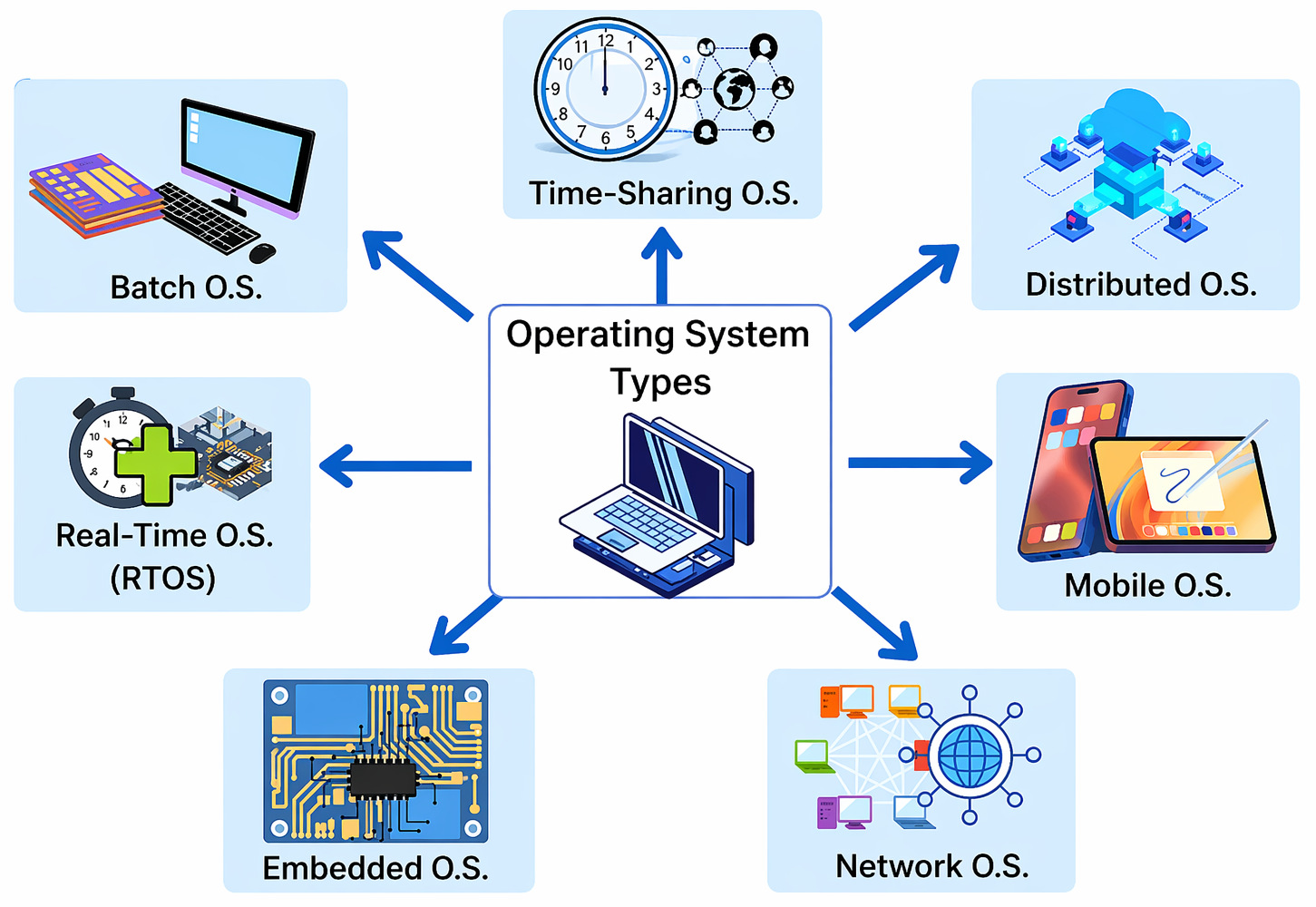
Batch Operating System
This is one of the earlier operating systems wherein users submitted jobs in batches. The OS would then process these jobs one at a time without user interaction. Early mainframes used batch operating systems, but they are mostly outdated today.
Time-sharing Operating System
This is a type of operating system that allows multiple users to access the system simultaneously. The OS rapidly switches between tasks, giving each user a small slice of CPU time, creating an illusion that everyone is working simultaneously.
Distributed Operating System
In a distributed OS, multiple computers are connected via a network, making them appear to the user as a single system.
Distributed operating systems are used in large organizations and research environments.
Real-Time Operating System (RTOS)
- Medical equipment
- Air traffic control systems
- Robotics
- Automotive systems
Real-time operating systems must have predictable response times. Operations in the RTOS are processed in real time as they enter the system.
Mobile Operating System
The mobile operating systems are designed for smartphones and tablets. Android and iOS are the popular mobile operating systems. Mobile operating systems are optimized for smartphones, tablets, and wearables, focusing on touch interfaces, battery management, and connectivity.
Embedded Operating Systems
An embedded operating system manages hardware resources in specialized devices such as smartphones, automotive systems, and household appliances. They are optimized for performance, efficiency, and reliability in resource-constrained environments. Embedded systems are typically lightweight, with minimal user interfaces, and built to run specific applications continuously or in real time.
Network Operating Systems
A network operating system (NOS) manages and coordinates the hardware and software resources of multiple computers connected in a network. It enables communication between devices, file sharing, and resource management across the network.
A NOS allows system administrators to control access and configure settings across all connected devices using features such as network security, user authentication, and centralized administration.
Examples of network operating systems include Microsoft Windows Server, Cisco IOS, and macOS Server.
Popular Operating Systems
Here are some of the widely used operating systems:
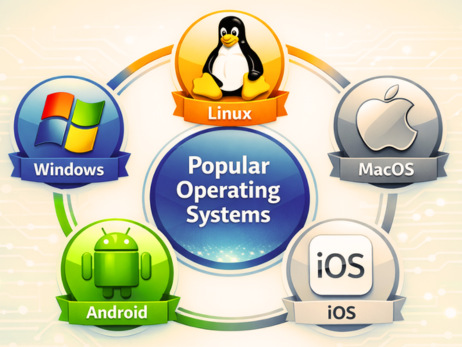
Microsoft Windows
Windows is the most widely used and popular desktop OS. It is commonly used for business and home PCs. Microsoft Windows is a user-friendly operating system and supports a large variety of software. It is most stable for gaming and is available as paid software (pre-installed or licensed).
Linux
Linux is a free, open-source operating system that is highly customizable. It is preferred by most developers and tech-savvy users. Linux is used in servers, supercomputers, and embedded systems.
Linux has many versions, called “distributions,” such as Debian, Fedora, and Arch.
Though Linux provides great control for power users, it has a steep learning curve.
macOS
macOS is developed by Apple and is exclusively used on Mac computers. You cannot install it on custom hardware, and it comes with Macs (not sold separately). It is a stable OS known for its sleek design and strong creative tools.
macOS offers excellent ecosystem integration and is popular among creative professionals.
Android
Android is a mobile operating system developed by Google. It is based on the Linux OS and is a widely used mobile OS in the world. Android OS drives most smartphones, tablets, and smart devices.
iOS
iOS is developed by Apple and is used on iPhones and iPads (Apple devices). It is recognized for its high security and seamless ecosystem integration.
Advantages of an Operating System
- User-Friendly Interface (GUI): Modern OS provide user-friendly graphical interfaces (icons, menus, windows) that make it easy for even non-technical users to interact with computers without needing to know technical programming or command-line coding.
- Multitasking and Performance: Multiple applications can be executed simultaneously (e.g., browsing while listening to music), optimizing CPU time and improving overall system productivity.
- Resource Sharing and Management: The OS efficiently manages hardware resources such as CPU, memory, and peripherals (printers, scanners), ensuring that multiple programs can share them without conflict.
- Data Security and Protection: OSes provide security features such as file permissions, user authentication, and firewalls to protect data and keep personal information private.
- Hardware Abstraction and Drivers: Users can connect various devices (mouse, keyboard) using “Plug and Play” features without needing to write specific code, as the OS manages the necessary drivers and hardware.
- Error Handling and Maintenance: The OS keeps the system running smoothly and securely by detecting errors, managing system failures, and providing tools for software updates.
- File System Management: OS enables users and programs to easily create, read, update, and delete files and directories.
Challenges in Operating Systems
- Security Vulnerabilities: OSes are prime targets for viruses, malware, and ransomware, and thus require constant security patches and updates to protect data.
- High Cost and Licensing: Commercial operating systems like Windows can be expensive, requiring paid licenses and potentially costly upgrades, particularly for large-scale deployments.
- System Instability and Crashes: OS failures, such as the Blue Screen of Death (BSOD) in Windows or kernel panic in Unix-based systems, can cause unexpected system freezes and data loss.
- Resource Consumption and Overhead: Modern OSs consume significant memory and processing power to operate, leaving fewer resources available for user applications.
- Compatibility Issues: Not all software or hardware components are compatible with every OS, limiting user choices and requiring specific drivers.
- Complexity and Learning Curve: The complexity of modern operating systems can create a steep learning curve for new users, especially when dealing with command-line interfaces or deep configuration settings in OSes like Linux.
- Frequent Maintenance and Updates: OSes need to be regularly updated to optimize performance, but these are time-consuming, disrupt workflows, and sometimes introduce new bugs.
- Data Loss Risk: A core OS crash can lead to file system corruption and potential data loss.
The Future of Operating Systems
- AI-Integrated and Active Assistants: Future OSes will be able to anticipate user needs, automate complex workflows, and manage resources based on user habits. AI agents might eventually replace traditional user interfaces (UI).
- Cloud-First and Distributed Computing: OS will seamlessly manage resources across local devices, edge nodes, and cloud data centers, allowing heavy tasks such as rendering or AI processing to be offloaded to the cloud while keeping the local device lightweight.
- Microservices and Containerization: The traditional monolithic OS architecture is evolving toward microservices, enabling more elastic, scalable, and efficient application management.
- Data-centric and Secure Design: Future OSes will offer features to protect data and identity rather than just managing application software, prioritizing security in an era of distributed computing.
- Intelligent Resource Allocation: AI-driven systems will optimize performance and resource allocation by deciding in real time whether to run tasks locally or in the cloud.
- Natural Language Interaction: Keyboard and mouse interactions will be replaced by voice and conversational AI, moving toward a “Star Trek computer” style of operation.
Conclusion
An operating system is the core foundation of every computing device. It manages hardware, resources, runs applications, organizes files, ensures security, and provides a way for users to interact with machines.
Irrespective of the OS or device you are using, it runs silently in the background.
Anyone using computers and other technical/smart devices should understand the operating system to understand how they work. OS is the bridge between humans and machines, the invisible manager that makes modern digital life possible.
As technology advances, OSes will continue to evolve, becoming faster, smarter, and more secure. But their core purpose will always remain the same: to make computers usable, efficient, and reliable for humans.
Frequently Asked Questions (FAQs)
- What is an operating system in simple words?
An operating system (OS) is system software that manages a computer’s hardware and software. It acts as a bridge between the user and the computer, enabling the user to run programs, manage files, and use devices such as keyboards and printers.
- Why is an operating system important?
An operating system is important because it allows the computer to function properly. Without it, you wouldn’t be able to run applications, store files, or interact with hardware devices. It makes the computer user-friendly and efficient.
- What are some examples of operating systems?
Some popular operating systems include:
- Microsoft Windows
- macOS
- Linux
- Android
- iOS
Each is designed for different types of devices, such as computers, smartphones, and servers. - What is the difference between hardware and an operating system?
Hardware refers to the physical components of a computer, such as the CPU, RAM, and hard drive. An operating system is a software program that manages and controls the hardware so it can work properly with applications and user commands.
- Can a computer work without an operating system?
Yes, technically, a computer can power on without an operating system, but it cannot perform useful tasks. Without an OS, you cannot run programs, access files, or use the computer efficiently.
- What is a mobile operating system?
A mobile operating system is designed for smartphones and tablets. Examples include Android and iOS. These systems are optimized for touchscreens, battery efficiency, and mobile apps.
 |