
What Happens When You Delete a File? OS File Deletion Explained
What do you do when you no longer want a file on your computer? You delete it. You click a button, and the file disappears, and that’s the end of the story, right?
There is more to the story.
The actual flow behind what takes place when you delete a file is far more interesting. And also, a little counterintuitive. The majority of the time, your computer will not destroy the file immediately. Rather, it pretends that the file is gone, while it silently hides it.
Let us find out more.
| Key Takeaways: |
|---|
|
How do You Delete a File?
You would usually delete a file by pressing the Delete button or Right-click>Delete. So, when you initiate a deletion request in your File Explorer, you’re not actually eliminating the file from disk.
Imagine you discard a physical paper from your desk; you have thrown it in your trash can.
Is it gone?
Technically, yes, it’s no longer in your workspace. But you or anyone can always access the trash can, take the paper out, and read it. The paper is not completely destroyed until the housekeeping staff comes by, empties the can, and incinerates or sends it to a landfill.
So, this is very similar to the way a computer system functions. When you click ‘Delete’ or clean out your Recycle Bin, you aren’t destroying data; you are only eliminating the label that informs the computer where that data resides.
Digital forensics is based on this very difference between “losing the reference” and “eliminating the data”.
What Happens When You Delete Data (Deletion Illusion)?
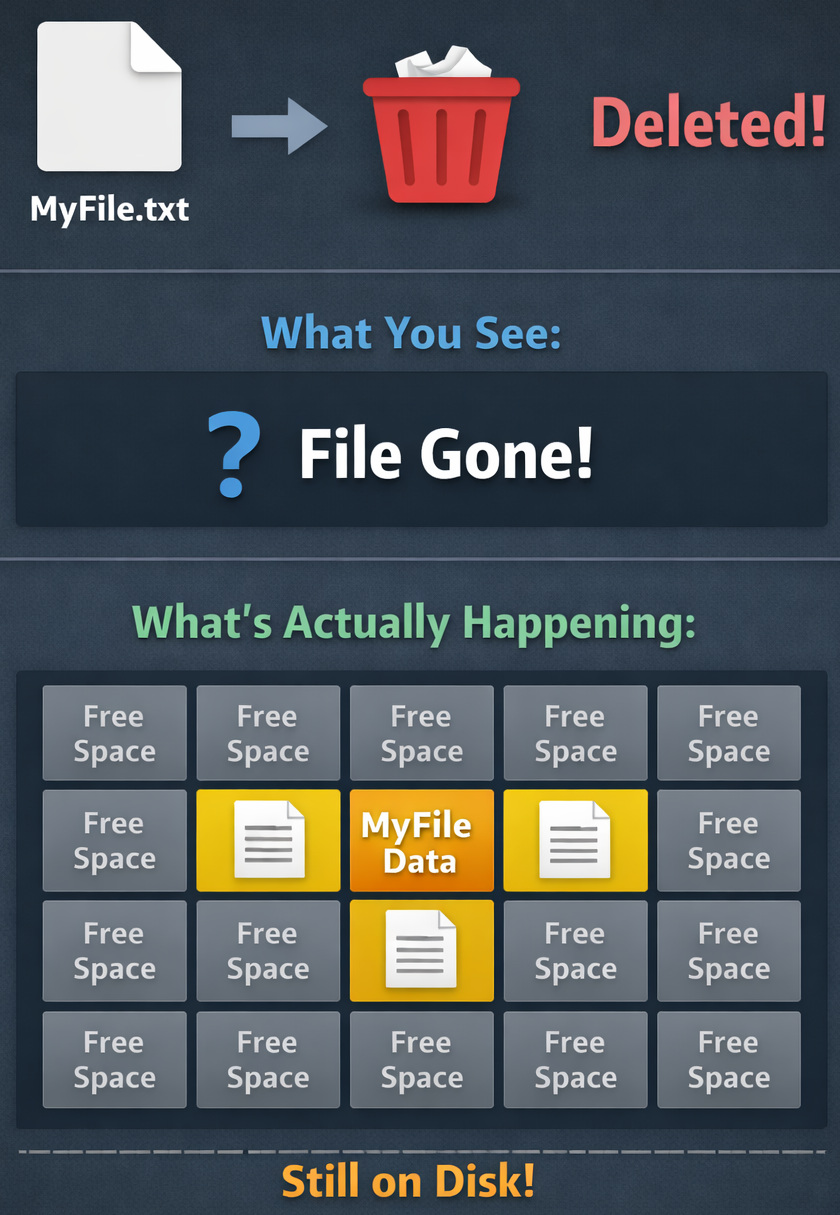
When a file is shifted to the Recycle Bin (Windows) or Trash (macOS), it has not been eliminated from your hard drive. It’s been merely relocated to a temporary holding area. So, the file remains there till you empty the bin, often even after that.
Rather than being immediately removed, the file’s space is marked as available for future/new data. The file’s record is eliminated from the file system (which is the table of contents). As a result, the computer system no longer knows where the file is. So, the actual data is still saved in the drive until something else replaces it.
Almost like removing a label from a container, so the content is still there, just harder to find. The content will be there in the background until it is overwritten.
To fully understand deletion, you need to first understand how the computer stores data. Most modern file systems (such as APFS on macOS, ext4 on Linux, or NTFS on Windows) treat the file data (i.e., the actual content) and file metadata (i.e., information about the file) as two individual things.
Metadata vs. Data
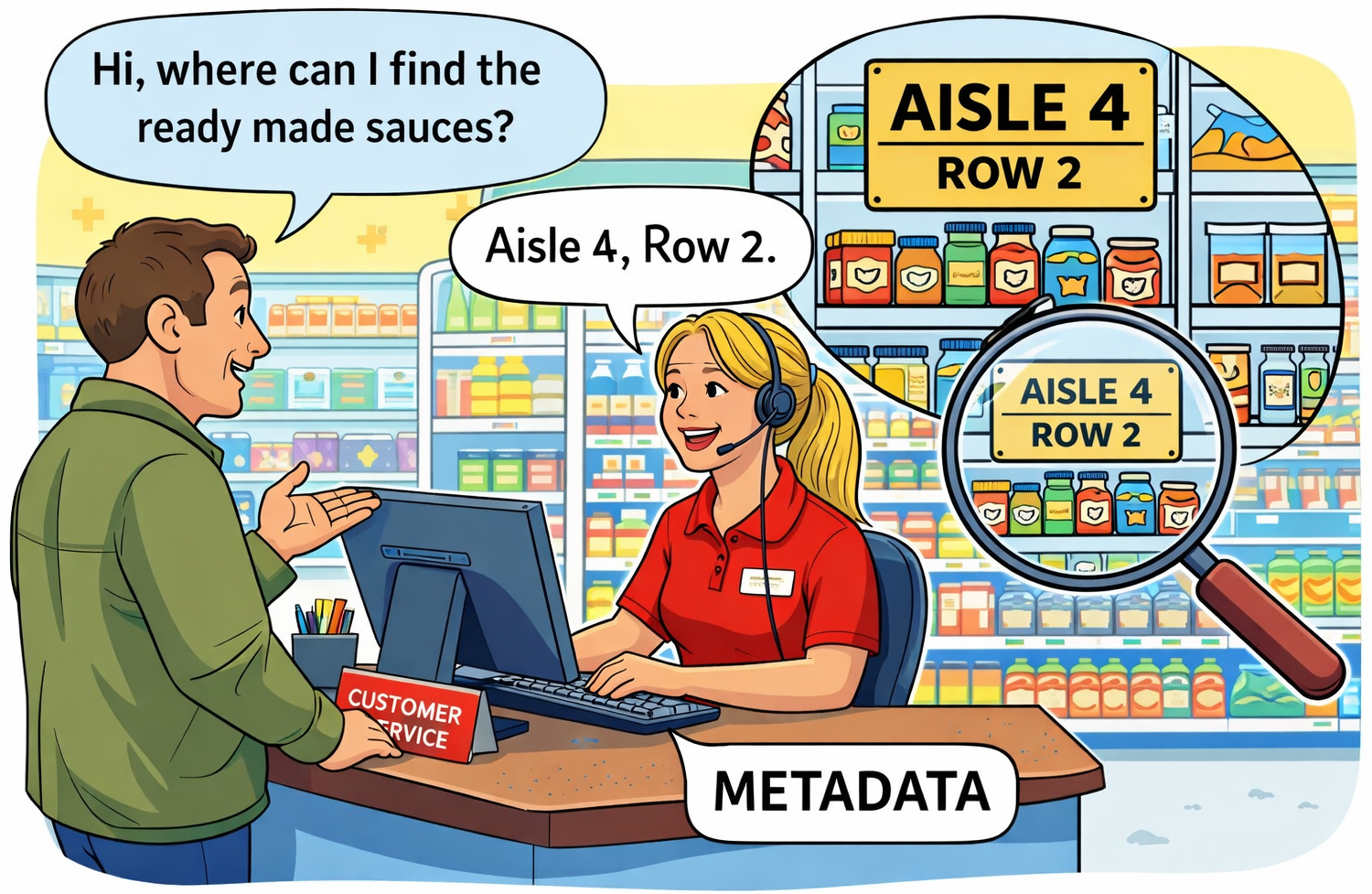
- Data: The actual products on the shelves
- Metadata: The salesperson at the front (computer database) who tells you which product is in which aisle and row.
So, when you create a file, the computer puts the “product” on the shelf and creates a note (aisle and row) in the catalog to find it quickly later.
When you delete the file, the OS doesn’t go to the shelf and throw away the product. It simply takes too much time and effort. Rather, it accesses its catalog, throws away the information related to the product, and marks that space as available for the next product. The product continues to sit on the shelf. Since there is no data pointing to that product, the store considers that shelf spot as open and available for the next items.
You can read: Processes in Operating Systems: Basic Concept, Structure, Lifecycle, Attributes, and More.
The Role of Allocation Tables and Inodes
So, in reality, this “product catalog” is actually managed by structures called Inodes (in Linux/Unix) or the Master File Table (MFT) (in Windows). When you run a delete command, the file systems conduct an “unlink” function. It eliminates the file name from the directory list and updates the map of the drive’s usage (allocation table) to indicate: “the space occupied by these files is now available.”
Read more: How File Systems Work: Inodes, Directories, and Disk Structure Explained.
What is the “Lazy” Deletion Method of OS?
Speed and efficiency are the main reasons why the computer doesn’t erase the data immediately. The process of “writing” data to a drive is expensive (in terms of time and system resources). Say you decided to delete a 40GB folder of 4K videos. The deletion process would take several minutes or even hours based on drive speed, if it had to physically overwrite every individual “0” and “1” with null data to make sure it was gone.
However, the process of “lazy” delete, i.e., only updating the metadata map, is immediate. It allows the instantaneous. It allows the OS to remain responsive and fast.
The Physical Data Blocks: What Happens to Them?
Once the system has eliminated the reference (the “product catalog”) to the file, the physical space occupied by the file enters an intermediate period of suspension.
Marked as Free: The Internal Flag
Internally, the file system modifies the specific structure called the allocation map or bitmap. This is basically a grid of bits where 0 means free and 1 means occupied.
So when a file gets deleted, the bits for that particular space are changed from 1 to 0. However, the electronic or magnetic charge for the actual disk sectors remains unchanged. The file content is still available, byte for byte. Only its protection is removed.
How does the System Reuse the Space?
The simple answer to this is: overwrite lottery.
This explains why the data recovery attempt becomes a game of luck. The computer will not simply use a space marked as “available” immediately.
Complex algorithms are leveraged by OSs to decide where to allocate new files. Mostly, they prefer to place new files in large, contiguous sections of free space to prevent fragmentation.
Case 1, Empty Drive: if the drive is nearly empty, the OS can write new files to sectors far from the deleted file. So, in this case, there is a possibility that the deleted file can still be recovered from the system for months or even years.
Case 2, Full Drive: if the drive is at nearly full capacity, the OS has no choice but to fill in the “gaps” left by deleted files almost instantaneously. In this case, your deleted files get overwritten fast.
Read: Process Control Block (PCB) Explained.
HDD vs. SSD Deletion
Earlier, the mechanics of deletion were largely uniform across the board, as the vast majority used Hard Disk Drives (HDDs). But with new innovations, as the adoption of Solid State Drives (SSDs) increased, the digital forensics and file deletion strategies have changed.
The Magnetic Persistence of HDD: HDDs usually store data physically on spinning magnetic discs. If the OS tells an HDD to write data to sector 4, the drive head shifts to sector 4 and writes it.
So, when we delete a file in the HDD, the above-described behavior takes place. The data is available in the sector until overwritten. Technically, there exists no internal mechanism that will “self-clean” obsolete data. Thus, recovery of deleted data on HDDs is highly successful.
The Flash Memory of SDD: SDDs use NAND flash memory, which has a different physical restriction. You can write to an available space, but you cannot overwrite an existing page without erasing the full block initially.
SSDs resort to using Flash Translation Layer (FTL). Yes, the OS may think it was writing on sector 4, but the SSD controller was doing the writing in a completely different physical location in the memory that happens to be available.
Read: Virtual Memory in Operating Systems: How It Works (With Simple Examples).
Understanding TRIM and Garbage Collection
Did the previous section leave you hanging? It did, because now is when we bring in the TRIM command.
For the older HDD model, the OS knew you had deleted data, not the drive. But in the modern SSD model, during deletion, the OS sends the TRIM command to the drive. It basically means, “We don’t need this metadata anymore, clean it up.”
As a result, the garbage collection is executed (usually within minutes), and the data is lost forever. The space is reset to zero. So, with any modern SSD with TRIM enabled, it is next to impossible to recover data.
Read: Memory Allocation in OS: First Fit vs. Best Fit vs. Worst Fit Explained.
Data Recovery vs. Secure Erasure
Yes, lazy deletion means you have the hope of recovering accidentally deleted data, but it also opens the doors for privacy leaks.
How does Recovery Work?
Think of data recovery solutions as a metal detector. They ignore the obvious file system directory (which has the file marked as gone) and scan the physical sectors of the drive.
They analyze for headers or file signatures. Say, most JPEG images will start with a particular sequence of bytes such as FF D8 FF. If the software identifies that the sequence in a sector that is marked “free”, it means the image is still available.
Read: Paging vs. Segmentation: Difference Between Memory Management Techniques.
Secure Erasure and Overwriting
In order for you to achieve true deletion, you need to do more than just click DELETE. You need to make sure that all the electronic or magnetic footprints have been erased.
Specialized software like the shred command overwrites the specific file location with zeros and ones (random data) multiple times. This is called shredding or secure erasure.
Simply “throwing” away the encryption key for encrypted drives is enough to make the data permanently inaccessible. This is called cryptographic erasure.
Final Thoughts
What happens to the data when you click Delete depends on when you ask and on the hardware being used.
When pressing Delete, the system is merely doing a clerical job. It updates that the space is available. On older HDD systems, the data is available for years after; on a modern SSD system, the data is available only until the next TRIM command.
Frequently Asked Questions (FAQs)
- Does deleting a file permanently remove it from the computer?
A: No, deleting a file usually only removes its reference from the file system. The actual data remains on the storage device until it is overwritten by new data.
- What is the difference between deleting and formatting a drive?
A: Deleting removes individual file references, while formatting resets the file system structure. However, a quick format does not fully erase data; it only removes metadata.
- Why can deleted files be recovered?
A: Deleted files can be recovered because their data still exists on the disk. Recovery tools scan for this leftover data and reconstruct files as long as they haven’t been overwritten.
 |